Viewing Replacement Part
You can view the replacement part for any part if the administrator has configured it.
To view the replacement part:
1. Navigate to Products page.
2. Select a Product that is defined as SBOM.
3. Click on the Lightning Component configured by the administrator. For example, if the name of the Lightning Component is SBOM, click on the tab. The Product Structure is displayed.
4. Click on a part to view the replacement part, if configured. The replacement window displays the part details.
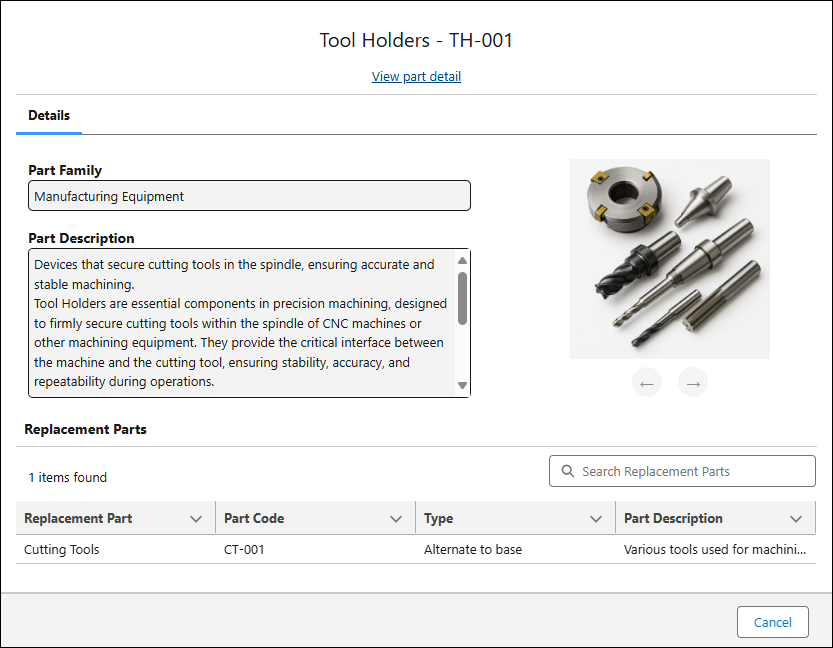
Replacement Window with Image
Replacement Window without Image
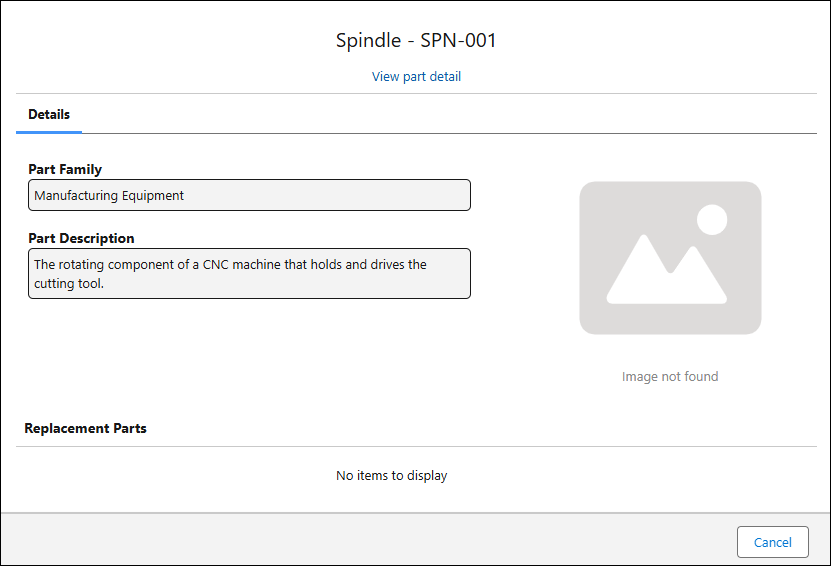
The Replacement Part window displays the following details:
• Product Information: Displays the Product Name and Product Code associated with the selected part. For example: Spindle - SPN-001. Spindle is Product Name and SPN-001 is Product Code
• View Part Detail: Provides a direct link to the Product page where you can view the detailed information about the selected part. This helps ensure you have full context about the part before taking further action.
• Part Family: Displays information about the Product Family to which the part belongs. The product family groups related parts together, helping users understand the broader classification or category of the part. Viewing this information can provide useful context, such as identifying whether the part is part of a standard series, belongs to a specific product line, or has variants that may also be relevant for replacement or compatibility.
• Part Description: Displays the part description that may contain more information than what is displayed in the initial view. By scrolling within this section, you can access extended details. This ensures that users do not miss important information that could affect part selection or replacement decisions.
• Attached image. If images are attached to the part, they are displayed within the window. These images can provide a visual reference to confirm the correct part, understand its orientation, or compare it against the original component. When multiple images are available, you can use the arrow keys to navigate through them, making it easier to examine the part from different angles or review multiple variations.
• Replacement Parts: This section lists all available replacement parts for the selected item. If multiple replacement options are configured, you can use the search feature to quickly locate the desired part. This simplifies the process of identifying and selecting suitable replacements, especially when multiple choices are available.