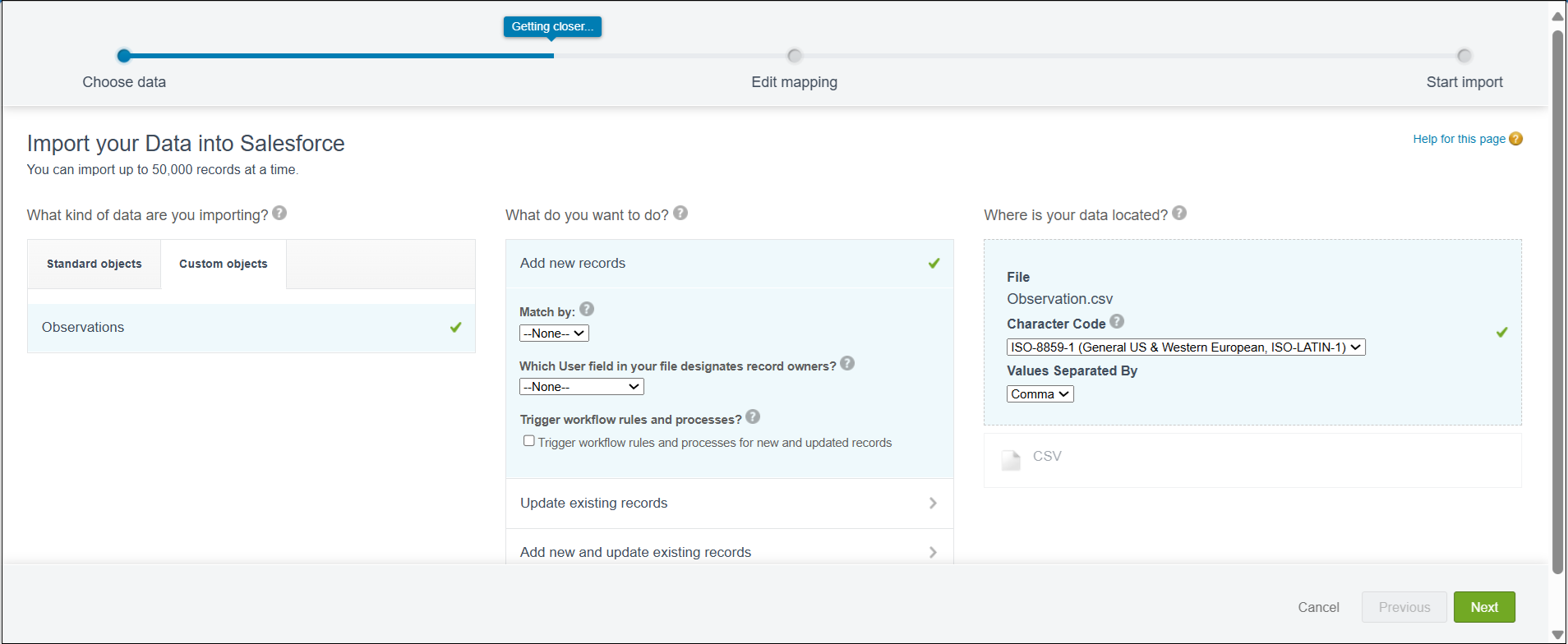
Selecting Import Options and Uploading CSV for Observations
This section describes how to select the appropriate import options and upload the CSV file.
To select import options and upload the CSV file:
1. Go to ServiceMax Setup > Investigations > Manage Observations.
The Observations screen is displayed.
2. Click Import.
The Import your Data into Salesforce page is displayed.
3. In the Custom Objects tab, click Observations.
4. Under What do you want to do? section, select one of the following:
|
Option
|
Description
|
|---|---|
|
Add new records
|
Imports only new records from the CSV file.
|
|
Update existing records
|
Updates records already in Salesforce using matching criteria you specify.
|
|
Add new and update existing records
|
Adds records that don’t exist and updates records that match your criteria.
|
The following optional settings apply to all options in the above table:
◦ Match by – Match existing records using the selected field.
◦ User field for record owners – Assign ownership by selecting a user field.
◦ Trigger workflow rules and processes – Run automation for new and updated records.
5. Under Where is your data located? section, select CSV.
a. Click Choose File to browse and select the CSV file.
b. Ensure Values separated by is set to Comma.
c. Retain the default Character Code, unless you require a different encoding.