Editing a Solution
You can edit an existing solution.
To edit a solution:
1. Go to ServiceMax Setup > Investigations > Manage Solutions.
The Solutions page is displayed.
2. To view all solutions, click All Solutions from the list view dropdown.
A list of solutions is displayed, including the title, description, active status, last modified by, and last modified date.
3. Use the Search box to find solutions by title or description.
4. Click the Solution title to open the Details tab, and then click Edit.
The Edit Solution pop-window is displayed.
 |
You can also update a solution in the following ways:
• On the Details tab, click the Edit Solution Title, Edit Solution Description, or Edit Work Plan pencil icon, and then update the required field.
• On the Solutions page, click the More Actions menu next to the Solution and select Edit, and then update the required fields in the pop-up window.
• On the Solutions page, hover over the Solution Title, Solution Description, or Work Plan, click the pencil icon to enable in-line editing, and then make the changes.
In-line edits save automatically when you press Enter or click outside the field.
|
5. After making changes, click Save to apply, Save & New to continue with another solution, or Cancel to discard your edits.
|
|
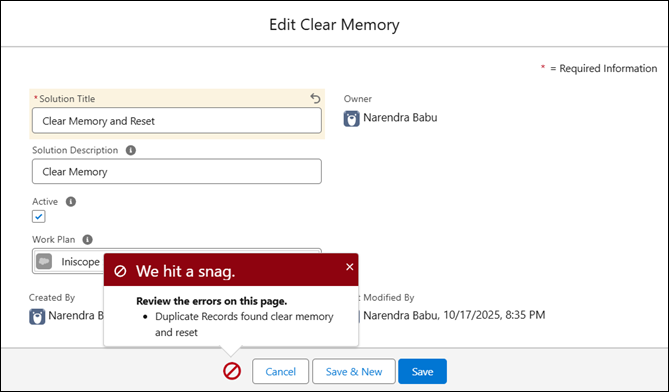
If a duplicate Solution Title already exists, the system displays an error message and prevents saving. Solution titles must be unique.
 |
The solution is updated.