Creating a Root Cause Applicability
You can create a Root Cause Applicability to link a root cause with specific products, product lines, product families, or custom fields.
To create a Root Cause Applicability:
1. Click the App Launcher, type Root Cause Applicabilities in the search bar, and select it from the results.
The Root Cause Applicabilities page is displayed.
2. Click New.
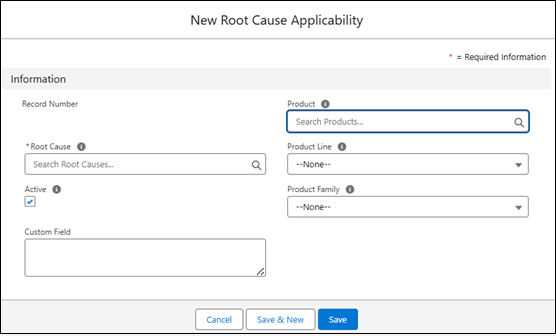
The New Root Cause Applicability pop-up window is displayed.
 |
You can also add a Root Cause Applicability for a particular root cause. Go to ServiceMax Setup > Investigations > Manage Root Causes, select the required root cause, select the Related tab, and click New in the Root Cause Applicabilities section.
|
3. Provide the details for the fields as described in the following table.
|
Field
|
Description
|
||
|---|---|---|---|
|
Record Number
|
Displays the auto-generated Record Number. This field does not appear during creation and is shown only after you save the record.
|
||
|
Root Cause
|
Displays the Root Cause to which Root Cause Applicability is associated. Search and select a root cause from the available list.
|
||
|
Active
|
Indicates if the Root Cause Applicability is active. The checkbox is selected by default.
|
||
|
Product
|
Displays the Product to which the Root Cause Applicability is associated. Search and select a specific product from the available list.
|
||
|
Custom Field
|
Displays a custom field configured by the administrator. Depending on the setup, it can appear as a text box, lookup field, or dropdown. The field captures additional information related to the Root Cause Applicability. Enter or select the appropriate value in this field based on your organization’s configuration and data requirements. If the field is a lookup or dropdown, search for or select correct value from the available options.
|
||
|
Product Line
|
Displays the Product Line to which the Root Cause Applicability is associated. Select the relevant product line from the available list.
|
||
|
Product Family
|
Displays the Product Family to which the Root Cause Applicability is associated. Select the relevant product family from the available list.
|
4. To complete the action, click Save to apply changes, Save & New to add another root cause applicability, or Cancel to discard changes.
|
|
The following are the error scenarios when creating a Root Cause Applicability:
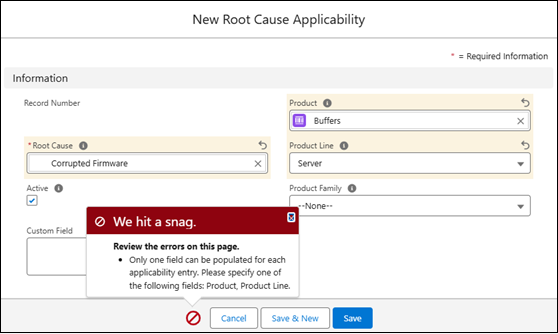
• When creating an Root Cause Applicability, select only one field (Product, Product Line, or Product Family). If more than one field is selected, the system displays an error.
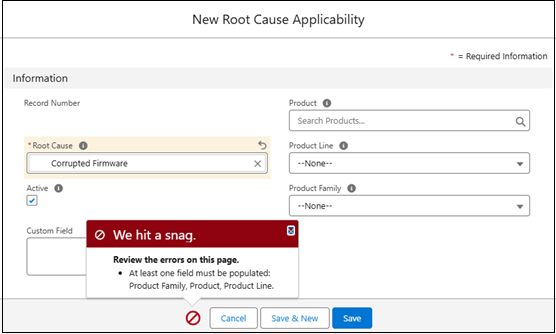
 • If none of the fields Product, Product Line, or Product Family is selected, the system displays an error message and prevents saving the record.
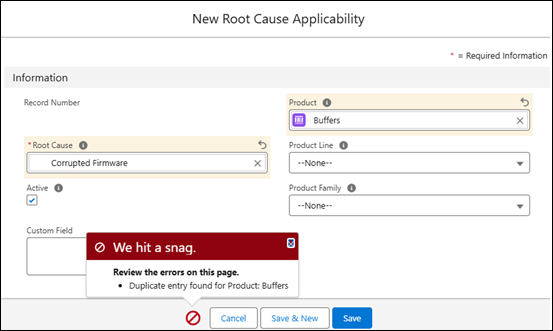
 • If you create a root cause applicability with the same Product, Product Line, or Product Family as an existing record, the system displays an error message and prevents saving.
 |