Configuring Installed Product Source for Service Requests
You can configure how the system determines the Installed Product when creating a new Investigation from a Service Request. This ensures Observations, Root Causes, and Solutions are applied correctly.
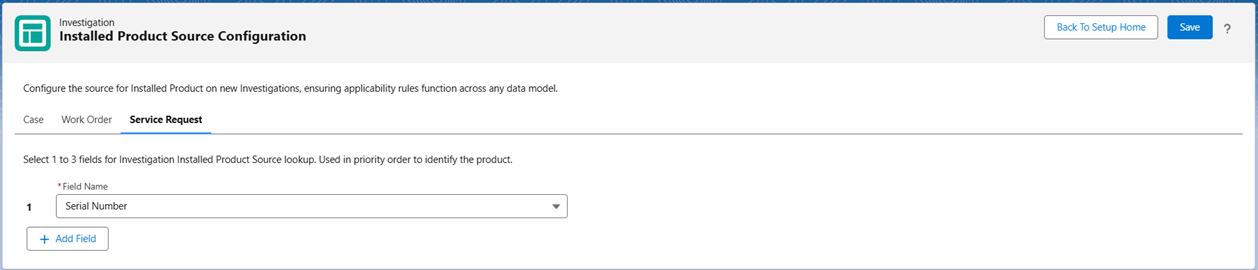
To configure the Installed Product Source for Service Requests:
1. Go to ServiceMax Setup > Investigations > Installed Product Source.
2. Select the Service Request tab.
The Field Name drop-down displays all available sources to the Installed Product Service Request object.
3. From the Field Name drop-down, select the required source.
4. To add another source, click Add Field.
 |
You can add up to three sources in total. Once three sources are added, the Add Field button is disabled. The system checks the sources in the order listed and uses the first one that returns a valid Installed Product.
|
5. To remove a source, click the Delete icon next to it.
|
|
The Delete icon appears only when more than one source is listed. It is not displayed when only one source remains.
|
6. Click Save to apply the changes.
|
|
Changes are applied only when you click Save. Navigating away without saving will discard them.
|
Investigations created from a Service Request use the configured sources to determine the Installed Product.
For more information on how to add observations, root causes, and solutions to an investigation, see Adding Dictionary Items.