Adding Dictionary Items in a Case
You can add new Observations, Root Causes, or Solutions to an Investigation while working on a Case. Adding dictionary items allows Remote Service Engineers (RSEs) to record findings, diagnoses, and preliminary resolutions directly in the Investigations widget, ensuring that all entries are linked to the correct Installed Product and stored as part of the Case record for future reference.
To add dictionary items:
1. Locate the Case by searching in the sidebar or selecting it from the Cases tab, and then click the Case number to open it.
The selected Case is displayed.
2. Select the Investigations tab.
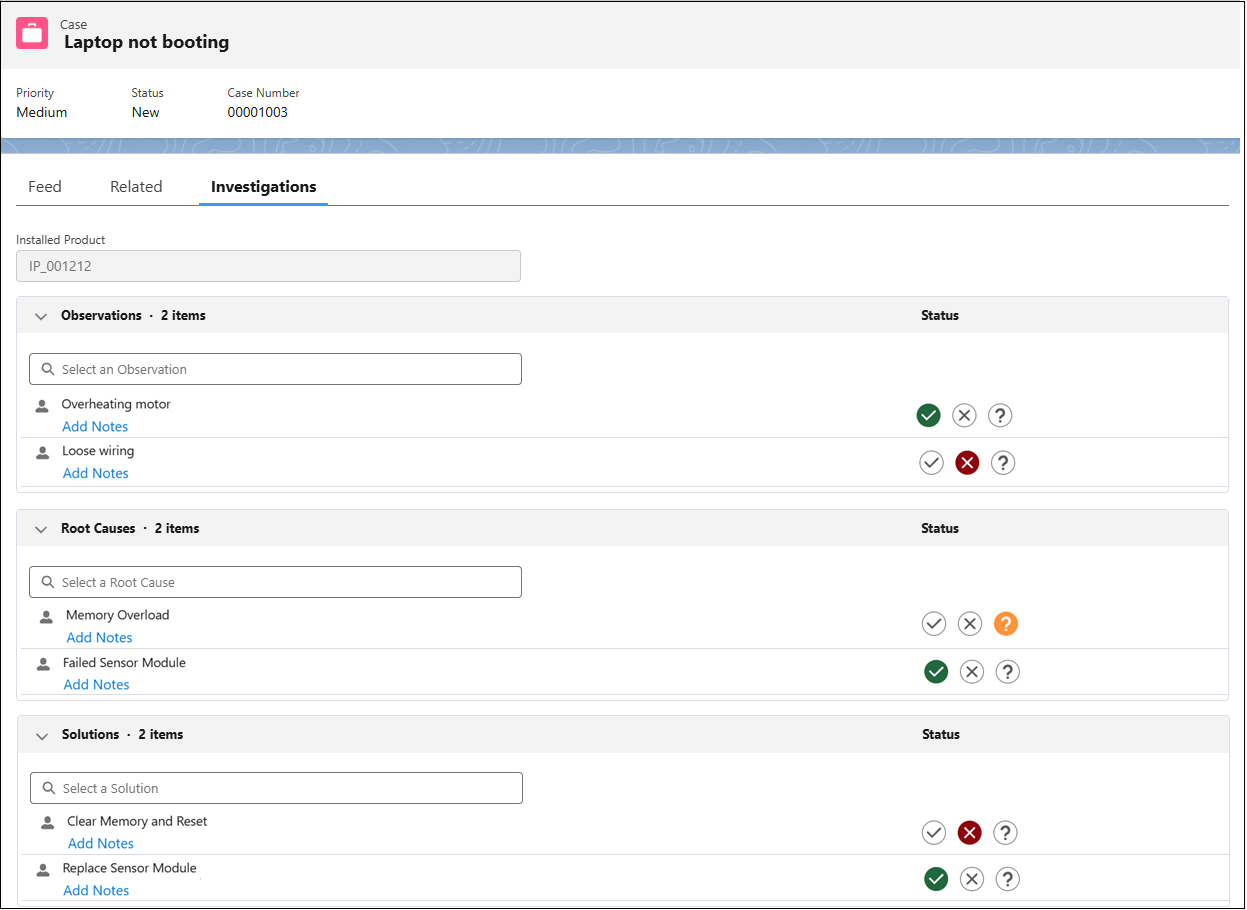
The tab displays sections for Observations, Root Causes, and Solutions associated with the Case.
The Installed Product field is displayed as read-only and shows the product associated with the Case. This ensures that all Investigation items you add are linked to the correct Installed Product.
3. In the Observations, Root Causes, or Solutions section, enter a keyword in the search box and select the appropriate item from the results.
The selected item is automatically added to the Investigation and appears in the corresponding list.
 |
• You can add only one item at a time.
• Only items applicable to the selected Installed Product are displayed.
• Newly added items appear at the top of their respective sections (Observations, Root Causes, or Solutions).
• Dictionary items already added to the investigation appear disabled in the dropdown and display a checkmark. Hover over a disabled item to view the tooltip Already added to the table. Selecting the item does not add it again.
|
Each item displays the following information:
◦ Item name: The name of the Observation, Root Cause, or Solution selected from the dictionary.
◦ Status icon (✓, ✗, ?): The status icon reflects the current state of the dictionary item. Hovering over the icon shows its status label (for example, Confirmed). Each investigation item shows a Status icon for quick identification. For information about the status indicators displayed on each item, see Dictionary Item Status Indicators.
◦ Origin icon (person or robot): A person icon represents a human-entered item, and a robot icon indicates an AI-suggested item. Hovering over the icon displays a tooltip showing the most recent editor’s name and the timestamp of the update in your local time zone.
|
|
If no investigation data exists, the widget displays empty sections for Observations, Root Causes, and Solutions.
|
Each section header (Observations, Root Causes, and Solutions) displays a count (for example, 2 items). This count updates automatically as items are added or removed from the Investigation.
All selected dictionary items are saved automatically and become part of the Case’s Investigation record. These items remain visible and can be reused when the Case progresses to a Work Order.
|
|
You can add notes to any dictionary item to capture additional details, context, or follow-up information. For more information, see Notes on Dictionary Items.
|
Related Topics