Installing Engage Extension Package
Once you have subscribed to ServiceMax and have a valid Salesforce login, the ServiceMax technical support team sends the installation links to you by email.
Use the following steps to install the ServiceMax Engage extension package in your Salesforce org:
1. In a recommended browser, open the installation URL.
2. Enter your username and password for the Salesforce organization in which you want to install the package, and then click Log In.
3. From the package installation page, choose an installation option from the following:
◦ Install for Admins only: Select this option to install the package only for business administrators. It provides the Modify All option to Object permissions.
◦ Install for All Users: Select this option to install the package for all users.
◦ Install for Specific Profiles: Select this option to install the package only to specific users. It enables you to choose the users to access all custom profiles.
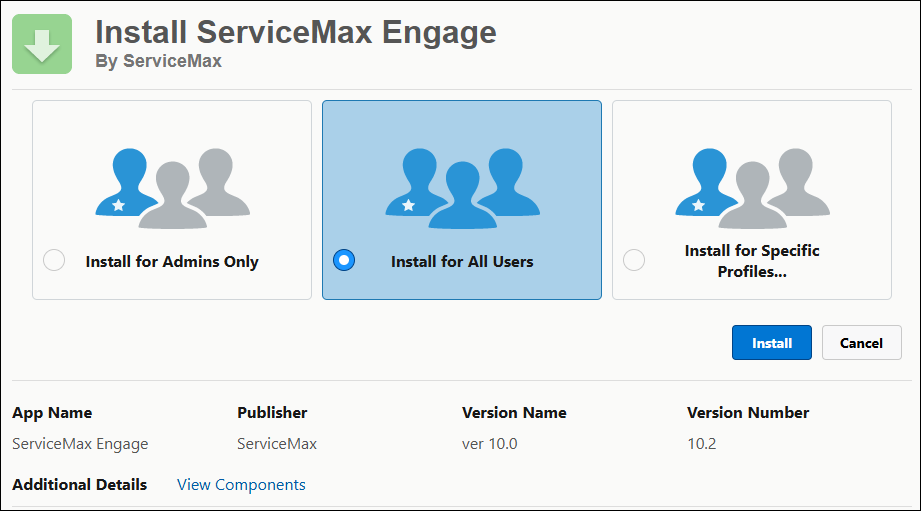
4. Click Install. The installation process starts.
 |
If the installation takes a long time, a message is displayed on the screen showing the progress.
|
5. Click Done when the installation is complete. You are redirected to the Installed Package page. You receive an e-mail on the installation status once the installation is complete.
|
|
If the installation of the ServiceMax Engage extension package in your Salesforce org fails with the reason — Missing Organization Feature: NetworksEnabledOnce, then ensure that Enable Digital Experiences is enabled.
Navigate to > > to verify.
|