Configuring Layout Information
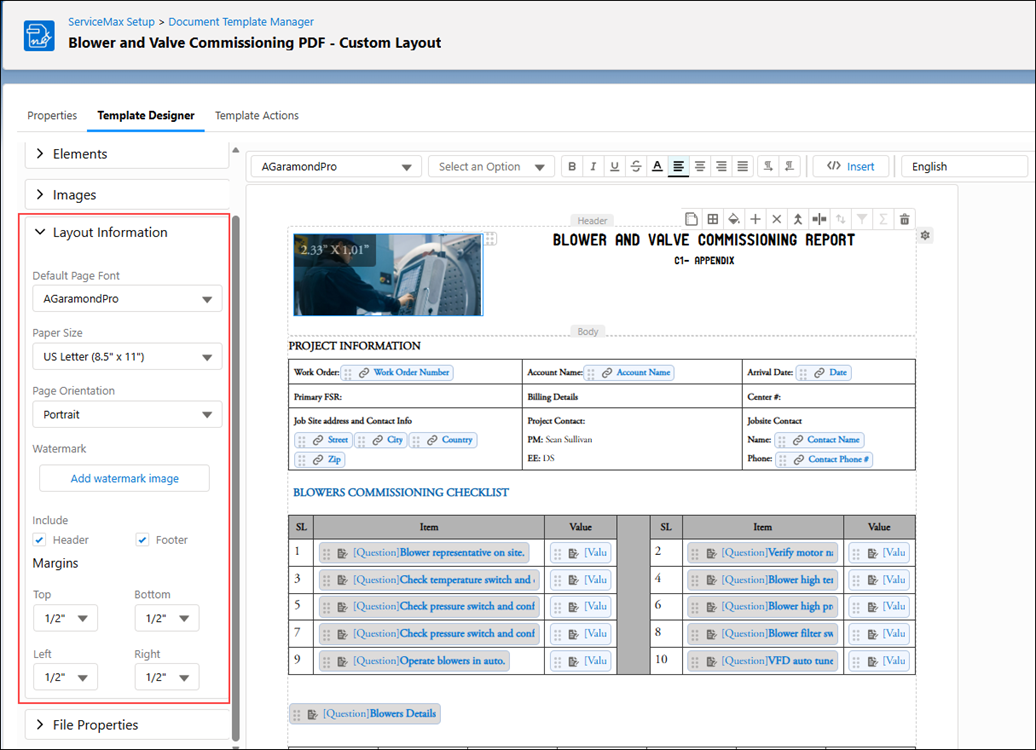
Layout Information enables you to control the foundational structure, branding, and presentation of documents generated through DataGuide Templates. The configuration ensures that all customer-facing documents maintain a uniform, professional appearance that aligns with organizational standards and compliance requirements.
By defining global settings such as fonts, paper size, orientation, margins, headers, footers, and watermarks, you can create a visually consistent template framework that supports readability, strengthens brand identity, and enhances customer trust. These settings act as the backbone for every template, ensuring that generated documents, such as service reports, work order summaries, inspection records, and asset documentation, follow a standardized structure regardless of the data they contain.
This configuration is especially valuable for organizations handling high document volumes or operating across multiple teams and regions. Standardized layout properties reduce inconsistencies, prevent formatting errors during printing, and eliminate the need for you to adjust formatting manually. Features like custom font usage, regional paper-size selection, and watermarking further help organizations meet branding guidelines, regulatory requirements, and internal communication standards.
The following table provides detailed descriptions of each element available in the Layout Information section.
|
Element
|
Description
|
||
|---|---|---|---|
|
Default Page Font
|
Defines the primary font used across the entire document template. This setting ensures consistent branding, readability, and visual uniformity for all customer-facing or internal documents. Selecting an appropriate font enhances the professional appearance of inspection reports, service summaries, and work-order-related documentation.
You can also set custom fonts, uploaded through the library, as the Default Page Font, allowing your organization to fully apply its branding guidelines across all generated documents. For more information, see Custom Fonts.
To change the font:
1. Click the font-name dropdown to view the complete list of available fonts.
2. Select a different font from the available list.
|
||
|
Paper Size
|
Determines the physical dimensions of the generated document. Choosing the correct size ensures proper formatting across regions and reduces layout issues during printing or digital viewing.
Available sizes:
• 8 1/2 in x 11 in (US Letter): Commonly used for customer reports.
• 8 1/2 in x 14 in (US Legal): Ideal for documents requiring extended vertical space, such as detailed service records.
• A4 (International Letter): Standard for most global regions and recommended for international customers.
|
||
|
Page Orientation
|
Controls how the document content is presented on the page. Orientation influences overall layout and the arrangement of tables, and images.
Options include:
• Portrait: Best suited for narrative-heavy reports, descriptions, and customer communication.
• Landscape: Ideal for wide tables, multi-column layouts, or data-rich sections requiring additional horizontal space.
|
||
|
Watermark
|
Adds a watermark image that appears centered on every page of the document. Watermarks help reinforce branding, denote document status (e.g., Draft, Confidential), or ensure authenticity during audits.
You can add a watermark to the Document Template. For more information, see Adding Watermark.
|
||
|
Header
|
Enables or disables the header section. Headers typically include elements such as logos, report titles, or customer information. Activating a header ensures each page carries consistent identifiers and maintains a professional, branded appearance.
|
||
|
Footer
|
Enables or disables the footer section. Footers commonly include page numbers, disclaimers, legal notices, or support contact information. Including a footer ensures consistency, supports compliance, and provides a clean, structured document format.
|
||
|
Margins
|
Defines the space between the document content and the edge of the page. Setting appropriate margins ensures clean visual structure, prevents content from being clipped during printing, and improves readability.
You can configure:
• Top
• Bottom
• Left
• Right
Select margin values from the drop-down menus to achieve the desired layout spacing.
|

Related Topics
Reference Topics