Finalizing the PM Plan
To configure the Finalize tab:
1. In the New Preventive Maintenance PM Plan Wizard, go to Finalize tab.
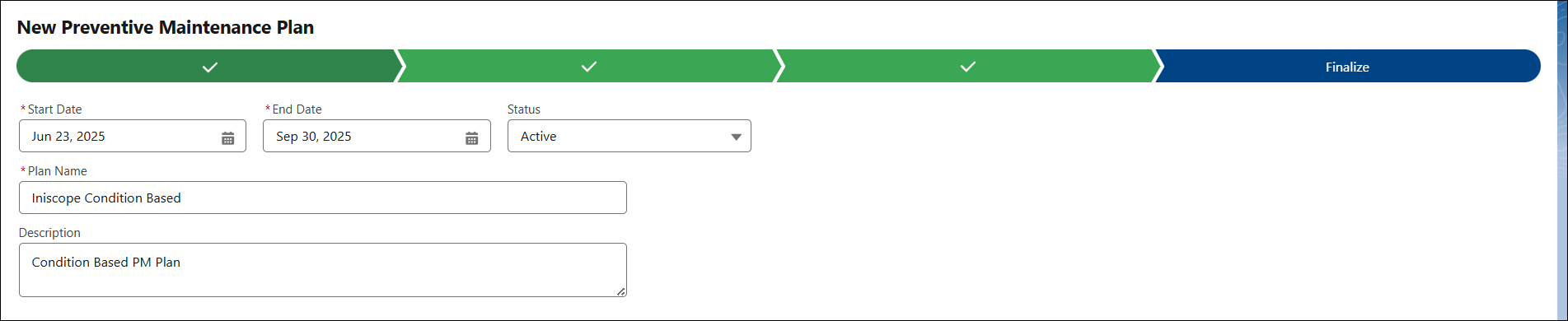
2. Provide the details for the fields as described in the following table:
|
Fields
|
Description
|
|---|---|
|
Start Date
|
The Start Date is auto-populated for the current date. You can modify it based on your requirements.
|
|
End Date
|
Select the End Date of the plan. It should be a future date. The scheduled date should not go beyond the Start and End Date.
|
|
Status
|
Select the required status of the PM Plan. For example, Active.
|
|
PM Plan Name
|
Enter a name for the PM Plan.
|
|
Description
|
Enter a description for the PM Plan.
|
3. Click Save.