Selecting SFM
You can select the Service Flow Manager transactions that users can reference through the SFM Agent. Only eligible SFMs, based on supported types and source objects, are available for selection. Limiting the SFMs ensures that AI executes only valid and meaningful transactions.
|
Prerequisites
|
|---|
|
Before you configure the SFM agent, ensure the following:
• The SFM type is To Create Target from Source, To Create Standalone, or To Update Existing Record.
• The source object is Account, Work Order, Installed Product, Location, or Case.
• The SFM must not already be enabled for AI access.
• The user must have Edit permission on source objects to update existing records.
|
To configure SFM, perform the following steps.
1. Navigate to > > .
The ServiceMax AI Console is launched.
 |
You can also log in directly at https://console.servicemax.io/ai with your Salesforce org credentials.
|
2. Navigate to > .
The Service Flow Manager page is displayed.
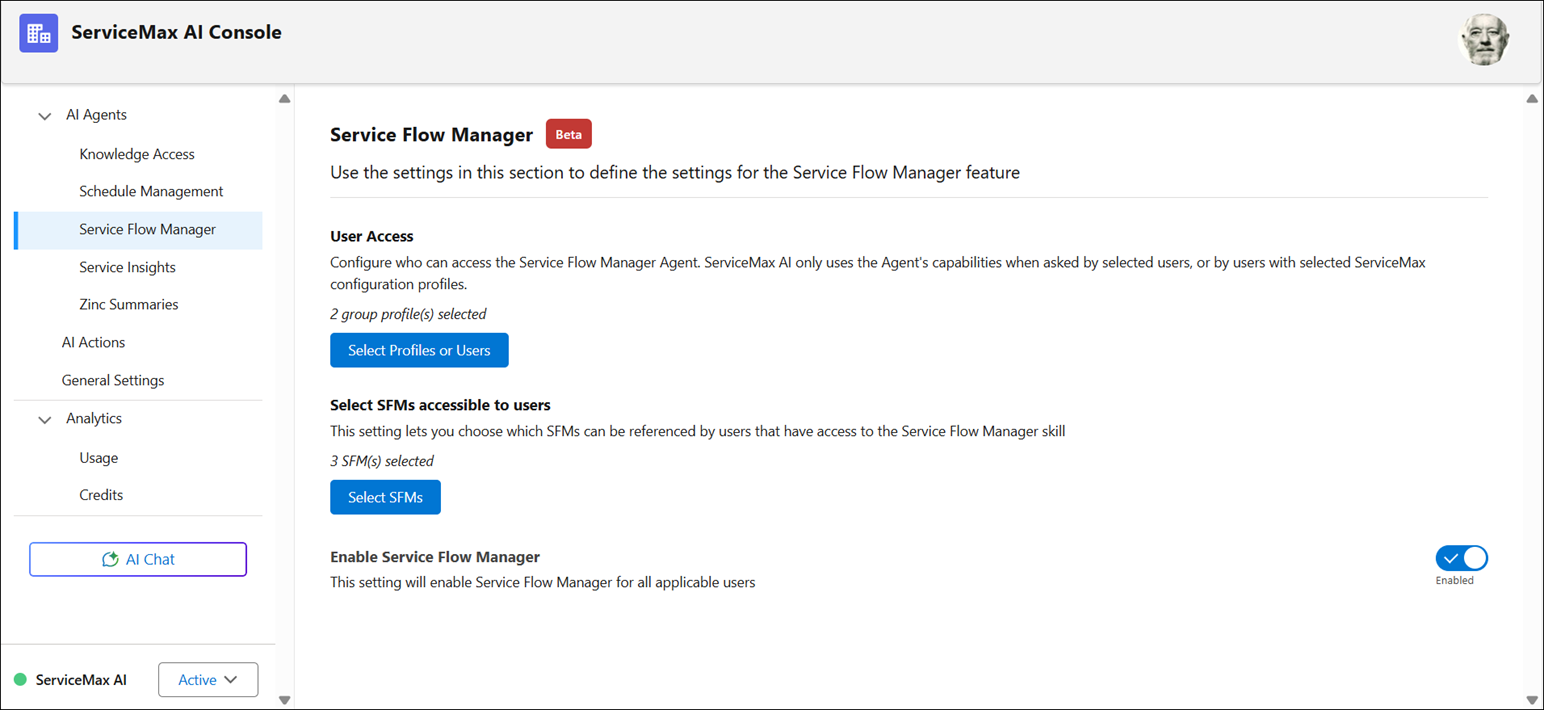
3. Click Select SFMs.
The Select SFM Transactions window is displayed with the number of SFM transactions currently enabled for the agent. The SFMs are listed alphabetically, and each entry includes SFM Name, Type, Source Object, Target Object, and SFM Description.
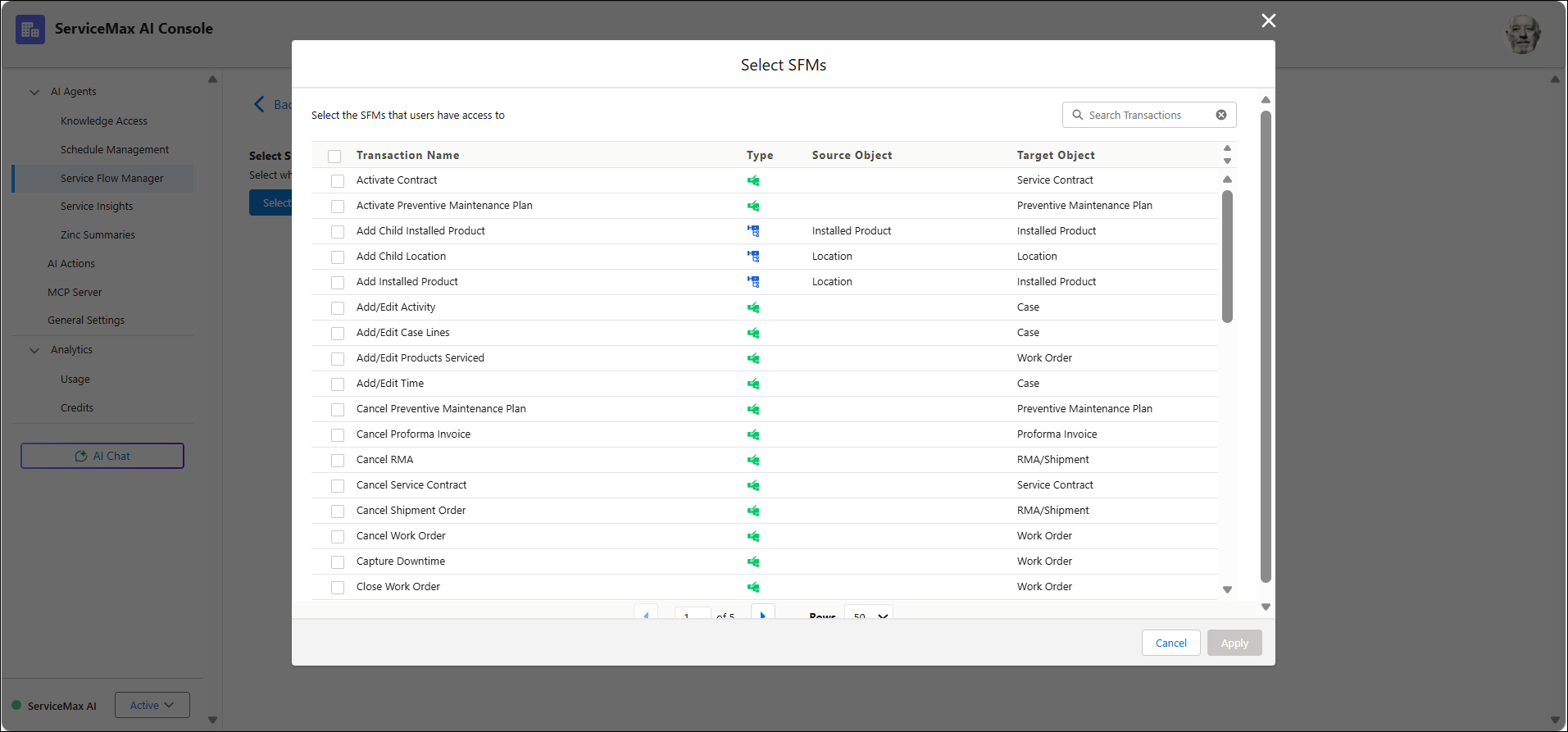
The following table describes each field shown in the SFM transaction list.
|
Field
|
Description
|
|---|---|
|
Name
|
Displays the title of the SFM transaction and describes the action it performs.
|
|
Type
|
Indicates whether the transaction creates a new record or updates an existing record.
|
|
Source Object
|
Identifies the object that provides the context for the transaction.
|
|
Target Object
|
Identifies the object that the transaction creates or updates.
|
|
SFM Description
|
Explains the purpose of transaction.
|
|
Delete
|
Removes the corresponding SFM transaction from the list. This is useful for managing and cleaning up unnecessary entries.
|
4. Review the list of enabled SFMs.
5. Click Select SFMs.
The Select SFMs window is displayed with eligible SFMs that are not enabled.
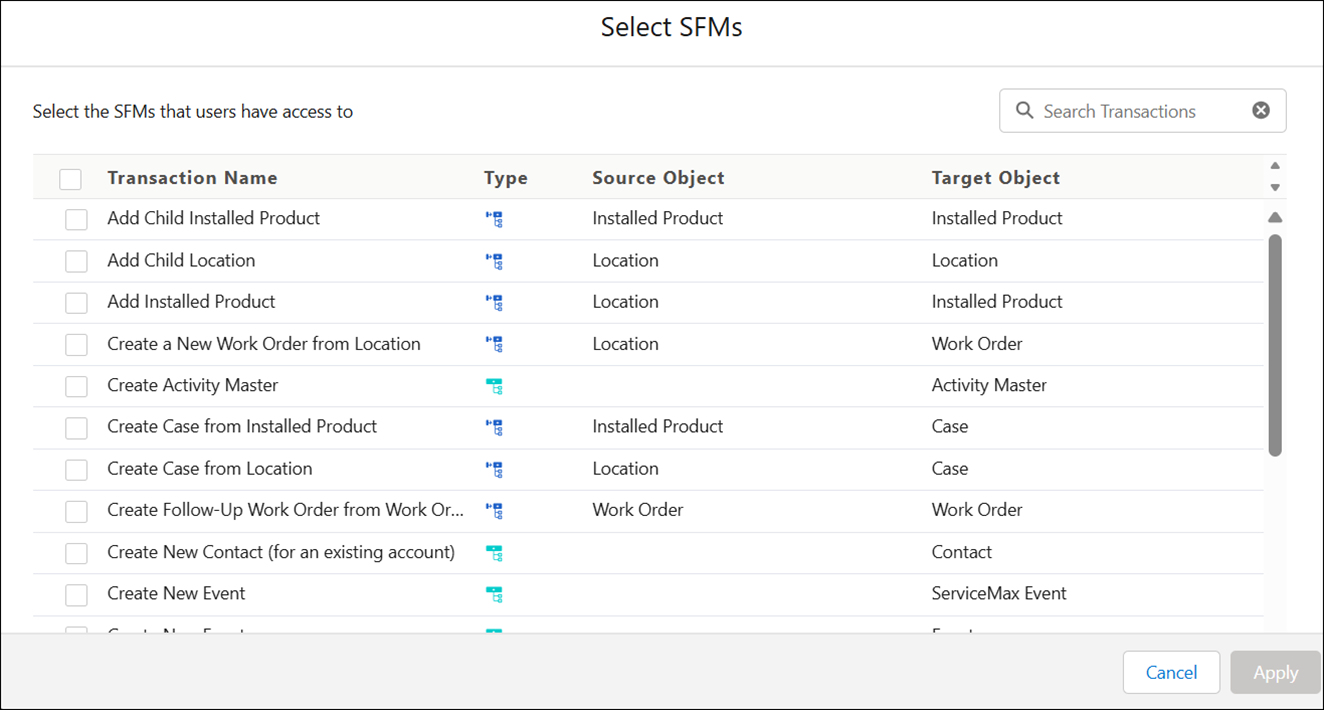
6. Use the search bar to find SFMs by name or click the checkbox and select Apply.
The SFM is automatically saved and added to the list of enabled transactions once selected. No manual save action is required, and the AI Console confirms the update. The newly added SFM is available, and you can insert the transaction during Configuring AI Actions.