Configuring Language Support
AI Chat supports configuration for multiple languages, allowing users to interact with the system in their preferred language. This setup ensures that UI labels, system messages, and AI responses are localized appropriately, improving accessibility and usability across global teams. This configuration is essential for organizations operating in multilingual environments. It enables seamless communication and reduces dependency on English-only interfaces. For more information about the list of supported languages, see Language Support and Translations.
Use Cases
The following list represents some use cases for configuring language support:
• Enable French UI and chat responses for field teams in France.
• Configure Japanese as the default language for users in Japan.
• Default to English when a selected language is not supported.
|
Prerequisites
|
|---|
|
To enable this feature, ensure the following:
• Admin access to the user profile.
• Supported language must be available in the system’s language settings.
|
To configure languages, perform the following steps.
1. Log in to your Salesforce org.
2. Click your profile icon in the top-right corner.
3. Select Settings.
4. On the sidebar, go to My Personal Information > Language & Time Zone.
The Language & Time Zone window is displayed.
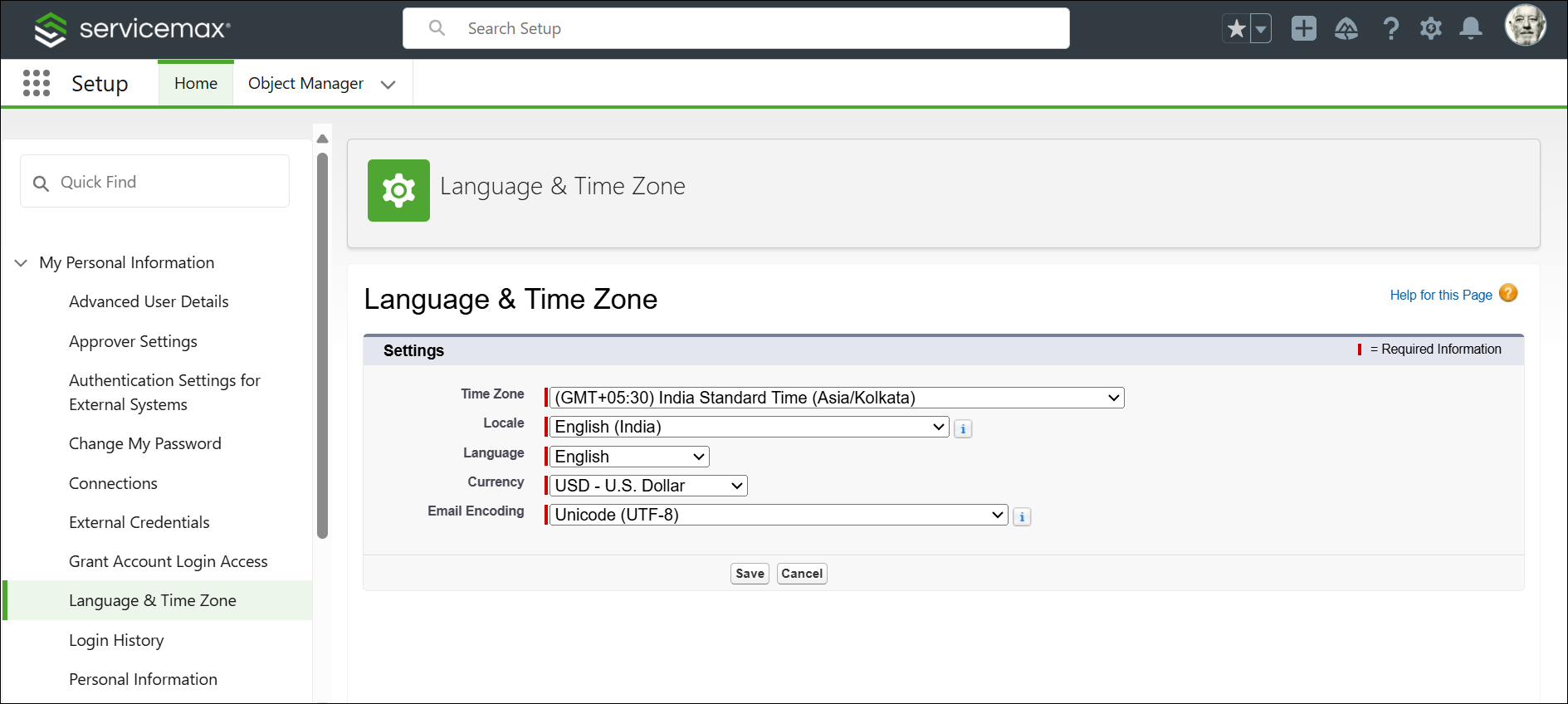
5. In the Language field, choose your preferred language from the dropdown. For example, French or Japanese.
6. Click Save.
The language is updated, and the UI labels and system messages reflect the selected language.