Enabling User Access for Schedule Management Agent
You can select user profiles or individual users to enable access to Schedule Management agent in the AI Console. This ensures that only authorized users can use AI features.
To enable user access, perform the following steps.
1. Navigate to > > .
The ServiceMax AI Console is launched.
 |
You can also log in to the ServiceMax AI console directly at https://console.servicemax.io/ai with your Salesforce org credentials.
|
2. Navigate to > > .
The Schedule Management page is displayed.
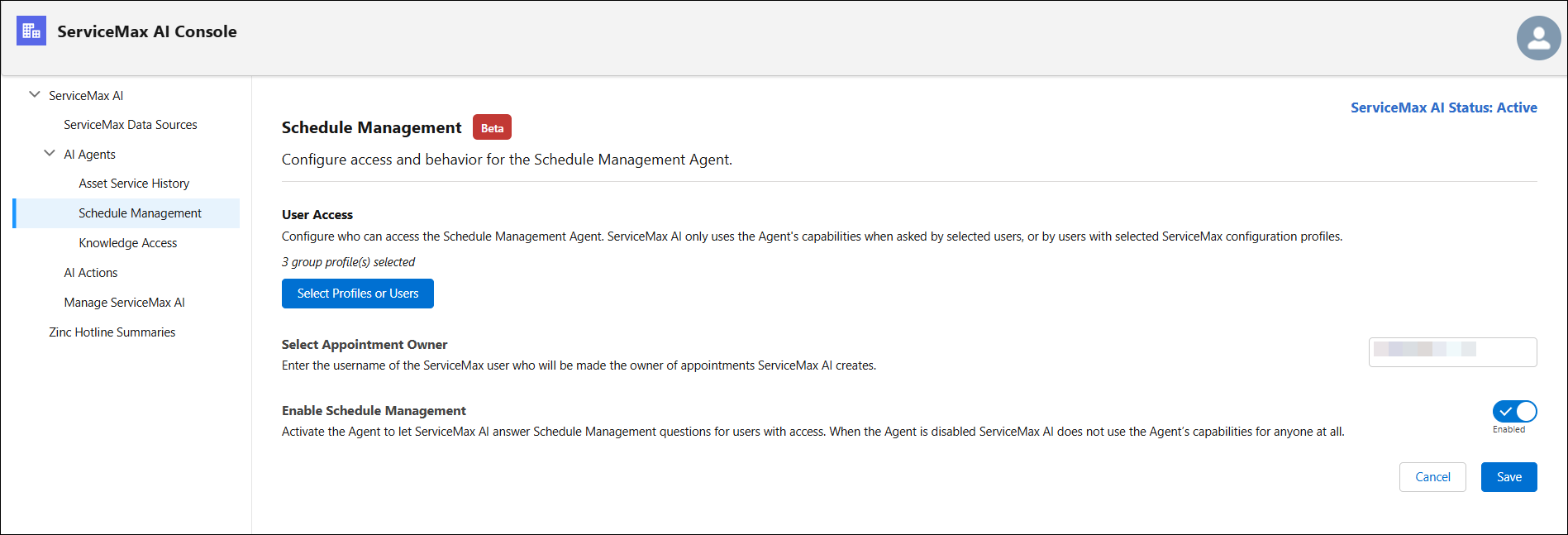
3. Click Select Profiles or Users to select the user profiles or individual users for whom you want to enable user access for schedule management.
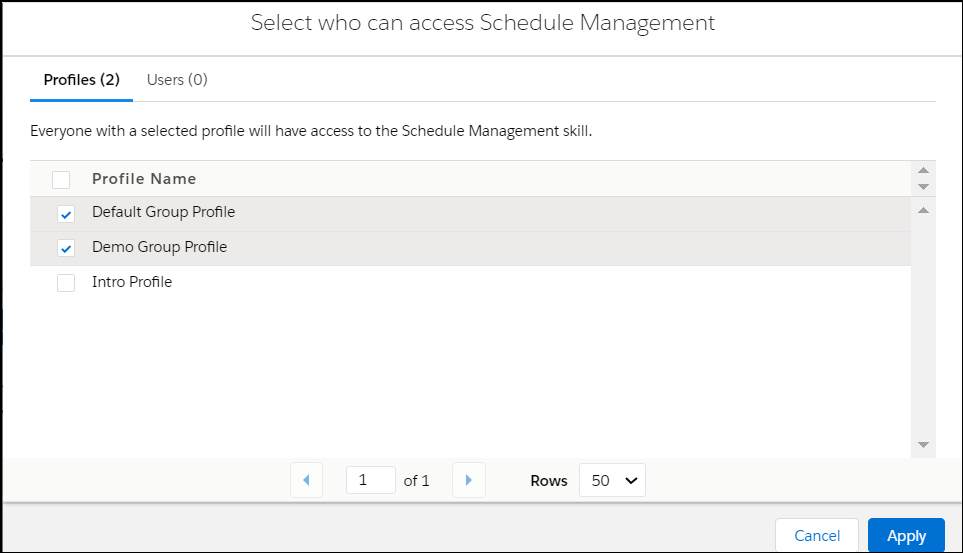
The window is displayed.
◦ Select the user profiles in the Profiles tab of the window.
|
|
• You can scroll through the window to view all the profiles.
• If there are multiple profiles, you can paginate the view. You can define how many rows must display per page.
|
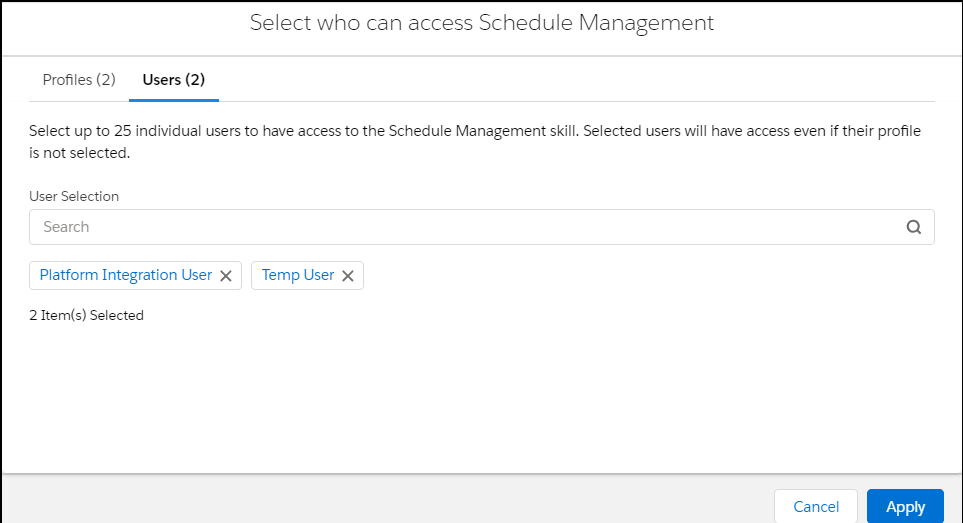
◦ Select the individual users in the Users tab. Use the Search option in the User Selection field to search and select users.
|
|
• You can select up to 25 users.
• Selected users will have access to schedule management even if the user profile of the users is not selected.
|
4. Click Apply to grant the schedule management agent to the selected user profiles and individual users.
The window is closed and the number of user profiles and users you have selected is displayed in the User Access section of the Schedule Management page.
5. Click Save. The selected user profiles and individual users can access Schedule Management in ServiceMax AI.