Activating or Deactivating a Rule
Activate a matching rule to begin processing incoming data, or deactivate it to pause duplicate detection.
Activating a matching rule makes it live in PTC Orbit, allowing the system to process incoming data according to the defined criteria. Once active, the rule continuously identifies duplicates, applies survivorship logic, and ensures only clean, unified records are generated. This improves data quality, supports reliable reporting, and reduces manual intervention. Deactivating a matching rule still cleans up the data, but does not generate them. While this may be useful during testing or when rules become outdated, it can lead to duplicate or inconsistent data entering the system if not carefully managed.
Perform the following steps to activate or deactivate a matching rule.
1. Log in to PTC Orbit and click the  icon to launch the navigation pane.
icon to launch the navigation pane.2. Click Data Foundry to expand it, and then click Rules. The Rules page is displayed with the list of configured matching rules.
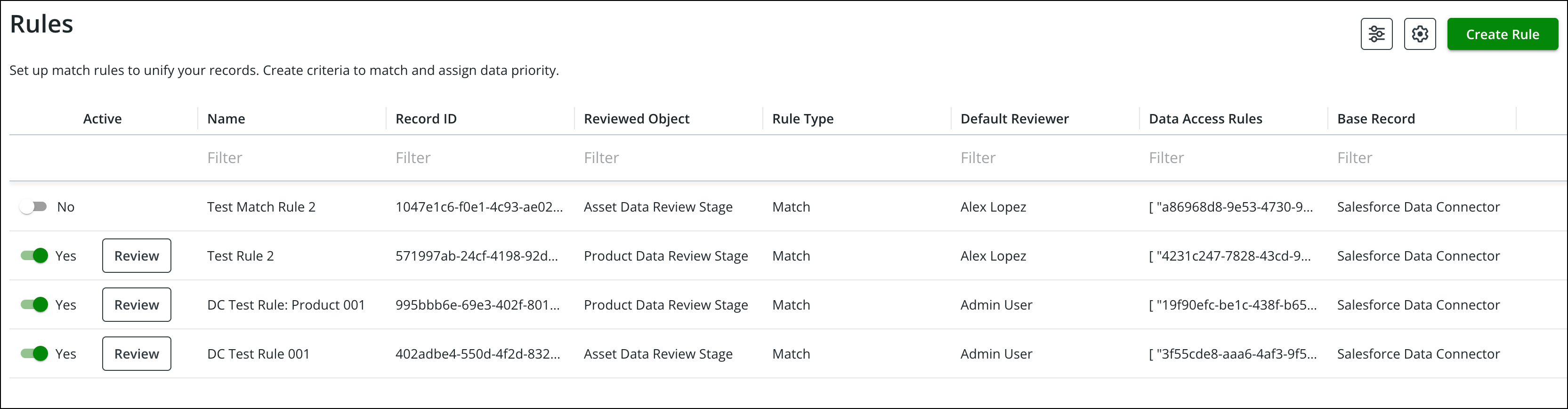
3. To activate or deactivate a rule, use the following options.
◦ In the Rules List View, click the toggle button in the Active column.
◦ In the final page of the Create Rule process, click Activate.
◦ In the Rules View screen, click the toggle button for the Active field.
 |
Activating a rule automatically deactivates any other matching rules applied to the same object. Only one matching rule can be active per object at a time.
|
|
|
If you choose Don’t Activate, the rule is created in an inactive state. Records in the associated objects remain unaffected until a rule is activated.
|
What To Do Next