Asset Map View
Visualize asset distribution on an interactive map with clustered markers, health scores, and location-based filtering.
The Asset Map View page in PTC Orbit provides an interactive geographic representation of assets, allowing you to visualize their distribution across the globe. The map displays individual assets and clusters of assets in specific regions, with a Cluster View aggregating assets that are in close proximity and cannot be individually displayed at a particular zoom level. You can click on these clusters to view grouped details or zoom in for a closer look for individual assets. Each asset marker includes essential information, such as asset name, health score, and location details, displayed in a tooltip when selected. You can click the Asset card to view the details about the asset in a new browser tab. The left-hand panel lists all assets alongside their corresponding criticality and locations, enabling quick reference and navigation. Standard map behaviors, such as zooming in and out, allow you to refine your focus on specific regions and filter assets based on the highlighted area. This feature-rich view provides an intuitive and dynamic way to track, manage, and prioritize assets geographically.
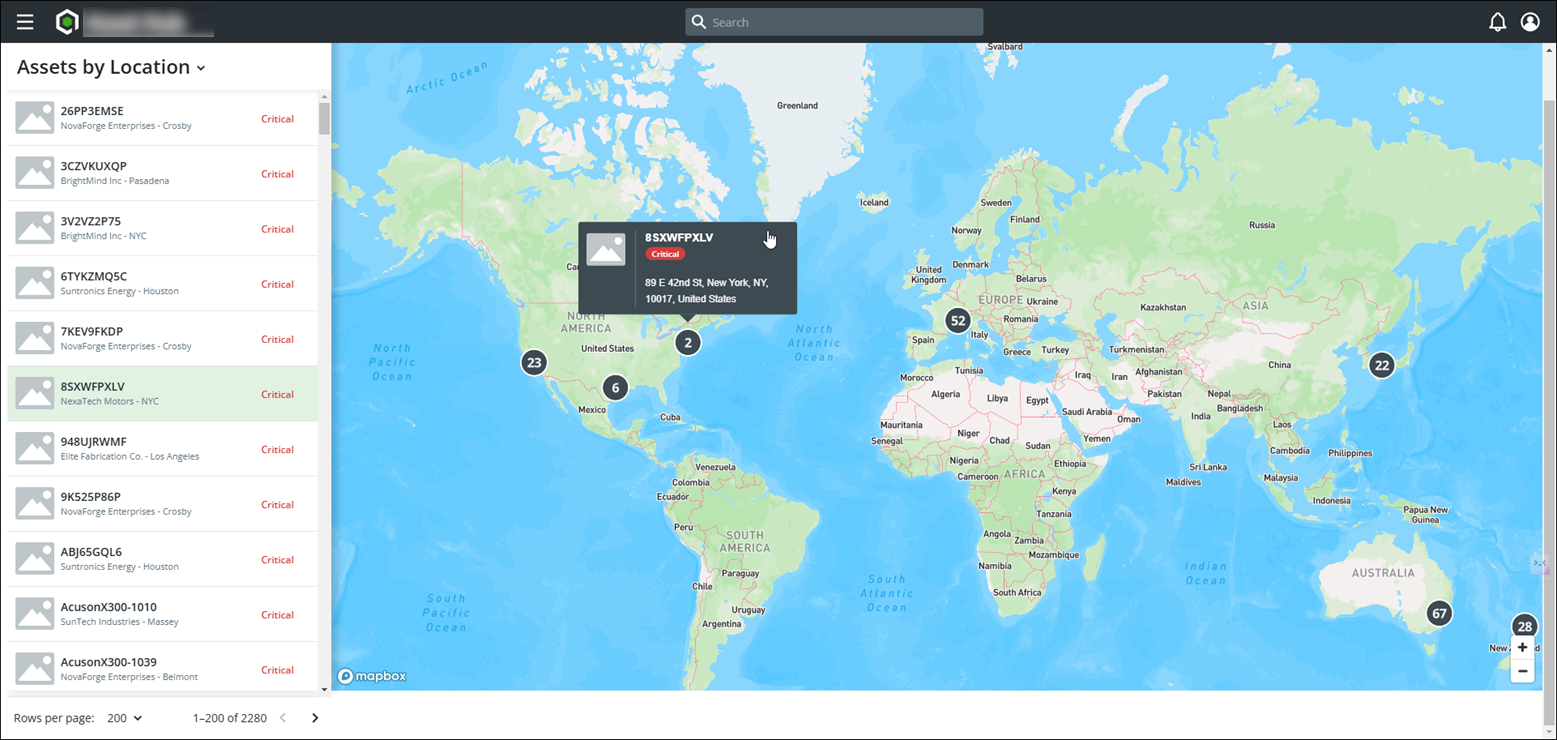
User Actions on the Asset Map Page
1. Navigate the Map:
◦ Pan across the map to view asset distributions across different regions.
2. Zoom In and Out:
◦ Use standard map zoom controls or scroll gestures to refine the map view and filter assets for specific locations or regions.
3. Interact with Clusters:
◦ Click on clusters to explore aggregated assets in a region.
◦ If zooming further is not possible, view details about grouped assets through the Cluster View.
4. Select Individual Assets:
◦ Click on an individual asset marker to view its name, status, and precise location details.
◦ Access additional information through the left-hand panel by matching the asset name.
5. Filter Assets Using the Left Panel:
◦ Scroll through the asset list on the left-hand panel to locate specific assets, organized by criticality and region.
6. Analyze Critical Assets:
◦ Focus on assets marked as Critical for priority maintenance or review, using both the map and the list view for context.
7. Pagination:
◦ Select up to 200 rows to be displayed in each page. The selected number of assets are plotted on the map.
◦ Use the pagination to navigate across a large dataset.
The map view combines a highly interactive interface with the flexibility to refine focus based on geographic regions or asset statuses, making it an essential tool for monitoring asset performance and identifying priority areas for action.