Asset Location View
Navigate assets by geographic location through a hierarchical structure of regions, sites, and buildings.
The Asset Location View page in PTC Orbit provides a location-based hierarchical structure, allowing you to monitor and manage assets across various sites and buildings. The left panel displays a collapsible and expandable list categorized by locations, such as regions, sites, buildings, and specific operational zones, enabling easy navigation to locate assets at any level. You can view a selected asset’s details on the right panel, which includes key information such as status, serial number, last service date, and SLA information. A visual representation of the asset, such as an image, is also included for better identification. Performance scores like Failure Risk, Maintenance Need, Revenue Opportunity, and Sustainability are displayed, offering insights into asset health and priorities. Additionally, expandable sections provide access to further details, including Asset Information and Customer Information. Tabs such as Summary, Service & Maintenance, Operations, and Product offer comprehensive data for informed decision-making.
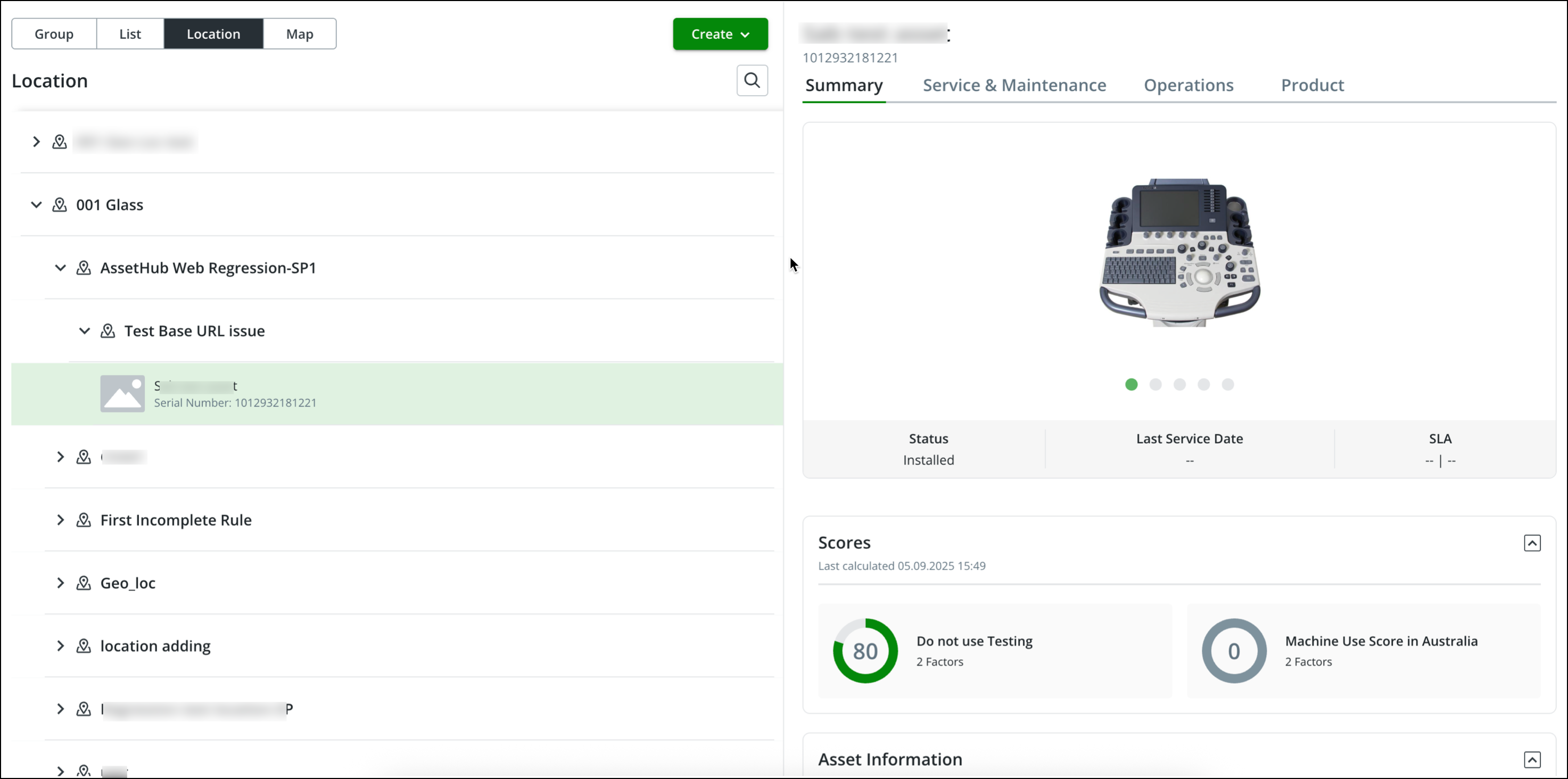
User Actions on the Asset Location Page
1. Navigate the Asset Hierarchy:
◦ Expand or collapse location hierarchy to find specific sites, buildings, or operational zones.
◦ Drill down into individual sites or accounts to view associated assets in the right panel.
2. View Detailed Asset Information:
◦ Select an asset to display its summary, performance scores, and detailed information in the right panel.
◦ Access additional tabs for service, operations, and product details.
3. Analyze Asset Performance:
◦ Review critical scores such as Failure Risk, Maintenance Need, and Sustainability to prioritize maintenance and operational tasks.
4. Track Service Agreements:
◦ View SLA (Service Level Agreement) details, including SLA ID and expiry date, to ensure compliance and service schedules.
5. Search Location with Dynamic Tooltip:
◦ Search for a location or an asset in a location by using the search icon.
◦ Get more insights on each search result by a dynamic tooltip with the highlighted text from the search keyword.
6. Expand or Collapse Panels:
◦ Access more detailed information on Asset Information and Customer Information through collapsible sections.
7. Add or Create New Assets:
◦ Use the Create button in the top-right corner to add new assets to the system.
8. View an asset’s visual representation for easier identification.
This feature-rich page enhances location-based monitoring and asset management, providing insights for maintenance, operational planning, and performance optimization.