Asset Group View
View assets organized by account and site in a hierarchical structure with detailed performance scores and service information.
The Asset Group View page displays comprehensive information about assets, organized into a hierarchical and detailed structure. The left pane features a collapsible and expandable asset hierarchy, categorized by account and site, allowing you to navigate through different levels to locate specific assets efficiently. The right panel provides detailed information about a selected asset, starting with the Summary tab, which highlights key details such as the asset name, serial number, status, last service date, and SLA information. A visual representation of the asset, such as a product image, is displayed in the Image section, while key performance indicators, including Failure Risk Score, Maintenance Need Score, Revenue Opportunity Score, and Sustainability Score, are presented in a Scores section. You can also access additional asset-related details through expandable sections like Asset Information and Customer Information. Furthermore, tabs such as Service & Maintenance, Operations, and Product provide in-depth insights into asset usage, maintenance schedules, and operational performance, making it a centralized and efficient tool for managing assets.
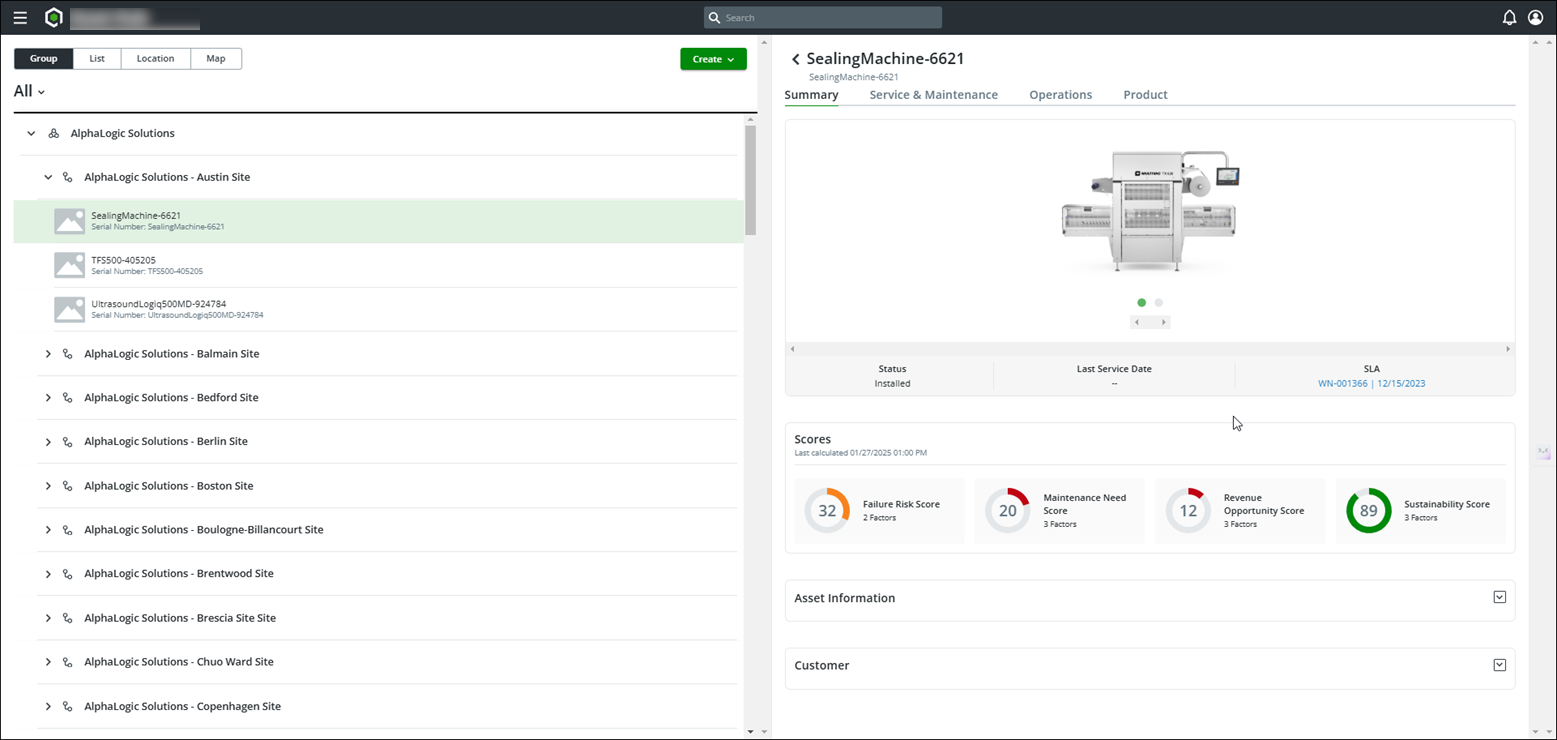
User Actions on the Asset Group Page
1. Navigate the Asset Hierarchy:
◦ Expand or collapse groups to locate specific assets.
◦ Drill down into individual sites or accounts to view associated assets.
2. View Detailed Asset Information:
◦ Select an asset to display its summary, performance scores, and detailed information in the right panel.
◦ Access additional tabs for service, operations, and product details.
3. Analyze Asset Performance:
◦ Review critical scores such as Failure Risk, Maintenance Need, and Sustainability to prioritize maintenance and operational tasks.
4. Track Service Agreements:
◦ View SLA (Service Level Agreement) details, including SLA ID and expiry date, to ensure compliance and service schedules.
5. Expand or Collapse Panels:
◦ Access more detailed information on Asset Information and Customer Information through collapsible sections.
6. Add or Create New Assets:
◦ Use the Create button in the top-right corner to add new assets to the system.