Configuring Data Sync Processors
Configure Data Sync Processor records in Max Designer to define field mappings and transformations for data synced from ServiceMax Core.
To add new fields or objects, or to modify object/field mappings in the data sync, you can customize the data sync processors and transform templates, which handle the data synced from ServiceMax Core. These records provide a clear overview of the field mappings and transformations necessary to synchronize PTC Orbit objects with their corresponding objects in ServiceMax Core.
Several out-of-the-box (OOTB) Data Sync Processor records are pre-configured to designate the Salesforce Data Connector for synchronizing with ServiceMax Core. Perform the following steps to configure a Data Sync Processor record.
1. Log in to Max Designer and navigate to > .
The list of data sync processors is displayed.
2. Open the data sync processor you want to configure.
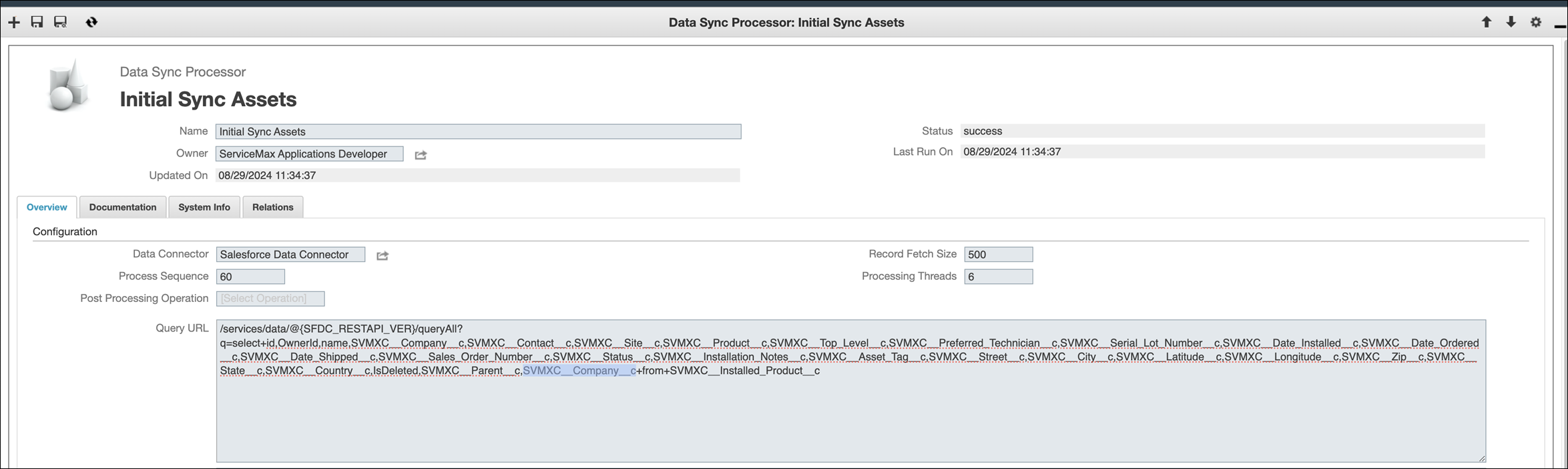
3. In the Overview tab, provide the following details:
◦ Set the Data Connector field to the appropriate Salesforce Data Connector record.
◦ In the Query URL field, add internal identifiers for any custom fields to the query string. For example, Custom_String_Field_c.
4. Click Save or Save and Close to save your changes.