Creating Roles
Create user roles in Max Admin to enforce role-based access control and define what actions users can perform in PTC Orbit.
In Max Admin, as an administrator, you can create and manage user roles to control access and permissions within the PTC Orbit application. Role-based access ensures that users have the appropriate level of visibility and control over asset data, work orders, and maintenance operations. This capability is essential for organizations that need to enforce security, maintain data integrity, and streamline user workflows.
As an administrator, you can create user roles to enforce role-based access control (RBAC) and ensure secure, efficient management of assets and work orders in PTC Orbit. By defining roles such as Asset Manager, Field Technician, and Maintenance Supervisor, organizations can restrict access to sensitive information while enabling users to perform their specific tasks. For example, a Field Technician role may have permissions to view assigned work orders and update task statuses but not modify asset records, whereas an Asset Manager can access and edit asset details, assign work orders, and generate reports. This approach prevents unauthorized changes, enhances collaboration between teams, and maintains data integrity. Additionally, role-based access ensures compliance by enabling audit-only roles for regulatory reviews without granting modification privileges. By structuring user permissions effectively, organizations streamline workflows, enhance security, and improve operational efficiency within PTC Orbit.
By leveraging role-based permissions in Max Admin, you can ensure secure, efficient, and structured access to the PTC Orbit application, optimizing both data governance and operational efficiency.
Perform the following steps to create roles.
1. Launch Max Admin.
2. Click the User Management button from the upper left section of the page, and then click Roles. The Roles page is displayed with the list of available roles.
3. Click + from the upper left corner of the list to create a role. The New Role page is displayed.
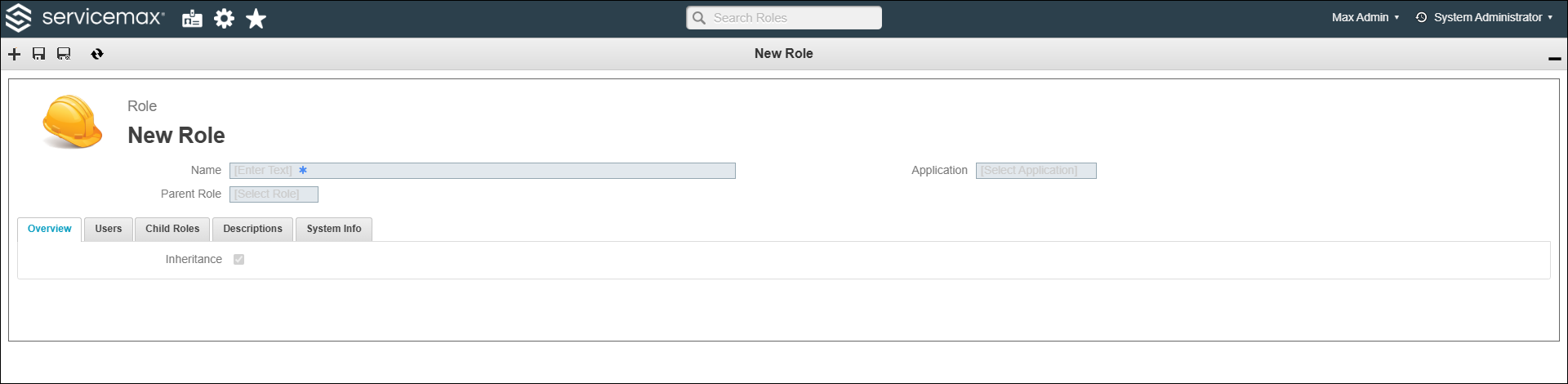
4. Enter a name for the role.
5. In the Parent Role field, if applicable, select a parent role to which you want to apply the permissions defined for this role.
 |
For the Role object, permission hierarchy is traversed upward by the access control system. Therefore, when you grant permission to a role, the value you set is inherited by all its ascendants.
|
6. In the Application field, select PTC Orbit.
|
|
• You can click the More Details icon next to the field to see details about the selected value.
• You can click the close button next to the field to remove the selected value.
|
7. Click Save.
The role is created and saved in the list of available roles.
What To Do Next