Assigning Users to a Role
Assign users to a role in Max Admin to grant them the appropriate level of access and permissions in PTC Orbit.
Assigning users to a specific role in PTC Orbit ensures that each individual has the appropriate level of access and permissions based on their responsibilities. As an administrator, you can assign roles such as Field Technician, Asset Manager, or Maintenance Supervisor, defining what actions a user can perform within the system. For example, a Field Technician may be assigned a role that allows them to view and update work orders but restricts access to modifying asset details. Meanwhile, an Asset Manager may have broader access to edit asset records, assign work orders, and generate reports. This structured role assignment enhances security, prevents unauthorized changes, and ensures efficient workflows tailored to each user’s responsibilities.
Perform the following steps to assign users to a specific role.
1. Launch Max Admin.
2. Click the User Management button from the upper left section of the page, and then click Roles. The Roles page is displayed with the list of available roles.
3. Select a role. The Role Detail page is displayed.
4. Click the Users tab.
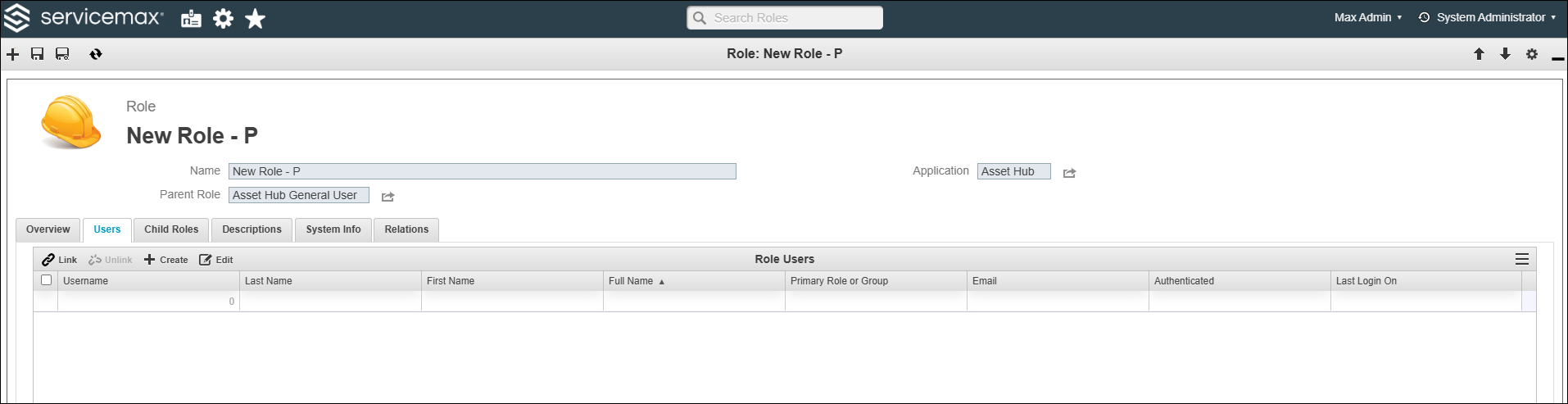
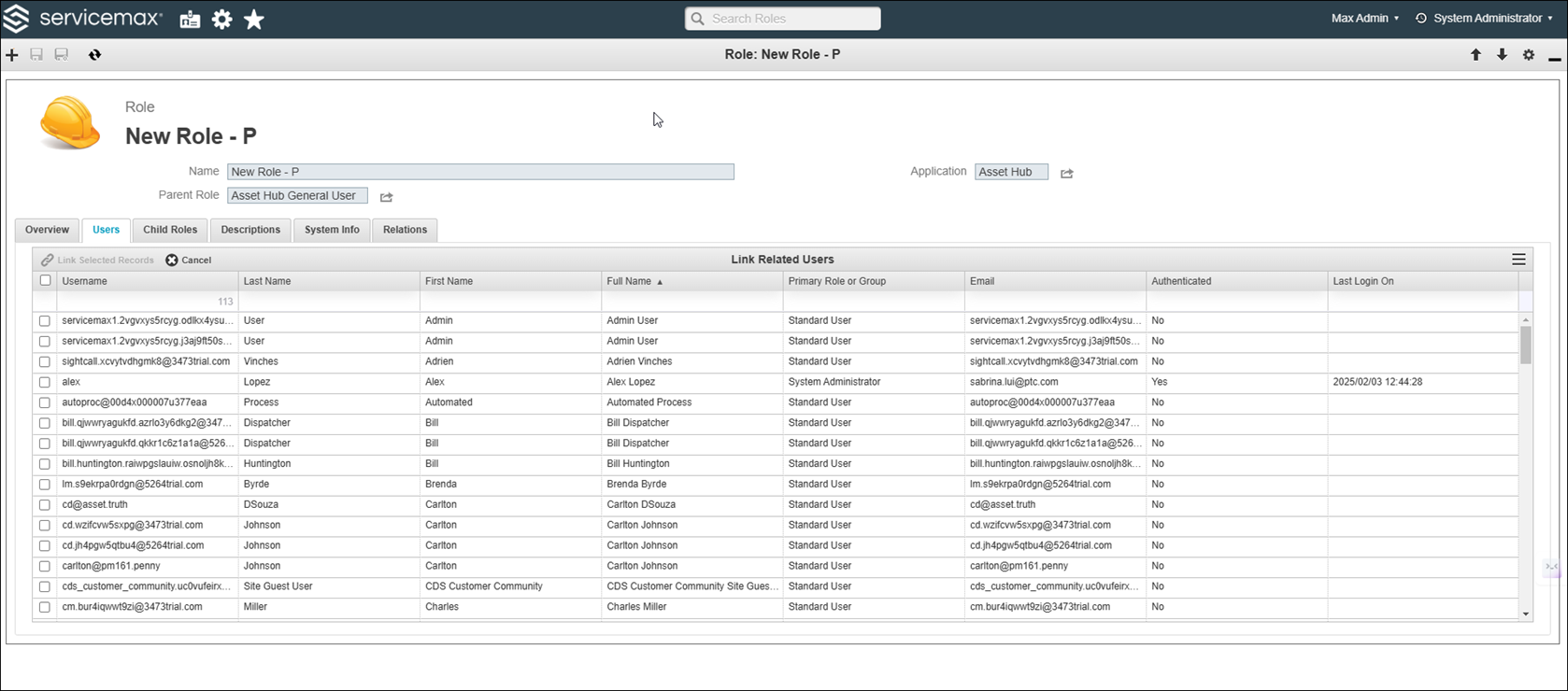
5. Click Link to assign existing users to the role. The list of existing users is displayed.
 |
You can click Create to add new users. For more information, refer to Create Users.
|
6. Select users and click Link Selected Records. The selected users are linked to the role.
7. To unlink users from the role, select users and click Unlink.
8. To edit users inline, click Edit.
The role is saved with the linked users.
What To Do Next