Creating Groups
Create groups in Max Admin to organize users with similar responsibilities under a common set of permissions.
Creating a group in the Max Admin platform for PTC Orbit allows you to efficiently manage user access by organizing users with similar responsibilities under a common set of permissions. Groups help streamline role assignments, ensuring that users within the same department or function have consistent access to relevant assets, work orders, and dashboards. For example, you can create a Maintenance Team group and assign all field technicians to it, granting them access to view and update work orders without modifying asset configurations. Similarly, a Supervisors group can be created with broader permissions, allowing team leads to approve work orders, generate reports, and manage asset records. This approach simplifies user management, enhances security, and ensures operational efficiency by aligning access control with business roles.
Perform the following steps to create groups.
1. Launch Max Admin.
2. Click the User Management button from the upper left section of the page, and then click Groups. The Groups page is displayed with the list of available groups.
3. Click + from the upper left corner of the list to create a group. The New Group page is displayed.
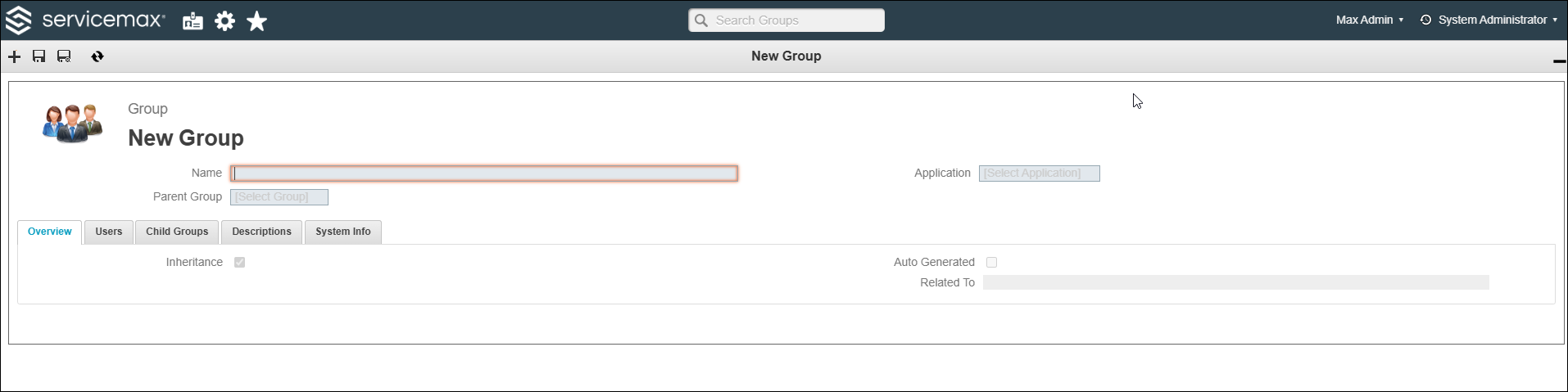
4. Enter a name for the new group.
5. In the Parent Group field, if applicable, select a parent group whose users you want to inherit for this group, and then in the Application field, select PTC Orbit.
 |
• You can click the More Details icon next to the field to see details about the selected value.
• You can click the close button next to the field to remove the selected value.
|
6. Click Save.
The new group is created and saved in the list of available groups.
What To Do Next