Assigning Users to a Group
Assign users to a group in Max Admin to manage permissions collectively rather than individually.
Assigning users to a specific group in Max Admin for PTC Orbit simplifies access management by ensuring that users with similar roles receive the same permissions and system access. Groups help streamline role-based access control (RBAC) by allowing you to manage permissions collectively rather than individually. For example, as an administrator, you can assign all Field Technicians to a Maintenance Team group, automatically granting them access to view and update work orders without modifying asset details. Similarly, supervisors can be placed in a Service Managers group with broader permissions, allowing them to approve, assign, and oversee maintenance tasks. By grouping users effectively, organizations enhance security, improve workflow efficiency, and ensure that team members have the right access to perform their duties.
Perform the following steps to assign users to a group.
1. Launch Max Admin.
2. Click the User Management button from the upper left section of the page, and then click Groups. The Groups page is displayed with the list of available groups.
3. Select a group. The Group Detail page is displayed.
4. Click the Users tab.
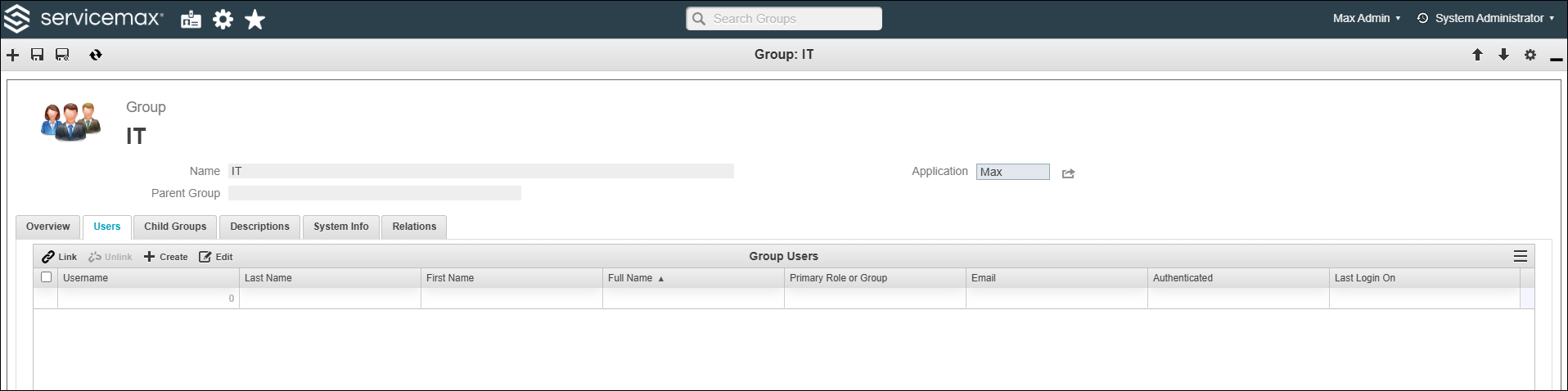
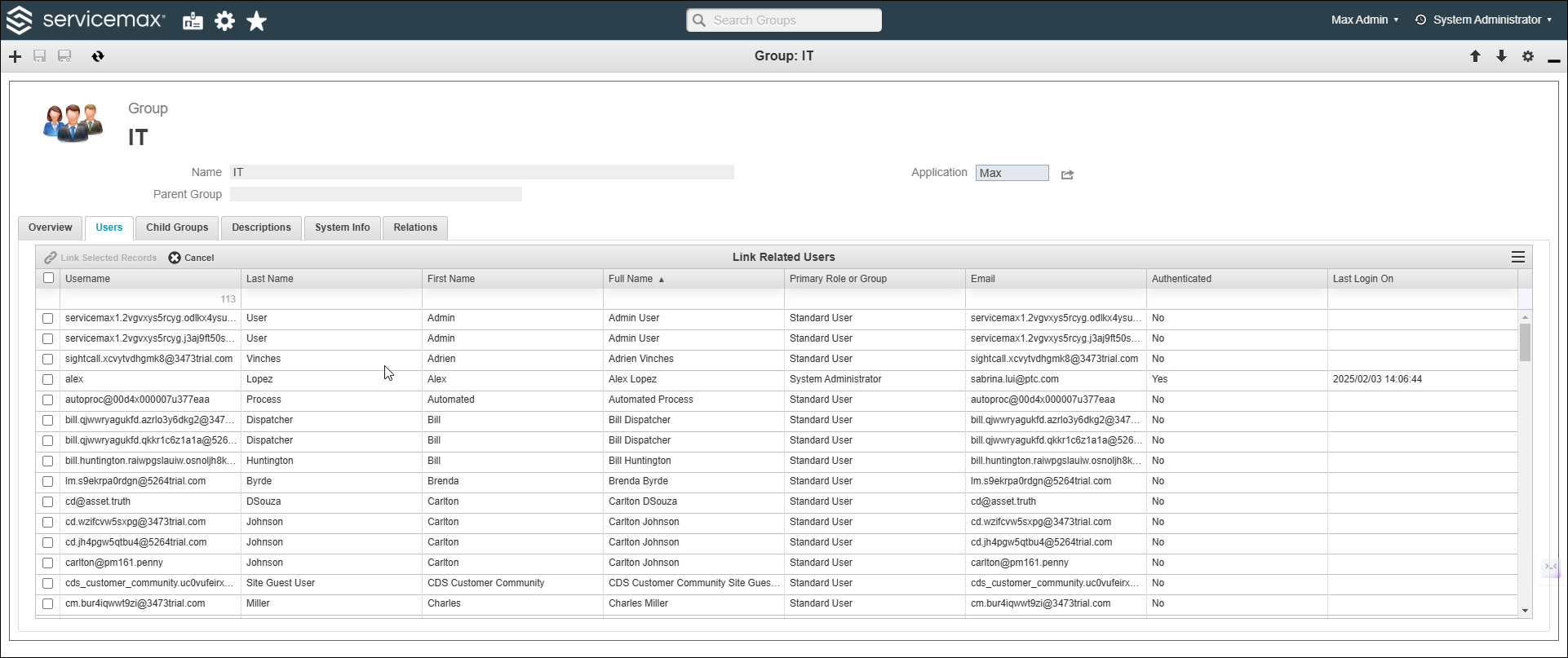
5. Click Link to assign existing users to the role. The list of existing users is displayed.
 |
You can click Create to add new users. For more information, refer to Create Users.
|
6. Select users and click Link Selected Records. The selected users are linked to the group.
7. To unlink users from the group, select users and click Unlink.
8. To edit users inline, click Edit.
The group is saved with the linked users.
What To Do Next