Creating and Modifying List Views
Create and modify list views in Max Designer to tailor asset data displays for specific roles and operational needs.
Creating and modifying list views in PTC Orbit enables users to tailor asset data displays to meet specific operational needs, improving efficiency and decision-making. For example, as a part of the maintenance team, you can create a list view showing assets due for maintenance based on service history and condition scores, ensuring timely servicing. Asset managers can track high-value assets by filtering lists based on cost, location, and ownership, while service teams can configure views to display only open or pending work orders to prioritize urgent tasks. Additionally, IoT alerts can be filtered into a dedicated list view to help teams quickly respond to active alerts and prevent asset failures. Customizing list views for different roles further enhances usability, allowing technicians to see only assigned assets, while managers can access a broader view of all assets across multiple locations. By leveraging tailored list views, organizations can streamline asset tracking, enhance response times, and improve operational workflows within PTC Orbit.
Perform the following steps to create and modify list views.
1. Launch Max Designer.
2. Click the Developer Tools button from the upper left section of the page, and then click Object Designer. The Getting Started page is displayed.
3. From the left pane, click the search icon to search for and select the object for which you want to create or modify a list view, for example, Resource.
4. From the left navigation pane, click Records. The records list view is displayed in a new browser tab with the list of available records.
5. Do one of the following to create or edit a list view.
◦ To create a new view, in the top center, on the View Selector menu, click Create New View.
◦ To modify an existing view, in the top center, on the View Selector menu, click the view, and then click Designer from the options menu available on the upper-right corner of the page.
The List View Designer screen is displayed.
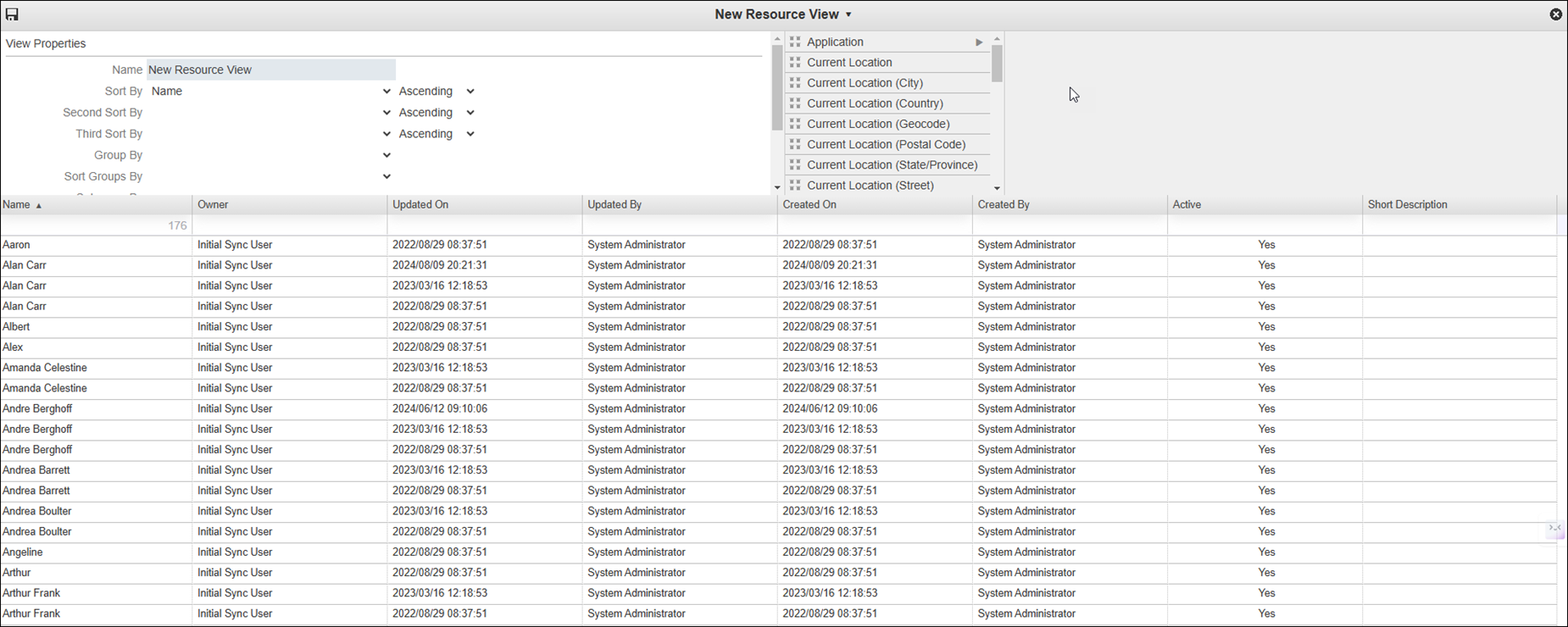
6. In the View Properties area, in the Name field, enter or modify the name for the view, and then in the top right area, do any of the following:
◦ To add fields, drag them into the table.
◦ To remove fields from the table, drag them into the list.
◦ To reorder the columns, click and drag the column headers.
◦ To filter the information that appears in the view, in the first row below the column headers, enter filtering criteria for the field values you want to show or hide.
◦ To restrict list view access to specific roles and groups, in the top left area, in the View Restriction field, click Restricted to Specific Roles and Groups, and then click Selected Roles & Groups.
◦ To configure the number of rows that are initially loaded into the view, in the top left area, in the Initial Loading Rows field, in the drop-down list, select the number of records you want to load when the view is first opened, for example, 100.
7. In the Specify Roles and Groups dialog box, do any of the following:
◦ Use the search box to find and specify roles and groups.
◦ Click the Remove button to the right of already-specified roles and groups as needed.
8. Click Apply, and then in List View Designer, click Save.
The list view configuration is saved after successful validation.
 |
To use a custom list view as a related objects list in a tab, open the form for the target object in Form Designer, go to the tab where the list appears, double-click to open the related object's form, and set the Pre-Defined List View field to the desired custom view.
|
What To Do Next