Creating a Chart
Create a chart in Max Designer by selecting metrics, applying filters, and choosing a chart type to visualize asset data.
In Max Designer, creating a chart is the first step in building or configuring a dashboard for PTC Orbit. You can define the data to be visualized by selecting relevant metrics and applying filters to ensure meaningful insights are displayed. You can choose from various chart types, such as area, bar, column, Pareto, or doughnut charts, based on the specific visualization needs, like tracking trends, comparing data, or showing proportions. Once the chart is created, it can be saved and incorporated into dashboards to provide a comprehensive view of asset performance, work orders, maintenance status, or IoT alerts. This process ensures flexibility in designing dashboards that cater to different business requirements and help teams monitor and analyze data more effectively.
Perform the following steps to create a chart.
1. Launch Max Designer.
2. Click the Developer Tools button from the upper left section of the page, and then click Object Designer. The Getting Started page is displayed.
3. From the left pane, click the search icon to search for and select Chart.
4. From the left navigation pane, click Records. The records list view is displayed in a new browser tab with the list of available records.
5. From the upper left corner of the list, click + to create a chart. The New Chart screen is displayed.
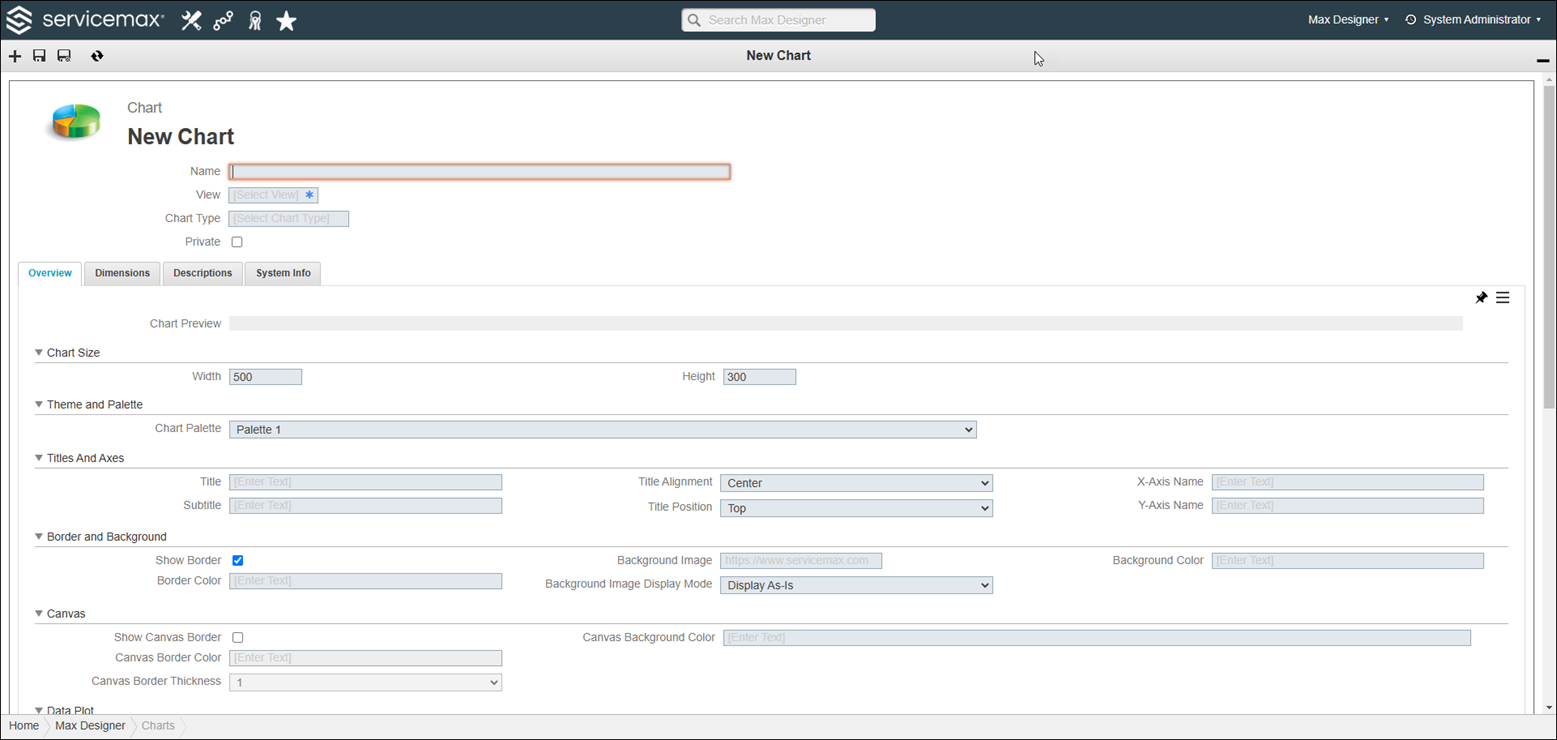
6. Enter a name for the chart.
7. Select a chart view from the available list.
8. Select a chart type. For more details about charts, refer to Chart Type and Purpose.
 |
You can click the Save icon to preview the chart in the Overview tab.
|
9. Click the Dimensions tab and then click Create. The Create New Chart Dimension window is displayed.
10. Create the required dimension.
11. From the upper left corner of the page, click the Save Chart and Close icon.
The chart is saved successfully after validation.
What To Do Next