Creating a Dashboard
Create a dashboard in Max Designer by adding charts to a layout that provides a consolidated view of key asset metrics.
Creating a dashboard in Max Designer for PTC Orbit involves incorporating previously created charts to provide a visual representation of key metrics and asset data. Once charts are defined, you can add them to a new dashboard layout. You can arrange multiple charts to present a comprehensive, interactive view of asset performance, IoT alerts, SLA compliance, or failure risks. By combining various chart types, for example, area, and bar charts, dashboards offer a centralized view that helps teams track trends, analyze data, and make data-driven decisions. This process ensures that all relevant insights are displayed in one place, improving operational visibility and efficiency across teams.
Perform the following steps to create a dashboard.
1. Launch Max Designer.
2. Click the Developer Tools button from the upper left section of the page, and then click Object Designer. The Getting Started page is displayed.
3. From the left pane, click the search icon to search for and select Dashboard.
4. From the left navigation pane, click Records. The records list view is displayed in a new browser tab with the list of available records.
5. From the upper left corner of the list, click + to create a dashboard. The New Dashboard screen is displayed.
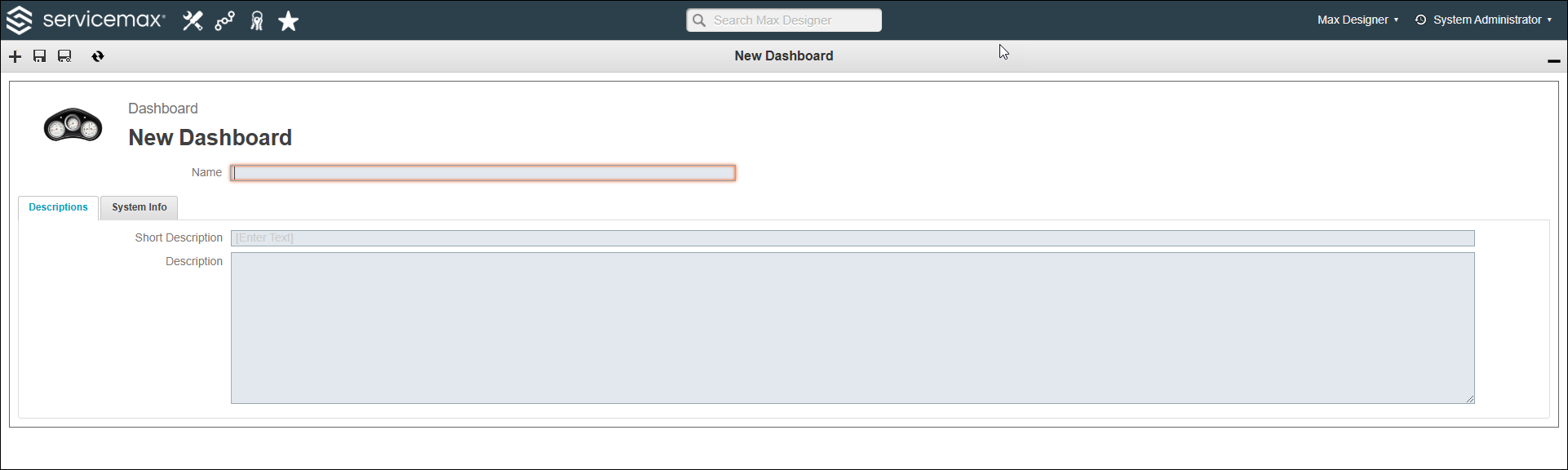
6. Enter a dashboard name.
7. From the upper left corner of the screen, click the Save icon. The new dashboard is saved.
8. From the upper right corner of the screen, click the gear icon and then click Dashboard Designer. The Dashboard Designer screen is displayed.
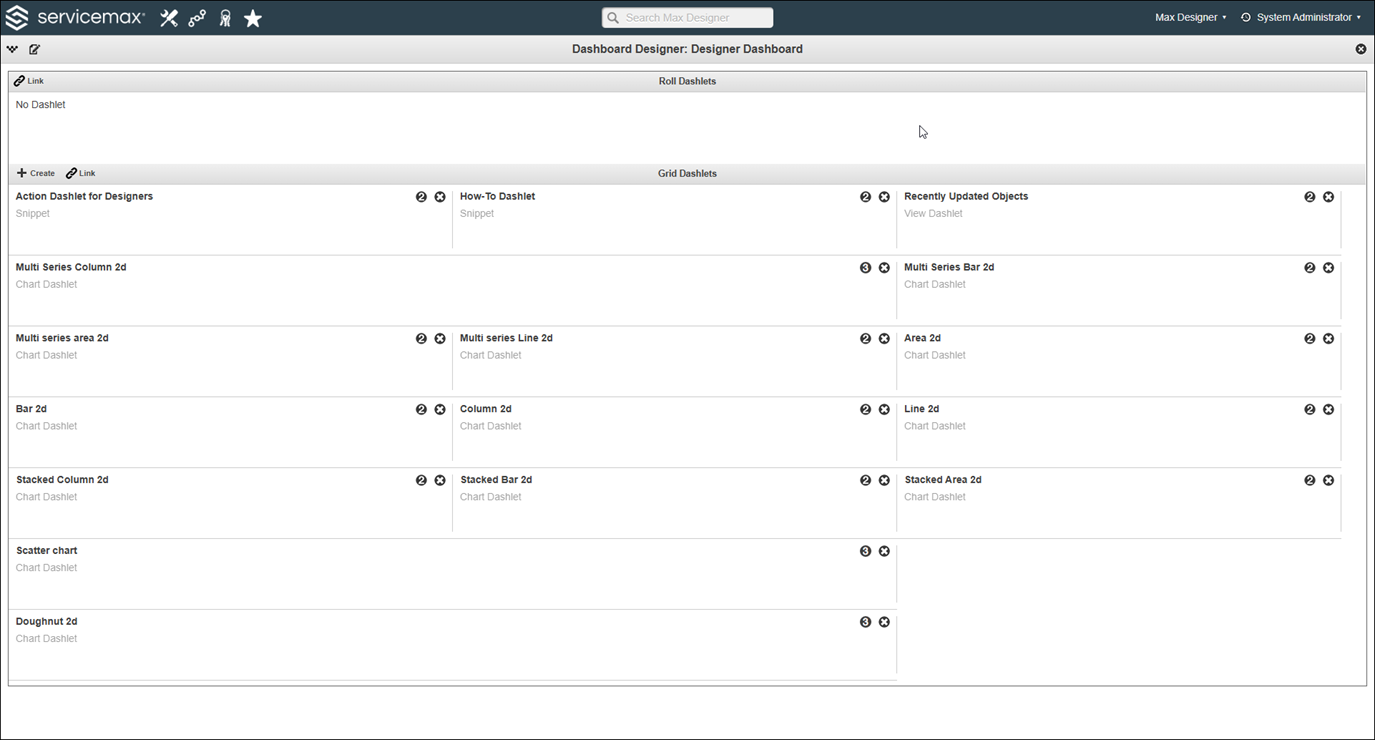
9. In the Grid Dashlets section, click Create. The Create New Grid Dashlet windows is displayed.
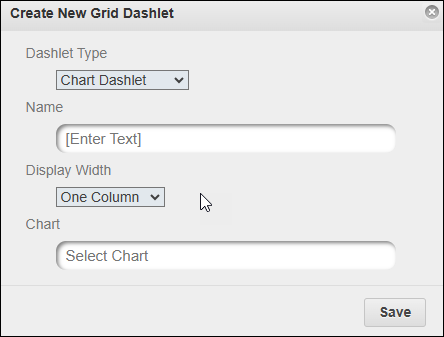
10. For dashlet type, select Chart Dashlet.
11. Enter a name for the dashlet.
12. Select the display width as one column or two columns.
13. Select the chart you have created to use in the dashboard and then click Save. The dashlet is saved in the dashboard.
14. To change the column view of the dashlet, click the number displayed in the dashlet container.
15. From the upper right corner of the screen, click the close icon to exit Dashboard Designer. You are navigated to the Dashboard detail screen.
16. From the upper left corner of the page, click the Save Dashboard and Close icon.
The dashboard is saved with the linked charts and available in PTC Orbit. You must grant permission of the list view, chart, chart dashlet and the dashboard to your users to view the chart dashlet on a dashboard.