Creating Permissions
Create permissions in Max Admin to control user access to specific features and records, with options for scope and inheritance.
In Max Admin, you can create permissions to control user access to specific features and records within Asset Hub. Permissions can be assigned to individual users, roles, or groups, ensuring that each actor has the appropriate level of access based on their responsibilities. You can define permissions in three ways: specific to the actor's records, all records, or only related records. Additionally, they can configure inheritance levels, allowing permissions to be applied to all levels, only one level, or no levels within the hierarchy. For example, you can create a permission for Field Technicians that allows them to view and update only their assigned work orders (actor’s records), while Maintenance Supervisors can have access to all work orders across the organization. Similarly, an Asset Manager can be given access only to assets related to their department by restricting access to related records. By defining and inheriting permissions effectively, organizations maintain security, data integrity, and operational efficiency, ensuring users have access only to the information necessary for their role.
Perform the following steps to create a permission.
1. Launch Max Admin.
2. Click the User Management button from the upper left section of the page, and then click Permissions. The default Permission view is displayed with the list of available permissions.
3. Click + from the upper left corner of the list to create a permission. The New Permission page is displayed.
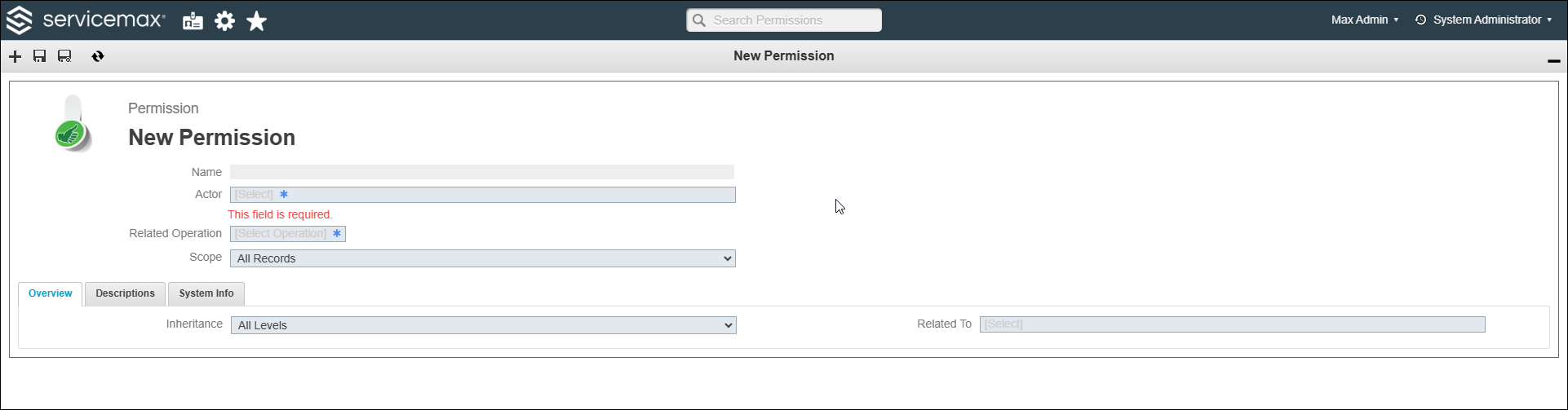
4. Select an actor for PTC Orbit from the available list of users, roles, and groups.
5. Select a related operation for the permission set.
6. Select a permission scope from the following list:
◦ Actor's Records: to restrict the permission to the selected actor's records only.
◦ All Records: to allow permission to all records without any restrictions.
◦ Not Record Specific: to allow permission not specific to any record.
◦ Related to Record Only: to allow permission only related to records.
7. In the Overview tab, select the permission inheritance level.
◦ All Levels: the permission is inherited to all the levels of the selected record in the Related To field.
◦ First Level: the permission is inherited only to the first level of the selected record in the Related To field.
◦ None: the permission is restricted only to the selected record in the Related To field without any inheritance.
8. In the Related To field, select the object to which access is controlled by this permission.
 |
• You can click the More Details icon next to the field to see details about the selected value.
• You can click the close button next to the field to remove the selected value.
|
9. Provide a description for the permission in the Descriptions tab.
10. Click Save.
The permission is created after successful validation and the Name field displays the configured name for the permission.