Performing a Standalone Installation
Before beginning installation
• Before you begin installation, ensure you have read the instructions listed here.
• You must log on to Windows as a user having Local Administrator rights. Additionally, if SQL Server is preinstalled, then you must also have SQL Server Administrator rights.
• If you plan to use XMI Import/Export, you must download and install the 32–bit version of Oracle Java 8 JRE or Amazon Coretto 8.x. Refer to the Modeler Release Notes document for the supported versions.
• If you want to be able to use Modeler while not connected to the network, remove the network cable from the computer. The installation program will then check that TCP/IP works under these conditions.
 |
You can still use Modeler when you are connected to the network.
|
To perform a Standalone installation:
1. To start a standard installation of Modeler, run the Modeler installation application PTCModelerx_xSetup.exe.
2. Follow the installation program instructions.
|
|
Installation of the Windows .NET Framework can take up to 10 minutes; during installation, the Cancel button on the dialog is not available.
The installation program enables the Transport Layer Security (TLS) 1.2 protocol as part of a Standalone installation.
|
◦ On the Setup Type page, select the Standalone option.
◦ On the Custom Setup page, the following options are selected by default:
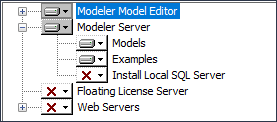
On the Custom Setup page, expand the Modeler Model Editor entry and review the add-ins, documentation and profiles that are selected for installation. To deselect, click an option, then click This feature will not be available. If you do not want to install the empty Models database or the Examples database, expand the Modeler Server entry, click the Models or Examples as appropriate, and then select This feature will not be available.
To install a SQL Server instance, click the Install Local SQL Server option and select This feature will be installed on local hard drive.. By default, the installation program sets up a SQL Server instance named MODELER. To install using an existing SQL Server instance, select This feature will not be available and then do the following:
▪ On the Default Modeler Instance dialog, type the name of an existing SQL Server instance, or select it from the drop-down list.
If you want to install Web Interface, the PTC-IM-WSU user account is created on the local computer.
The Integration for IBM Rational DOORS is available only if DOORS is installed and has been run on the computer.
The Publisher add-in requires Microsoft Word.
The IDL Profile requires Microsoft Excel for some reports. For information about which versions of Microsoft Word and Excel are supported, see the Modeler Release Notes.
◦ If you have selected to install Web Interface, the installation program creates a PTC-IM-WSU user account on the local computer. A dialog is displayed that allows you to set the password for the PTC-IM-WSU account. For more information, see Administrator rights required for installing Modeler.
|
|
The PTC-IM-WSU user has the modelerappuser server role by default. This user should have Read access to all Modeler databases and all public models should be visible to this user. Also, access to private models should be restricted to access provided by respective model owners. Only a Modeler system administrator can modify the permissions of this PTC-IM-WSU user through Model Explorer.
|
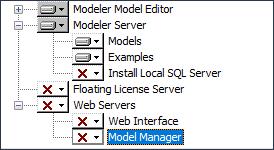
◦ In addition, if you have selected to install Web Interface or Model Manager, a dialog is displayed that allows you to select an SSL certificate for HTTPS connections. The list shows self-signed and commercial certificates found on the local IIS server. For more information, see Configuring the Web Interface Website to Use HTTP.
You can continue without selecting a certificate, but you must set bindings manually using IIS Manager after the installation is finished.
|
|
You cannot add Model Manager to an existing installation of PTC Modeler. To add Model Manager, reinstall PTC Modeler and make sure that Model Manager is selected.
|
3. If you are prompted to restart your computer after SQL Server Express is installed, restart your computer.
The install wizard should restart automatically once you log in. Enter the same options that you had set before you restarted, and complete the installation.
4. After the installation is complete, perform the necessary post-installation tasks. For more information, see Post-standalone installation tasks.
|
|
If you are prompted to restart your computer, ensure that you log on to Windows using the same user name as you did before you began installation.
|
The user who has installed Modeler is assigned with the Modeler System Administrator and Modeler User roles.