Performing a Server-Only Installation
Before beginning installation
• Users who install SQL Server along with PTC Modeler Server can optionally have either full Modeler system access rights or acquire the role of SQL Server Administrators.
• You must log on to Windows as a user having Local Administrator rights. Additionally, if SQL Server is preinstalled, then you must also have SQL Server Administrator rights.
• If you plan to use XMI Import/Export, you must download and install the 32–bit version of Oracle Java 8 JRE or Amazon Coretto 8.x. Refer to the Modeler Release Notes document for the supported versions.
To perform a Server Only installation:
1. To start a standard installation of Modeler, run the Modeler installation application PTCModelerx_xSetup.exe.
2. Follow the installation program instructions.
 |
Installation of the Windows .NET Framework can take up to 10 minutes; during installation, the Cancel button on the dialog is not available.
The installation program enables the Transport Layer Security (TLS) 1.2 protocol as part of the Server-Only installation.
|
◦ On the Setup Type page, select the Server Only option.
◦ On the Custom Setup page, the following options are selected by default:
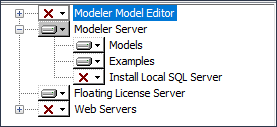
◦ To install Web Interface or Model Manager, expand the Web Servers entry, click the drop-down arrow next to the web site, then click This feature will be installed on the local hard drive.
|
|
You cannot add Model Manager to an existing installation of PTC Modeler. To add Model Manager, reinstall PTC Modeler and make sure that Model Manager is selected.
|
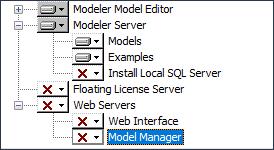
◦ If you do not want to install the empty Models database or the Examples database, expand the Modeler Server entry, and then select to not install the Models or Examples as appropriate. To install a SQL Server instance, click the Local Modeler Server and select This feature will be installed on local hard drive.. By default, the installation program sets up a SQL Server instance named MODELER. To install using an existing SQL Server instance, select This feature will not be available and then do the following:
▪ On the Default Modeler Instance dialog, type the name of an existing SQL Server instance or select it from the drop-down list.
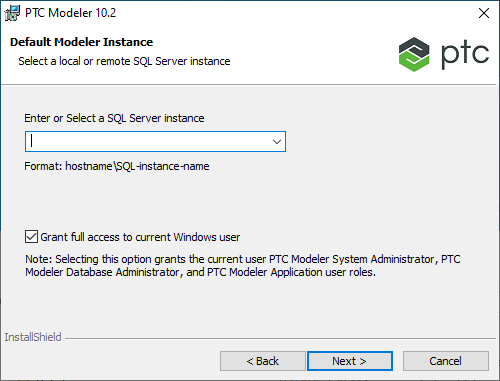
▪ The Grant full access to current Windows user check box is selected by default. If you continue installation while the check box is selected, then the current user is granted the roles of PTC Modeler System Administrator, PTC Modeler Database Administrator, and PTC Modeler Application User.
However, if you clear the check box, then the current role of the user remains unaffected.
Also on the Custom Setup page, if you want to install the Modeler application, click the Modeler Model Editor entry, and then click This feature will be installed on the local hard drive.
◦ You must provide the path to the ModelerATFiles folder location. This folder can be located on the local directory or on a mapped drive. You can provide a UNC path to the folder location.
|
|
The ATFiles folder should be a unique folder and the same folder should not be used for other Modeler installations. Also, the path that you provide should not have a trailing “\”.
|
◦ If you have selected to install Web Interface, a dialog is displayed that prompts you to set the password for the PTC-IM-WSU account.
|
|
The PTC-IM-WSU user has the modelerappuser server role by default. This user should have Read access to all Modeler databases and all public models should be visible to this user. Also, access to private models should be restricted and can be accessed only if access is provided by respective model owners. Only a Modeler system administrator can modify the permissions of this PTC-IM-WSU user through Model Explorer.
|
◦ If you have selected to install Web Interface or Model Manager, a dialog is displayed that allows you to select an SSL certificate for HTTPS connections. The list shows self-signed and commercial certificates found on the local IIS server.
If you continue without selecting a certificate, you must configure bindings manually using IIS Manager after the installation is completed. For more information, see Configuring the Web Interface Website to Use HTTP.
3. If you are prompted to restart your computer after SQL Server Express is installed, restart your computer.
The installation wizard should restart automatically once you log in. Enter the same options that you had set before you restarted and complete the installation.
4. After the installation is complete, perform the necessary post-installation tasks. For more information, see Post-server only installation tasks.
|
|
If you are prompted to restart your computer, ensure that you log on to Windows using the same user name as you did before starting the installation.
|
Moving the location of the ATFiles folder
While performing the server-only installation, Modeler creates the UNCpath.sql file located in the <<INSTALLDIR>>\Modeler\System\SQLScripts folder. This is used to modify the location of the ATFiles folder in your server.
To modify the ATFiles folder location:
1. Open the UNCpath.sql file.
2. Replace ‘$(FilePath)’ with the path of the new ATFiles folder location. Note that the path should be a fully qualified local path, having no trailing “\”.
3. Save and close the UNCpath.sql file.
4. Execute the UNCpath.sql query from SSMS.
You may also modify the path from SSMS and execute the query.