Scaling in 3D Mode with Arbortext IsoDraw CADprocess
It is sometimes the case that CAD drawings drawn in a 1:1 scale are much too large to be used, for example, for export as a raster image. In this case, click the
Scaling
tool. You can now enlarge or reduce all the elements in the drawing by clicking the drawing area and moving the mouse. Move the mouse to the center point of the coordinate cross to reduce the scale. Dragging it towards the edge of the sheet enlarges the scale. While moving the mouse, you can see how the size changes. The scaling percentage is displayed in the window bar at the bottom of the 3D window.
If you only want to scale individual assemblies (e.g. duplicated assemblies for an additional view), you can use the scaling tool in the same way. Select the required entries. You can select the required assemblies using the Objects window or the arrow cursor.
Once you have activated the
Scaling tool, you can switch to the arrow

cursor temporarily by pressing the CTRL key.
Individual modules are scaled around the center of the drawing.
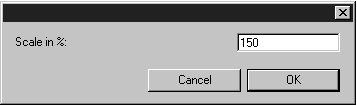
Holding down the SHIFT key when you click on the drawing area or click the selection will result in the following dialog box appearing:
When performing scaling operations, it is not important which axis is selected. Simply enter the required percentage and confirm by clicking OK. Clicking Cancel closes the dialog box without scaling the elements.
| Scaling in 3D mode can affect the quality of the projected drawing. For best results after projection, retain the original size of the 3D data for projection. If your work requires scaling, return the drawing to its original size prior to projection. You can then scale the projected drawing without affecting its quality. |
| 3D transformations, such as Scaling, only apply to visible 3D objects by default. If you want 3D transformations to apply to both visible 3D objects and invisible parts inside of 3D objects, you must enable the CADprocess_TransformInvisible3DSubObjects preference setting. See 3D Editing Preferences for instructions.) |