User Interface Enhancements for Improved Clarity and Visibility Control
Creo Parametric 13.4.0.0
User Interface Location:
• Desktop icons, Operating system programs or applications list, Windows taskbar, Creo Parametric titlebar, About Creo Parametric dialog box.
• In the graphics window, when a Creo tool displays the 3D dragger.
• Right-click an item in Model Tree or Design Tree.
• In Design Tree, right-click on consumed bodies and quilts.
Description
The Creo Parametric user interface has been enhanced to improve visual clarity, consistency, and access to commonly used visibility controls. These updates focus on modernizing the interface, improving interaction accuracy, and reducing workflow interruptions during modeling tasks.
The enhancements include:
• Updated Creo branding
• Modernized 3D Dragger
• Visibility Controls in Contextual Menu
• Visibility Controls for consumed bodies and quilts
Updated Creo branding
The Creo Parametric branding has been updated to provide consistent visual experience across the operating system and the Creo Parametric interface. Previously, legacy application icons appeared across these entry points and did not reflect the current Creo brand.

Modernized 3D dragger
The 3D dragger has been redesigned to improve visual clarity and selection accuracy when manipulating geometry. The updated design enables more accurate selection of components and geometry by reducing accidental picks, improving precision, and maintaining workflow focus.
The improved capabilities include:
• The redesigned dragger presents clearer, more distinct arrows, planar handles, and rotation arcs.
• The updated arrow design and increased spacing between planar surfaces improve pickability.
• Sensitivity zones aligned with the new 3D dragger geometry enable more accurate selection.
In the previous design, it was difficult to reliably select the intended 3D dragger element because the arrows and planar handles were difficult to distinguish and had overlapping interaction zones.
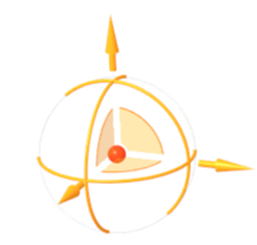

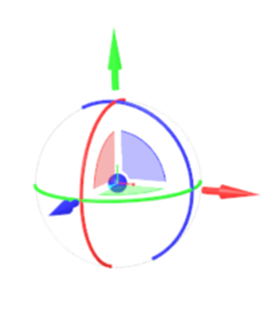
Visibility controls in contextual menu
While working in feature‑creation tools, the right‑click menu in the Model Tree and Design Tree now includes visibility and view controls. This enables quick visibility and orientation adjustments without exiting the active tool.
The following commands are now available in the right-click menu:
• Zoom to Selected
• View Normal
• Hide
• Show
• Show Only
• Show All Except
• Make Transparent
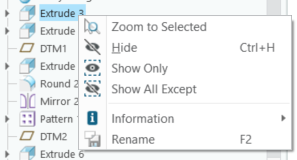
Previously, adjusting visibility or viewing orientation required exiting the active tool, interrupting workflows and slowing modeling tasks.
Visibility controls for consumed bodies and quilts
Visibility commands such as Show, Hide, Show Only, and Show All Except are now available for consumed bodies and quilts directly from the right-click contextual menu.
The following image shows visibility controls for bodies:

The following image shows visibility controls for quilts:

Benefits
• Improved visual consistency and updated modern branding for easier identification of Creo.
• Improved workflow efficiency through immediate control of consumed geometry visibility within the active tool.
• Faster geometry workflows enabled by direct access to consumed geometry visibility controls.
Additional Information
Tips: | None. |
Limitations: | The legacy 3D dragger may continue to be used in some workflows, such as Scale in Freestyle, Volume Helical Sweep, and Edit Position in assembly. |
Does this replace existing functionality? | No. |
Configuration option associated with this functionality: | None. |