What's New in Creo 13
In this section, find topics that describe the enhancements in this release, categorized by the functional area.
Highlighting What’s New in Creo
You can enable the highlighting of new features and enhancements in the product to quickly locate what is new in a release. When you place the pointer over a highlighted new tool, option, or feature, a tooltip is displayed with a New label and a link to more information about the enhancement.
To highlight new features and enhancements in Creo perform the following steps:
1. Click the arrow next to Highlight New  and then select the Enable Highlight check box.
and then select the Enable Highlight check box.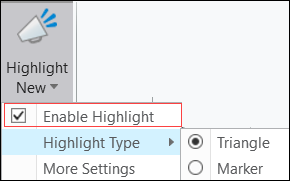
2. For the type of highlight select one of the following options:
◦ Triangle—A small blue triangle is displayed next to the new feature—
◦ Marker—The new feature is highlighted in yellow—
Alternatively, click More Settings to open the Windows Settings area of the Creo Options dialog box, and change the settings of the highlight functionality.
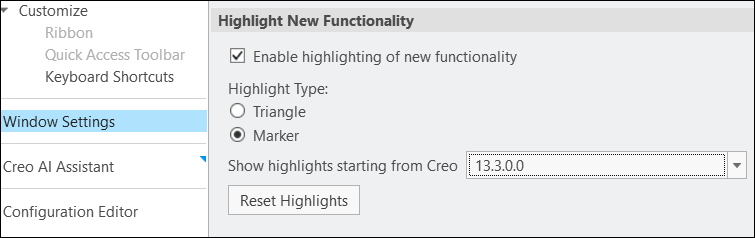
3. From the Show highlights starting from Creo list, select the first version for which you want the new features to be highlighted. New features are highlighted for all features starting from the selected version.
4. For a highlighted new feature, you can also access the following options from the drop-down menu for the New label.

◦ Learn more—Opens the What's New documentation for the tool, feature, or option marked as New.
◦ Clear Highlight—Removes the highlight from the tool, feature, or option.