Ffowcs-Williams Hawkings Model Simulation Exercise 5— Analyzing Results
Plotting the Sound Pressure at Monitoring Point
1. In the Flow Analysis Tree, under Results, click Monitoring Points.
2. Select the points Point 01 and Point 02.
3. Click  XYPlot. A new entity xyplot1 is added in the Flow Analysis Tree under > .
XYPlot. A new entity xyplot1 is added in the Flow Analysis Tree under > .4. Select xyplot1.
5. In the Properties panel, set Variable—[Acoustic] Sound Pressure.
6. Click XYPlot XYPlot Panel dialogue box opens, click XYPlot01.
XYPlot XYPlot Panel dialogue box opens, click XYPlot01.7. Change the unit of Sound Pressure from psi to Pa from the psi drop-down list.
Sound pressure plot (FWH (Transient model)

Viewing the Animation
1. In the Functions panel click  Turn on/off view properties and select the following from the list:
  Hide all surfaces,
  Hide all grids, and
  Hide all outlines.
Turn on/off view properties and select the following from the list: Hide all surfaces, Hide all grids, and Hide all outlines.2. In the Flow Analysis Tree, under > , select PROPELLER_Body_1.
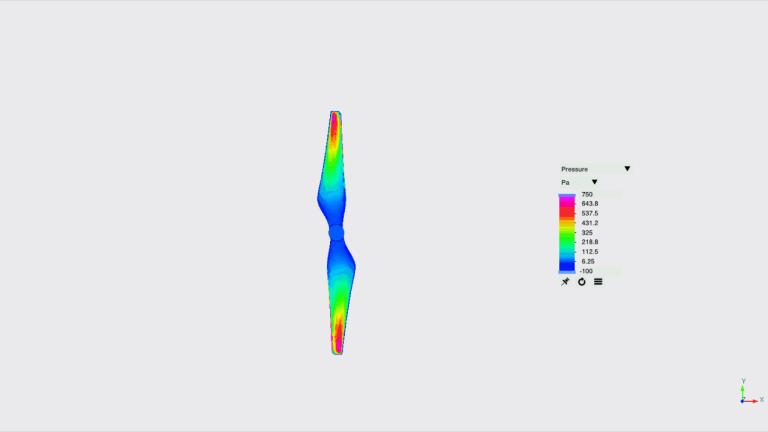
3. In the Properties panel, View tab, for Surface, set values for the options as listed below:
◦ Variable—Pressure:[Flow]
◦ Min: -100 Pa
◦ Max: 750 Pa
4. Under Flow Analysis, click Project drop-down and select Save Animation.
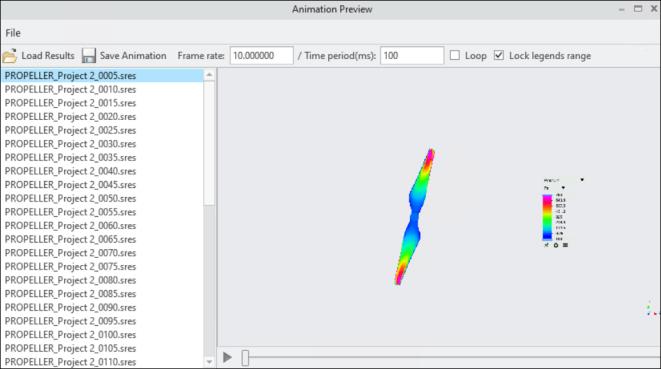
5. The Animation Preview dialog appears. Click Load Results.
6. Select a range of result files holding the Shift button in the ensuing dialog box. The result files saved depends on the Result Saving Frequency specified in the Common module settings under Physics. Click Open.
7. Click Save Animation in the Animation Preview dialog box as shown in the following figure. The animation file is saved in Graphics Interchange Format (GIF) in the working folder.
Figure 23. Propeller Acoustics animation preview
8. An animation of the Propeller acoustics is shown in the following figure.
Figure 24. Propeller Acoustics animation