Electric Field Exercise 8— Analyzing Results
This exercise describes how the results are analyzed during and after the simulation. To hide CAD surfaces (not the solid domain), switch between  CAD Bodies and
  Flow Analysis Bodies in the Show group. Clear any variable display by selecting No Selection in the Legend drop-down. Click
 XYPlot Panel to view the XY Plot.
CAD Bodies and Flow Analysis Bodies in the Show group. Clear any variable display by selecting No Selection in the Legend drop-down. Click XYPlot Panel to view the XY Plot. | 1. To show/hide selected geometric entities, click  Show in View Panel. Show in View Panel.2. To change the color scheme, click on  More in the Legend and select between Blue Red and Blue Purple. More in the Legend and select between Blue Red and Blue Purple. |
Viewing the Electric Potential Contours on Interfaces
Electric Potential contours
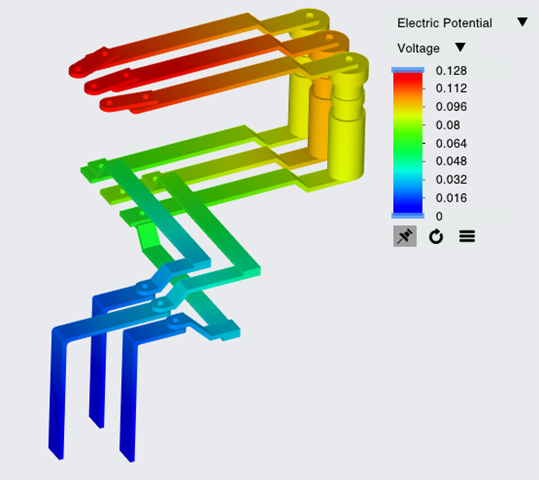
1. In the Functions panel click  Turn on/off view properties and select the following from the list:
  Hide all surfaces,
  Hide all grids
Turn on/off view properties and select the following from the list: Hide all surfaces, Hide all grids, and  Hide all outlines.
Hide all outlines.2. Under Domains, select all solid entities except INSULATOR solids. In the View panel, click Show to display the selected domains.
Show to display the selected domains.3. In the Properties panel, View tab, for Surface, set values for the options as listed below:
◦ Variable—Electric Potential: [Electric Field]
◦ Min—0 Voltage
◦ Max—0.128 Voltage
Viewing the Current Contours
Current Contours
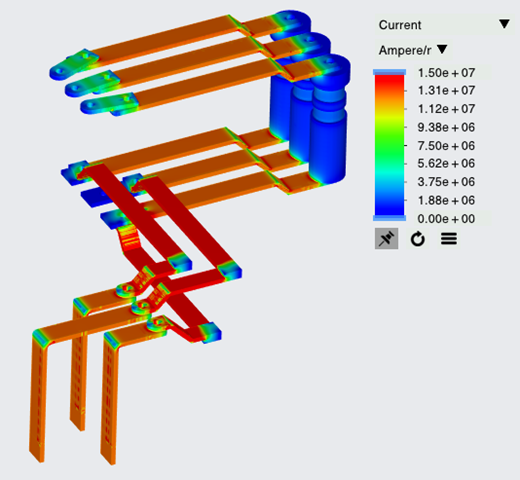
1. In the Functions panel click Turn on/off view properties and select the following from the list: Hide all surfaces, Hide all grids
Turn on/off view properties and select the following from the list: Hide all surfaces, Hide all grids, and Hide all outlines.
Hide all outlines.2. Under Domains, select all solid entities except INSULATOR solids. In the View panel, click Show to display the selected domains.
Show to display the selected domains.3. In the Properties panel, View tab, for Surface, set values for the options as listed below:
◦ Variable—Current: [Electric Field]
◦ Min—0 Ampere/mm2
◦ Max—1.50e+07 Ampere/mm2
Viewing the Joule Heating Contours on Interfaces
Heat Contours
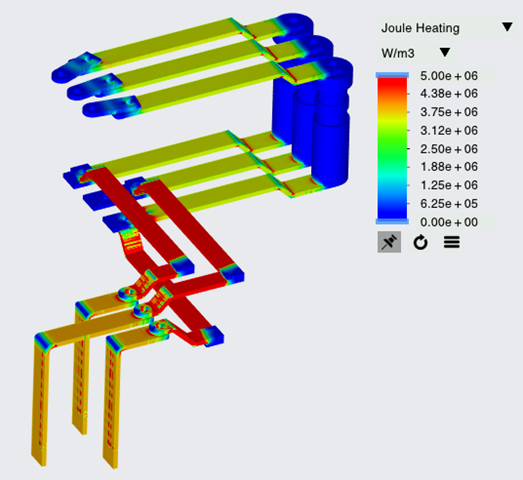
1. In the Functions panel click Turn on/off view properties and select the following from the list: Hide all surfaces, Hide all grids
Turn on/off view properties and select the following from the list: Hide all surfaces, Hide all grids, and Hide all outlines.
Hide all outlines.2. Under Domains, select all solid entities except INSULATOR solids. In the View panel, click Show to display the selected domains.
Show to display the selected domains.3. In the Properties panel, View tab, for Surface, set values for the options as listed below:
◦ Variable—Joule Heating: [Electric Field]
◦ Min—0 W/m3
◦ Max—5.00e+06 W/m3
Viewing the Temperature Contours
Temperature Contours
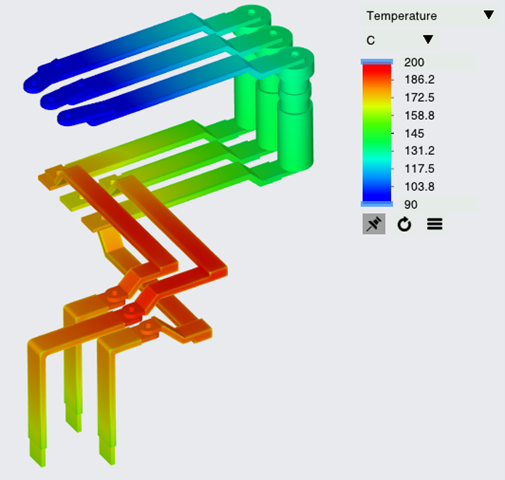
1. In the Functions panel click Turn on/off view properties and select the following from the list: Hide all surfaces, Hide all grids, and Hide all outlines.
Turn on/off view properties and select the following from the list: Hide all surfaces, Hide all grids, and Hide all outlines.2. Under Domains, select all solids. In the View panel, click Show to display the selected domains.
Show to display the selected domains.3. In the Properties panel, View tab, for Surface, set values for the options as listed below:
◦ Grid—No
◦ Outline—No
◦ Variable—Temperature : [Heat]
◦ Min—90 C
◦ Max—200 C
Plotting the Current at the Outlet Boundary
Current at outlet
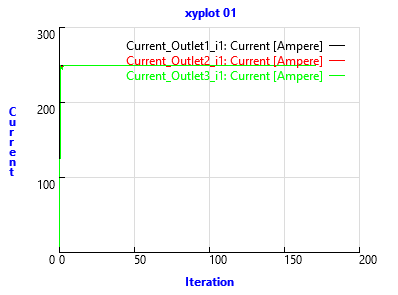
1. In the Flow Analysis Tree, click > .
2. Select CURRENT_OUTLET_i1, CURRENT_OUTLET_i2 and CURRENT_OUTLET_i3.
3. Click XYPlot. A new entity xyplot2 is added in the Flow Analysis Tree under > .
XYPlot. A new entity xyplot2 is added in the Flow Analysis Tree under > .4. Select xyplot1.
5. In the Properties panel, set Variable—Current
6. Click  Stop and
  Run in the Run group, if required.
Stop and Run in the Run group, if required.Viewing the Streamlines in the Domain
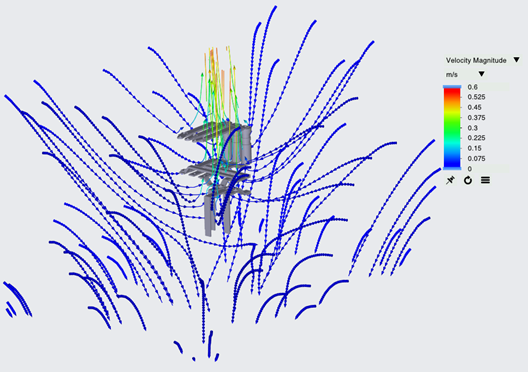
Streamlines track the path of fluid flow.
1. To create streamlines, select Stream Lines from the Post-processing group in the Flow Analysis ribbon.
2. In the Streamlines Properties panel, select Yes for outside_dir1_max, outside_dir1_min, outside_dir2_max, outside_dir2_min, outside_dir3_max, and outside_dir3_min to release streamlines. Click OK to close the panel.
3. Select Geometry under > > > in the Flow Analysis Tree.
4. In the Properties panel, Model tab, set values for the options as listed below:
◦ Line Thickness— 0.0005 m
◦ Animation Time Size— 0.05
5. In the Properties panel, View tab, for Surface, select the following values for the options listed:
◦ Variable— Velocity Magnitude:[Flow]
◦ Min— 0 m/s
◦ Max— 0.6 m/s
Streamline— Temperature