Leak Closure(SEALS) Features
This section explains the options available in the Leak Closure (SEALS) to find and close the unwanted gaps inside the geometry:
The first step is to generate external mesh using Mesh Location as either Exterior Volumes or All Volumes under Mesh Generation:
Mesh Generation for External volumes
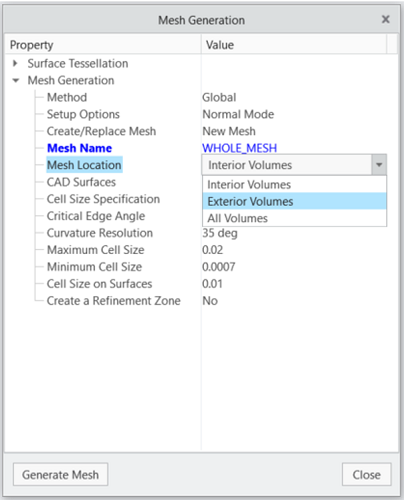
After generating the mesh, the leaks can be identified as follows:
Click > > tab.
Leak Closure (SEALS) option in the Creo Flow Analysis Ribbon
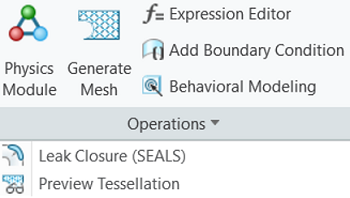
Features of Leak Closure (SEALS)

Inside Definition
The first step is to define where the interior volumes are in the model using either:
1. Points: Uses a predefined monitor point that needs to be placed at a co-ordinate location that is known to be within the interior fluid region. The position and number of points should be adjusted to effectively capture the leak path. Multiple points can be used for bigger and complex geometry:
 | It can help to define the Points near likely gap locations, where the probability of leakage is higher. |
2. Patches: Is used to select a surface patch that is within the interior fluid region. This surface needs to be defined before the geometry is meshed. The position and number of patches should be adjusted to effectively capture the leak path. It is beneficial for large models with known gaps, as it simplifies the process compared to creating individual point sources.
| | It helps to define the Patches near likely gap locations, where the probability of leakage is higher. |
Outside
It is used to define the outer boundary of the volume. By default it will use the standard names created by the mesher for an exterior flow volume.
Find Leakage
Clicking this action button identifies all the leakage paths by creating an iso-surface of the fluid within the volume.
Display
Allows the user to select one of the following:
1. Volume: Provides a preview of the internal volume after sealing the leakage, showing the retained fluid domain. This allows the user to verify the fluid volume before proceeding.
2. Leaks: Provides a preview of imaginary surface from which the fluid is escaping.
Position
It is used to separate the desired fluid volume either by defining the quantity or by adjusting the slider. It is a scalar quantity, which can be varied between 0 to 1. A lower value allows the fluid volume to spread further from the specified interior point or patch.
Close Leakage
Once the Find Leakage step is completed, the action button at the top of the panel changes to Close Leakage. Once the user has selected a relevant position click on this and the mesh volume will be split in two based on the surface shown. Once this separation is complete additional volume entities will appear under Domainsin the Flow Analysis Tree. From here the user can decide whether to delete the interior or exterior volume or retain both depending on the purpose of the simulation.