Leak Closure(SEALS)
SEALS, which stands for Super-Efficient Automatic Leakage Stopper, finds and closes mesh leakage paths between internal and external volumes. The basic process it to use the exterior meshing capability of the General Mesher to initially create a mesh that includes both the internal and external volumes. SEALS is then used to detect any leaks, where the fluid mesh enters unintended regions and then close these gaps.
In some cases, detecting leaks can be challenging using standard CAD based capabilities. In such instances, this feature proves highly effective by automating the detection process, thereby reducing manual effort, significantly saving time, and simplifying the CAD cleanup. It identifies and seals all the gaps with a single click, enabling the extraction of the fluid domain and the separation of internal and external volumes as per user requirements. Once the leaks are closed, the same mesh can be used for the simulation, eliminating the need for remeshing. A description of the controls available for this capability is provided, in the Leak Closure Features but first, an example is shown to illustrate a typical use of SEALS.
Illustration of SEALS Features using a Truck Model
Let us consider the example of a truck model given in the figure below to better understand the features and capabilities of SEALS. For complex and large geometry model presents challenges in detecting and sealing leaks, which can be time-consuming and require significant manual effort. First the user would need to search the model to find all the leakage paths between the interior and exterior and then they would need to use a selection of CAD capabilities to individually close each gap.
Truck with CAD imperfections in the Trailer
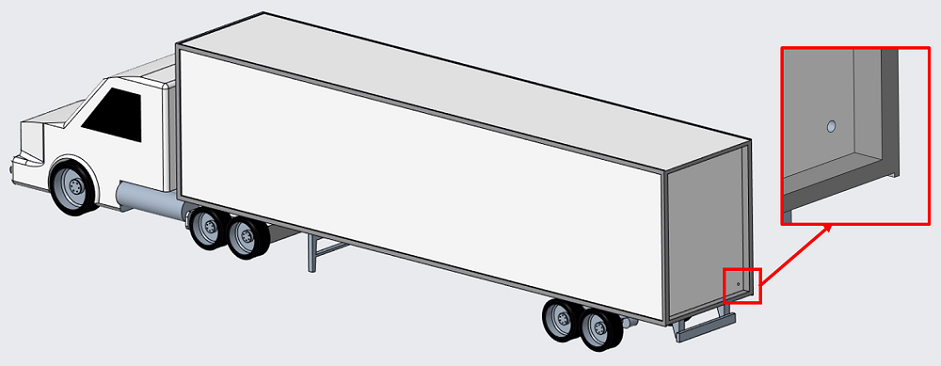
Leaks in the CAD geometry allow the fluid mesh to escape between the interior and exterior regions during meshing, complicating the distinction between these regions and potentially affecting the analysis. There are few leakage paths between the interior of the trailer and the external region. The figure highlights one such imperfection in this CAD geometry, which can result in fluid volume leakage.
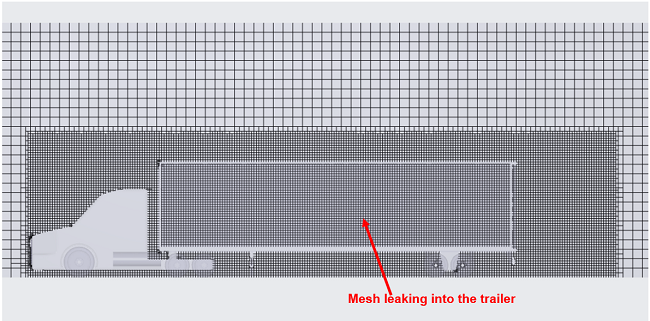
If the user attempts to mesh the exterior of the vehicle, the mesh will unintentionally leak into the trailer through the previously mentioned leakage paths. The figure below illustrates a cross-sectional view of the mesh, where the mesh inside the trailer is clearly evident.
Mesh leaking inside the trailer
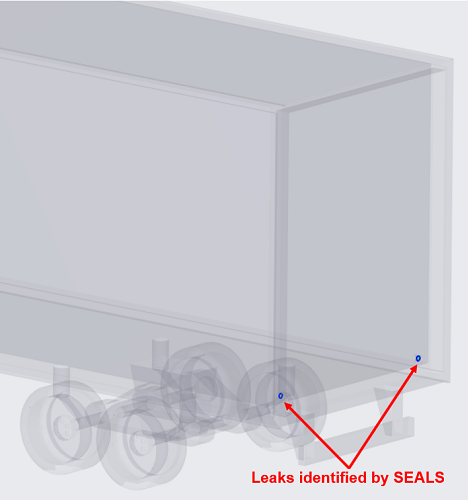
Here, SEALS demonstrates its advanced capability by detecting leaks with a single click, as shown in the figure below. The algorithm efficiently analyzes the geometry and promptly identifies all leakage paths, providing immediate insight into potential issues. This automated process allows for rapid detection, saving time and ensuring accuracy in identifying all areas of concern in the model.
Leaks identified by SEALS
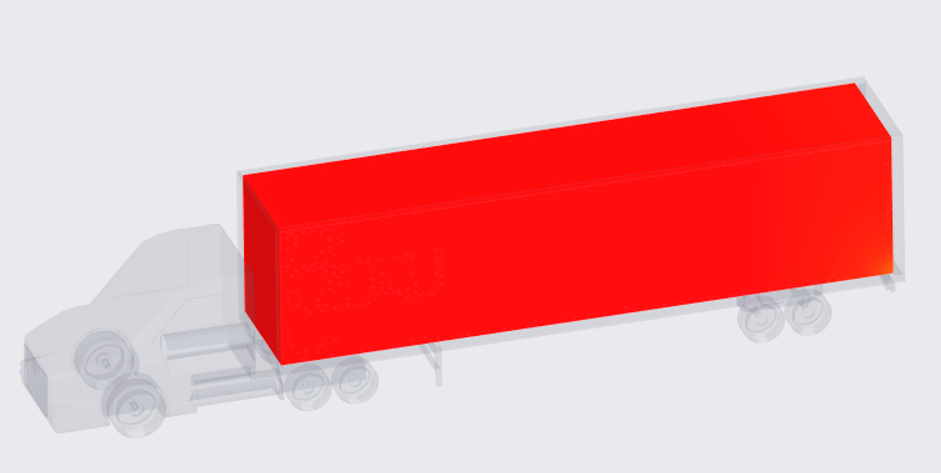
The SEALS method offers an efficient way to visualize and correct leakage paths within a model. By displaying a preview of the inner volume after sealing off leaks as shown in the figure below, it enables users to adjust the position of the inner volume, ensuring the model reaches the desired shape and accuracy.
Preview of inner volume after sealing off leaks
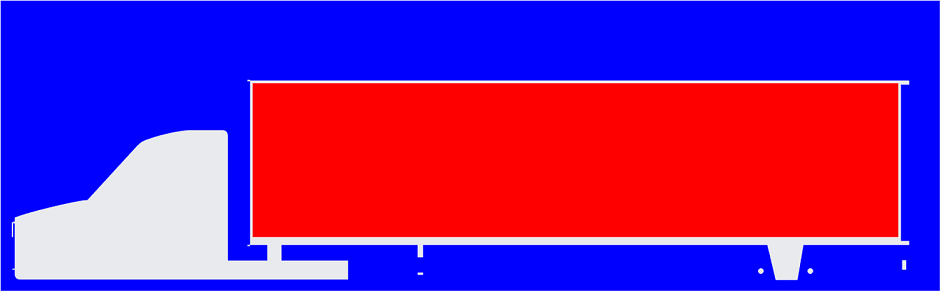
After identifying the leaks within the geometry and confirming the inner volume by previewing it, the user can easily close the leak paths in one step. This process seals the leaks and differentiates the inner and outer mesh zones. The previously unified meshed volume is then separated into two distinct regions: the inner volume (depicted in red) and the outer volume (depicted in blue) as shown in the figure below.
Separated volumes - Blue — outer volume and Red — inner volume
Finally, after separating the volumes, the user can choose which volume(s) to retain for further simulation. In this case, we will delete the inner trailer volume and proceed with the outer volume for the external aerodynamics simulation. The below figure illustrates a cross-sectional view of the mesh, highlighting the difference between the original meshed volume from the figure given above and the meshed region excluding the inner volume of the figure below.
After performing SEALS
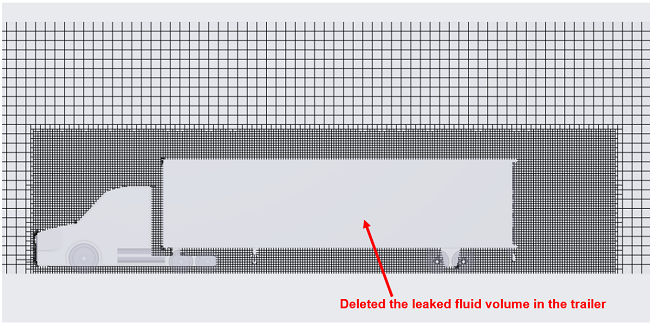
After closing the leakages, the user can then set up the physics and boundary conditions and proceed with the simulation.