Results Legend in Creo Ansys Simulation
Results Legend
Results are displayed with a results legend that is used for the following purposes:
• To select the result to be displayed along with its sub-type where applicable.
• To vary the range of results displayed.
• To select the units of the results.
• To change the appearance of the results.
The following figure shows the different components of the results legend for a result for Von Mises stress:
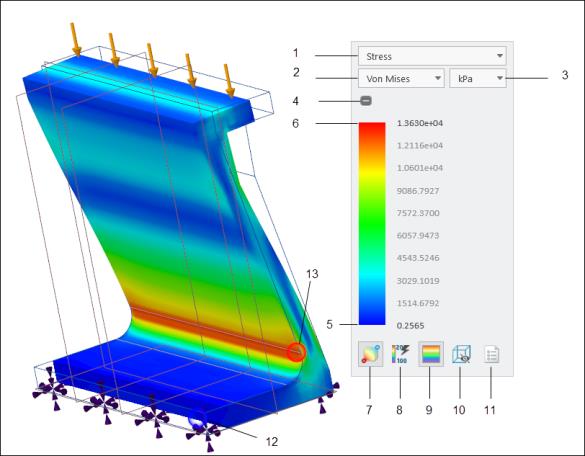
1. Displays the name of the result quantity, or allows you to select the result to view for global results.
2. Sub-type of the result quantity.
3. Units.
4. Expands or collapses the results legend.
5. Minimum value of result quantity—Click to edit when the  button is selected.
button is selected.6. Maximum value of result quantity—Click to edit when the button is selected.
button is selected.7.  —Toggles the display of the maximum and minimum values of results on the model in the Graphics Window
—Toggles the display of the maximum and minimum values of results on the model in the Graphics Window8. —Toggles between displaying the automatically calculated global maximum and minimum values, and allowing user editable maximum and minimum values of results. When this option is selected you can broaden or narrow the range of displayed results.
—Toggles between displaying the automatically calculated global maximum and minimum values, and allowing user editable maximum and minimum values of results. When this option is selected you can broaden or narrow the range of displayed results.9.  —Toggles between displaying results as distinct color bands or as diffused colors. The display shows diffused colors by default.
—Toggles between displaying results as distinct color bands or as diffused colors. The display shows diffused colors by default.10.  —Toggles the display of the wireframe view of the model.
—Toggles the display of the wireframe view of the model. —Opens the
 12. Minimum value of result shown with a blue circle when is pressed.
is pressed.13. Maximum value of result shown with a red circle when is pressed.
is pressed.The legend settings that you select apply to the active result only, and are saved with the results when you save the model and simulation data.
Advanced Legend Settings
The Advanced Legend Settings dialog box provides the following options:
• Clip to range—Hides data that is out of the specified range. This means that results that are above the maximum, or below the minimum values are not colored in the results. For example, in the following figure the values above the maximum displacement magnitude (more than 9.0 e-4) are not shown when Clip to range is selected.
With default Range of Results 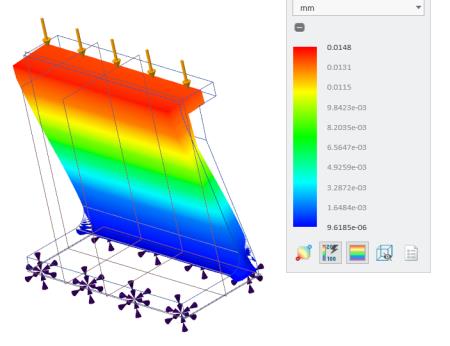 | Clip to range selected 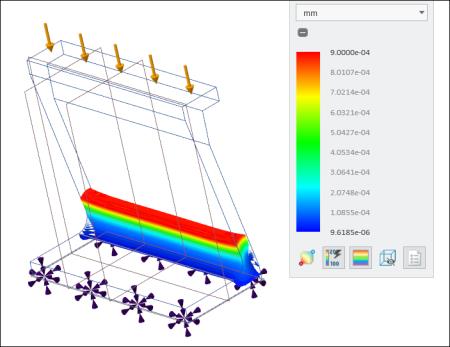 | Clip to range cleared 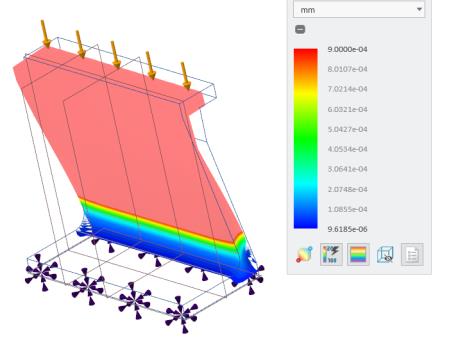 |
• Number of colors—The number of color bands to be shown in the contour plot.
• Color distribution—Select from one of the following options:
◦ Linear—The range of each contour band is constant. The colors are distributed evenly.
This option is useful for contours where the data varies evenly across the variable range.
◦ Logarithmic—The distribution of color bands uses a logarithmic scale.
This option is useful for contours where the data is heavily skewed towards the lower end of the variable range.
The following example shows linear and logarithmic distribution for the same range of results.
Linear Distribution 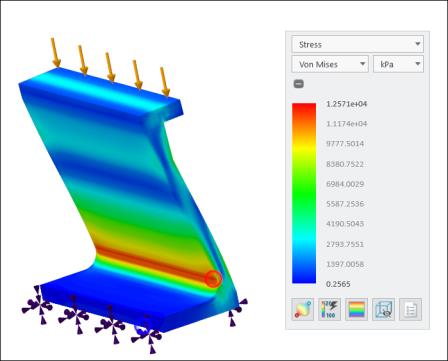 | Logarithmic Distribution 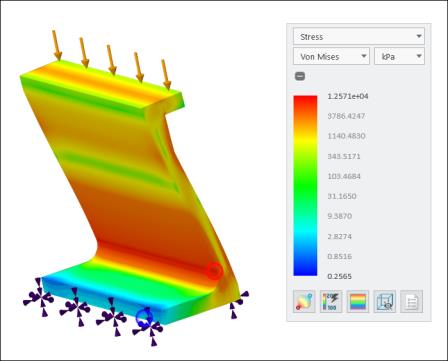 |