To Split a Body into Two Bodies
You can split a body into two bodies. All the geometry remains in the model, but some geometry from the original body is defined as a new body. There are two ways to split a body:
Split a body using a splitting object
Split one body into two bodies using a plane, surface, or quilt as a splitting object.

1. Click  Split/Trim Body. The Split/Trim Body tab opens.
Split/Trim Body. The Split/Trim Body tab opens.2. With the Body to split collector active, select the body to split.
3. With the Splitting object collector active, select a plane, surface, or quilt to use as the splitting object.

In the image, the top portion of the body is kept as the same body, and the bottom portion is defined as a new body.
4. To change the side of the splitting object on which the geometry is defined as the new body, next to Splitting object, click  flip side.
flip side.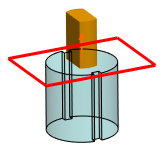
In the image, the bottom portion of the body is kept as the same body, and the top portion is defined as a new body.
5. To extend the boundaries of the splitting object, click  Extend Splitting Object.
Extend Splitting Object.6. When the splitting object is a surface or a quilt, and it contains colors, to copy the colors to the newly-created surfaces where the body is being cut, click  Copy Surface Appearances.
Copy Surface Appearances.7. Click  OK. The split portion of the original body is defined as a new body. A Split Body feature appears in the Model Tree.
OK. The split portion of the original body is defined as a new body. A Split Body feature appears in the Model Tree. | When you edit the definition of a Split Body feature, flipping the split side only flips the side that will become the new body. It does not flip the features that were created using the geometry (edges or surfaces) of the Split Body feature. |
Split out a disjoint volume of the original body to form a new body
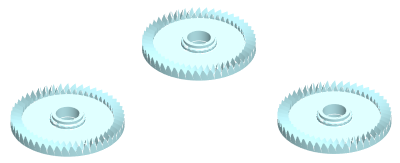
When the geometry of the original body is made of disjoint volumes, you can split out one or more of the volumes and define them as a new body. In the example, each gear is a volume that belongs to the same body.
1. Click Split/Trim Body. The Split/Trim Body tab opens.
Split/Trim Body. The Split/Trim Body tab opens.2. Under Split by, click  Volume.
Volume.3. Make sure the Surfaces collector is active.
4. Under Split, click an option to select surfaces of bodies to separate out into a new body, or to keep as the current body:
◦  Selected, and then select one or more surfaces that belong to the volumes to separate out into a new body. The volumes that are not selected are kept as the original body.
Selected, and then select one or more surfaces that belong to the volumes to separate out into a new body. The volumes that are not selected are kept as the original body.
The volume on the left is selected to separate into a new body.
◦  Not Selected, and then select one or more surfaces that belong to the volumes to keep as the original body. The volumes that are not selected are separated out as a new body.
Not Selected, and then select one or more surfaces that belong to the volumes to keep as the original body. The volumes that are not selected are separated out as a new body.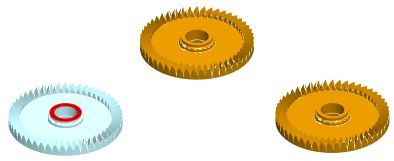
The volume on the left is selected to keep as the original body.
5. Click OK. The split out volume of the original body is defined as a new body. A Split Body feature appears in the Model Tree.
OK. The split out volume of the original body is defined as a new body. A Split Body feature appears in the Model Tree.