Generating Spools from a File
Spools can be imported as Bulk Parts from various logical data sources such as XML Wire List, Neutral Wire List, DGM Files, Mentor Graph Files.
When importing spools, the system checks for the existing instances in the Spools Library and handles conflicts based on the spool name and parameters.
The imported spools are checked against the Spools Library for any parameter mismatches.
• If instances with mismatched parameters are found, you can do one of the following:
◦ Overwrite the existing spool with the new one.
◦ Ignore the imported spool and retain the existing version.
• If no match is found, a new spool file is created.
• If an identical instance is found in the Spools Library, it is reused automatically.
To generate spools from a file, complete the following steps:
1. Select  Generate Spools from File from the Spools dropdown list in the Cabling Data & Components ribbon group. The File Open dialog box opens.
Generate Spools from File from the Spools dropdown list in the Cabling Data & Components ribbon group. The File Open dialog box opens.2. Select the file from which you want to generate the spools and click Open. The Generate Spools From File dialog box opens.
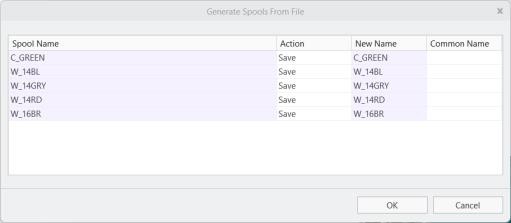
3. You can do the following actions in the Generate Spools From File dialog box:
a. View spool parameters— Right-click on a spool in the dialog box and select  Show Parameters to view detailed spool information.
Show Parameters to view detailed spool information.b. Resolve spool conflicts— When a conflict is detected between the imported spool and an existing spool in the library, the system displays resolution options. You can choose one of the following:
▪ Overwrite— Replace the existing spool with the imported spool.
▪ Ignore— Skip the imported spool and retain the existing one.
Right-click on a spool in the dialog box and select Show Parameter Conflicts to view mismatched spool parameters. Only mismatched parameters are shown in the conflict view. Matching parameters are hidden to simplify comparison.
Show Parameter Conflicts to view mismatched spool parameters. Only mismatched parameters are shown in the conflict view. Matching parameters are hidden to simplify comparison.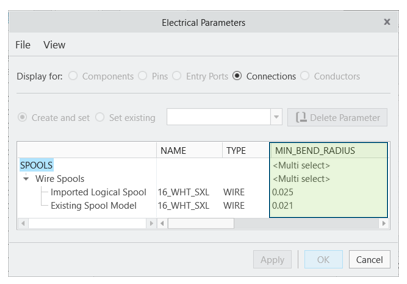
c. If no conflict is detected, select one of the following actions:
▪ Reuse— Use the existing spool if its parameters match.
▪ Save— Save as a new spool if no matching instance exists in the library.
4. Click OK. The Select Directory For Save dialog box opens.
5. Choose a directory to save, and click OK.
 | While routing a wire, cable, or sheath using the logical information from Creo Schematics, the spools are automatically created. Modifying parameters of the automatically created spool causes a mismatch between the 2D logical data and 3D design. To avoid this mismatch, we recommend that you make changes in Creo Schematics and then re-import the information. Re-importing logical data updates the spool information according to the information defined in the schematic. |