Define Transition between Plies
You can apply transition effect to shorten or extend ply boundaries. Ply boundaries shorten or extend from the transition chain you specify. For a single ply, the transition chain can be an edge, a chain, or a chain segment of the ply boundary. For multiple plies, the transition chain can be an edge, a chain, or a chain segment that is common to the ply boundaries and the parent geometries of the ply boundaries.
You can define a transition between plies in one of the following ways:
• Profile transition—Creates a transition that has a constant offset between the edges of subsequent plies.
• Custom transition—Creates a transition that has a variable offset between the edges of subsequent plies.
 |
To apply a transition effect, first start with the profile transition, and then switch to the custom transition for further refinement.
|
Profile Transition
You can create a profile transition in one of the following ways:
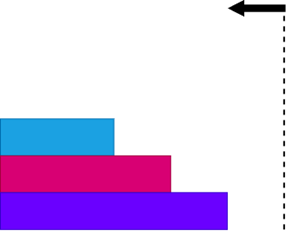
• Descending Transition: Inward Profile
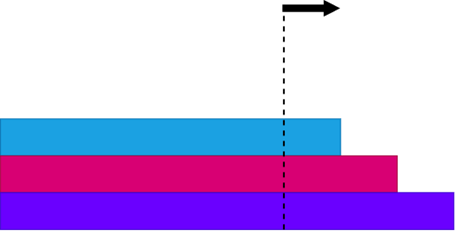
• Descending Transition: Outward Profile
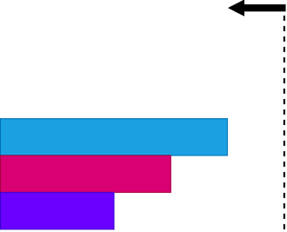
• Ascending Transition: Inward Profile
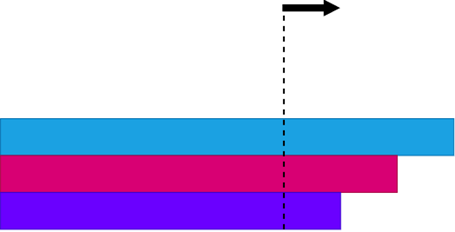
• Ascending Transition: Outward Profile
Create a profile transition as follows:
1. Click  Transition Plies. The Transition Plies tab opens.
Transition Plies. The Transition Plies tab opens.2. Select  Profile under Transition Type.
Profile under Transition Type.3. Under Offset Type, specify how you want to apply the offset.
◦  Surface—Applies the offset along the surface. You can use this method to apply a transition effect to both plies and cores. This method is slower but more accurate.
Surface—Applies the offset along the surface. You can use this method to apply a transition effect to both plies and cores. This method is slower but more accurate.◦  Spatial—Applies the offset by measuring the distance in the Cartesian coordinate system and placing the result on the surface. You can use this method to apply a transition effect to only plies. You cannot use it for cores. This method is faster but less accurate.
Spatial—Applies the offset by measuring the distance in the Cartesian coordinate system and placing the result on the surface. You can use this method to apply a transition effect to only plies. You cannot use it for cores. This method is faster but less accurate.The figure given below shows the difference between surface and spatial offsets when creating a transition effect.
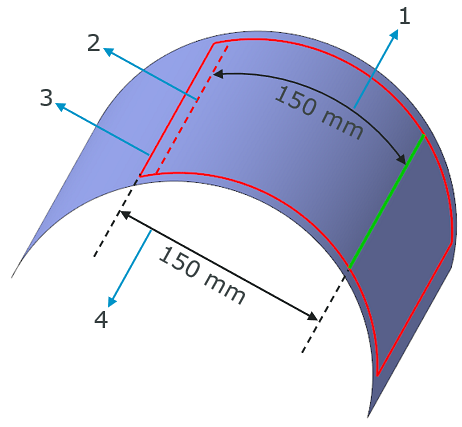
1. Offset distance measured along the surface when the Surface offset type is selected.
2. Resulting extended boundary created using the Surface offset type.
3. Resulting extended boundary created using the Spatial offset type.
4. Offset distance measured using the Cartesian coordinate system when the Spatial offset type is selected.
4. Click in the Plies box and select plies to which to apply a transition effect.
◦ Select the plies individually in any order from the Laminate Tree or from the graphics window.
◦ Select the plies from the graphics window using box selection:
▪ Drag the box from left to right to select the plies inside the box.
▪ Drag the box from right to left to select the plies that intersect the box.
The edges, chains, or chain segments that are valid references for the transition chain are highlighted in the graphics window.
5. Click in the Transition chain box and select a highlighted edge, chain, or chain segment. You can select multiple transition chains to apply a transition effect. The chains can be attached or unattached. A common drag handle appears on the transition chain to simultaneously shorten or extend the selected plies.
6. Specify the following Profile settings:
a. Select  Descending or
  Ascending.
Descending or Ascending.b. Specify the constant offset between the edges of subsequent plies. You can type or select an offset value. Alternatively, move the drag handle in the graphics window.
| | When you type a value in a box, press Enter to see its result in the graphics window. |
c. To change the direction of the profile, click  .
.
. | The transition stops at the first failure. The first ply that failed the transition is indicated by  . To identify all failing plies and troubleshoot the issue, see Identify all failures in the transition. . To identify all failing plies and troubleshoot the issue, see Identify all failures in the transition. |
7. Click  OK.
OK.
OK.Custom Transition
Create a custom transition as follows:
1. Click Transition Plies. The Transition Plies tab opens.
Transition Plies. The Transition Plies tab opens.2. Select  Custom under Transition Type.
Custom under Transition Type.3. Under Offset Type, specify how you want to apply the offset.
◦ Surface—Applies the offset along the surface. You can use this method to apply a transition effect to both plies and cores. This method is slower but more accurate.
Surface—Applies the offset along the surface. You can use this method to apply a transition effect to both plies and cores. This method is slower but more accurate.◦ Spatial—Applies the offset by measuring the distance in the Cartesian coordinate system and placing the result on the surface. You can use this method to apply a transition effect to only plies. You cannot use it for cores. This method is faster but less accurate.
Spatial—Applies the offset by measuring the distance in the Cartesian coordinate system and placing the result on the surface. You can use this method to apply a transition effect to only plies. You cannot use it for cores. This method is faster but less accurate.The figure given below shows the difference between surface and spatial offsets when creating a transition effect.
1. Offset distance measured along the surface when the Surface offset type is selected.
2. Resulting extended boundary created using the Surface offset type.
3. Resulting extended boundary created using the Spatial offset type.
4. Offset distance measured using the Cartesian coordinate system when the Spatial offset type is selected.
4. Click in the Plies and offsets box and select plies to which to apply a transition effect.
◦ Select the plies individually in any order from the Laminate Tree or from the graphics window.
◦ Select the plies from the graphics window using box selection:
▪ Drag the box from left to right to select the plies inside the box.
▪ Drag the box from right to left to select the plies that intersect the box.
The edges, chains, or chain segments that are valid references for the transition chain are highlighted in the graphics window.
5. Click in the Transition chain box and select a highlighted edge, chain, or chain segment. You can select multiple transition chains to apply a transition effect. The chains can be attached or unattached. Individual drag handles appear on the transition chain to separately shorten or extend the selected plies.
6. Specify transition offsets for the selected plies in one of the following ways:
◦ In the Plies and offsets box, type or select an offset value in the box next to a ply name. When you type a value in a box, press Enter to see its result in the graphics window.
| | The drag handles and the dimensions may obstruct the view of the transition effect. To hide both the drag handles and the dimensions, turn off the  Display Dimensions toggle. Display Dimensions toggle. |
| | The message area displays the progress of the transition effect. You can track the status when the transition takes a long time. |
◦ Turn on the Display Dimensions toggle (if not turned on already) and move the drag handle of a ply in the graphics window.
Display Dimensions toggle (if not turned on already) and move the drag handle of a ply in the graphics window.◦ To edit the transition offset values in Excel, see Using Excel to edit transition offset values.
7. Click OK.
OK. | When you close the Transition Plies tab using either OK or  Cancel while a cell is still being edited in Excel, the import fails and Excel remains open. To prevent potential issues, close Excel or end its process. Cancel while a cell is still being edited in Excel, the import fails and Excel remains open. To prevent potential issues, close Excel or end its process. |
Identify All Failures in the Transition
The Identify all failures checkbox becomes editable when the transition stops at the first failure. To identify the failing plies and troubleshoot the issue, do the following:
1. To identify all failing plies without stopping at the first failure, select the Identify all failures checkbox. All plies that failed the transition are indicated by .
.2. Select Custom under Transition Type. The list of plies and the offset values that are calculated from the profile transition appear in the Plies and offsets box.
Custom under Transition Type. The list of plies and the offset values that are calculated from the profile transition appear in the Plies and offsets box.3. To make sure that the transition is not failing, do one of the following:
◦ Remove the failed plies. The offsets of the other plies remain unaffected.
▪ To remove a single failed ply, right-click the ply, and then click Remove.
▪ To remove all failed plies, right-click in the collector, and then click Remove All Failed.
◦ Adjust the offsets of the failed plies in one of the following ways:
▪ Enter suitable offset values for the failed plies.
▪ Move the drag handles of failed plies to a suitable place on the model.
▪ Use Excel to edit the transition offset values. To learn how to use Excel for editing the offsets, see Using Excel to edit transition offset values.
◦ Modify the boundaries of the failed plies as follows:
1. Click Cancel to close the Transition Plies tab without saving changes.
Cancel to close the Transition Plies tab without saving changes.2. Use the >  Trim Ply and >
  Extend Ply actions to modify the boundaries of the plies that fails the transition, and then try applying the transition effect again. To learn how to trim a ply, see Trim Ply Boundary. To learn how to extend a ply, see Extend Ply Boundary.
Trim Ply and > Extend Ply actions to modify the boundaries of the plies that fails the transition, and then try applying the transition effect again. To learn how to trim a ply, see Trim Ply Boundary. To learn how to extend a ply, see Extend Ply Boundary.4. Click OK.
OK.Using Excel to Edit Transition Offset Values
When you select the Custom transition type, you can quickly edit the transition offset values of plies in a temporary Microsoft Excel file. This functionality is available only if you are using a Windows environment and have Microsoft Excel installed on your device.
The temporary Excel file opens when you click the Edit in Excel command and closes automatically when you finish the transition session by clicking either OK or Cancel. The file is not saved. You can use the opened Excel file only within the current feature session, and it is not accessible by other features.
OK or Cancel. The file is not saved. You can use the opened Excel file only within the current feature session, and it is not accessible by other features.Edit the transition offset values of plies in Excel as follows:
1. Click  Edit in Excel. The transition table opens in a new Excel file.
Edit in Excel. The transition table opens in a new Excel file.| | To ensure successful import of transition offsets, avoid changing the list of plies in the transition table when you edit values in Excel. |
2. For each ply, do the following:
a. Enter a transition offset value in the Offset Value column. To prevent undefined results, make sure you enter only numeric values.
b. Press Enter or select another cell to save your changes and complete the edit.
| | An incomplete edit may cause import failure. Press Enter or select another cell to save your changes and complete the edit. |
3. Click  next to Edit in Excel to import the changes from Excel to the transition table.
next to Edit in Excel to import the changes from Excel to the transition table.| | • You can repeatedly use the opened Excel file during the current session to achieve the desired result. • When you make changes in the transition table in Composite environment, make sure you click Edit in Excel to recreate the Excel file. |