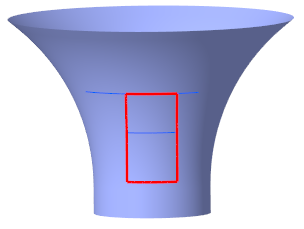
Extend Ply Boundary by Reference
1. Select a ply to extend.
2. Click >  Extend Ply. The Trim/Extend Ply tab opens.
Extend Ply. The Trim/Extend Ply tab opens.3. Under Method, select  Extend by Reference.
Extend by Reference.4. In the Extension chain box, specify the portion of the boundary to remove from the boundary. You can select connected edges, chains, or chain segments. However, you cannot select a closed loop.
 | Select an edge, chain, or chain segment. Press Shift and select one or more connected edges, chains, or chain segments to add them to the selection. |
5. In the Up to chain box, specify the extension reference by selecting connected edges, chains, or chain segments on the layup surface. You cannot select references that form a closed loop.
| | When you get an unexpected result, make the extension reference long enough to overlap the extension chain and try again. To learn more, see Example: Extend by Reference. |
6. Click  OK.
OK.
OK.Example—Extend by Reference
The following graphic shows a composite model with a ply and an extension reference.
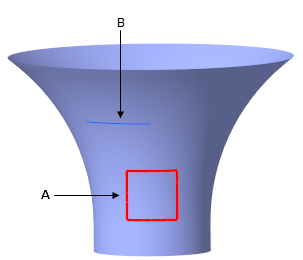
A—Ply
B—Extension Reference
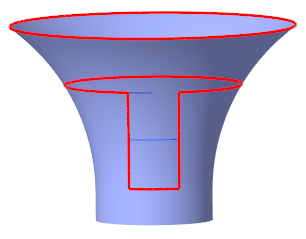
When you use the extend by reference tool to extend the upper edge of the ply up to the extension reference, you can get an unexpected result, as shown in the following graphic:
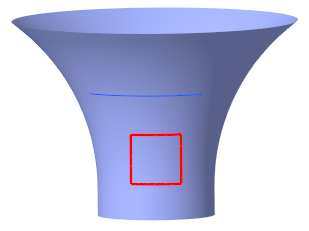
To avoid this, make the extension reference long enough to overlap the extension edge, as shown in the following graphic:
The desired result is shown in the following graphic: