Create a Core
A core is a thick ply made up of materials such as foam, paper, aluminum, or honeycomb structure.
A core is defined by a boundary, rosette, material, orientation, drop-off, name, sequence, and taper. To create a core, you must first set up the Composite environment. To learn how to set up the Composite environment, see Setting Up the Composite Environment.
You can create a core in one of the following ways:
• Manual Core—Creates a core object by defining a boundary, rosette, material, orientation, drop-off, name, sequence, and taper. The core feature that creates the core object with this method is indicated by  .
.
.• Zone Based Core—Creates a core object by specifying a laminate zone for its boundary, rosette, material, orientation, drop-off, name, and sequence. The core feature that creates the core object with this method is indicated by  .
.
. | You can change the default prefixes of the name and the sequence of a laminate object in one of the following ways: • Click > . In the Creo Parametric Options dialog box, click > . Specify the values under Name Policy Settings. • Set the Configuration Options: Name Policy Settings. |
Manual Core
Create a manual core as follows:
1. Click  Core. The Core tab opens.
Core. The Core tab opens.2. Under Type, Select Manual Core.
Manual Core.3. In the Boundary chains collector, select chains to define the boundary of a core. You can define a boundary by selecting a single closed loop, one outer and one or more inner loops, multiple individual loops, or multiple intersecting curves, edges, or loops. To learn how to define the boundary of a ply, see Example: Define a Ply Boundary.
| | To invert the selection, click Flip Side. |
4. To change the default rosette, click in the Rosette box and select a rosette from the Composite Tree.
 | Using the appropriate rosette type for the specific ply shape can produce more accurate draping results, eliminating the need for multiple Cartesian rosettes. To learn how to specify a rosette type, see Define a Rosette. To learn how to use the Search Tool to identify the rosettes with a specific projection type, see Identify a Rosette Based on the Projection Type. |
5. To change the default material, select a different composite material from the Material list.
6. In the Orientation box, select or type an angle to set the orientation of the core. The core is oriented relative to the local zero-degree direction which is obtained from the evaluation of the rosette at that location.
7. (Optional) In the Core Settings tab, change the following settings:
◦ In the Drop-off box, select Default or specify a value. When you select Default, the core will use the drop-off value defined in the setup. When you specify a custom value, that value will be used.
◦ In the Name box, specify a name.
◦ In the Sequence box, specify a sequence. Two or more laminate objects can have the same sequence.
8. In the Taper tab, do the following:
a. In the Sets box, select a taper set or click New set to define a new taper set.
b. In the Taper chains box, select a chain to apply the taper. The chain must be a subset of the boundary that is selected for the core, as shown in next the figure.
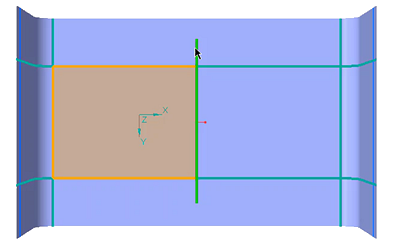
| | You can also create multiple tapers, one taper on each tangent chain. For example, you can create four different tapers in a rectangular boundary. However, when you create a fillet at one corner, the edges connecting the fillet are considered as a single tangent chain, and you can create only three tapers. |
c. Specify the values for D1 and D2.
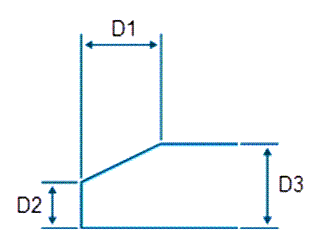
D1—Horizontal taper dimension
D2—Vertical taper dimension
D3—Cured thickness of the composite material
| | D3 is a read only value and it is displayed only for reference. |
9. Click  OK.
OK.
OK.Zone Based Core
Before you create a zone-based core, you must first create a laminate zone. A laminate zone stores a boundary definition. To create a laminate zone, you must first set up the Composite environment. To learn how to setup the Composite environment, see Setting Up the Composite Environment.
Create a laminate zone as follows:
1. Click  Laminate Zone. The Laminate Zone tab opens.
Laminate Zone. The Laminate Zone tab opens.2. In the Boundary chains collector, select chains to define a boundary. You can define a boundary by selecting a single closed loop, one outer and one or more inner loops, multiple individual loops, or multiple intersecting curves, edges, or loops. To learn how to define the boundary of a ply, see Example: Define a Ply Boundary.
| | To invert the selection, click Flip Side. |
3. Click OK.
OK.Create a zone-based core as follows:
1. Click Core. The Core tab opens.
Core. The Core tab opens.2. Under Type, Select Zone Based Core.
Zone Based Core.3. In the Laminate zones collector, select one or more zones to define the boundary of a core. The zones you select must form a single closed contour.
| | When you use multiple zones to define a core boundary, the zones must be adjacent, intersecting, or both. Make sure to avoid detached zones. |
4. To change the default rosette, click in the Rosette box and select a rosette from the Composite Tree.
| | Using the appropriate rosette type for the specific ply shape can produce more accurate draping results, eliminating the need for multiple Cartesian rosettes. To learn how to specify a rosette type, see Define a Rosette. To learn how to use the Search Tool to identify the rosettes with a specific projection type, see Identify a Rosette Based on the Projection Type. |
5. To change the default material, select a different composite material from the Material list.
6. In the Orientation box, select or type an angle to set the orientation of the core. The core is oriented relative to the local zero-degree direction which is obtained from the evaluation of the rosette at that location.
7. (Optional) In the Core Settings tab, change the following settings:
◦ In the Drop-off box, select Default or specify a value. When you select Default, the core will use the drop-off value defined in the setup. When you specify a custom value, that value will be used.
◦ In the Name box, specify a name.
◦ In the Sequence box, specify a sequence. Two or more laminate objects can have the same sequence.
8. In the Taper tab, do the following:
a. In the Sets box, select a taper set or click New set to define a new taper set.
b. In the Taper chains box, select a chain to apply the taper. The chain must be a subset of the boundary that is selected for the core, as shown in next the figure.
| | You can also create multiple tapers, one taper on each tangent chain. For example, you can create four different tapers in a rectangular boundary. However, when you create a fillet at one corner, the edges connecting the fillet are considered as a single tangent chain, and you can create only three tapers. |
c. Specify the values for D1 and D2.
D1—Horizontal taper dimension
D2—Vertical taper dimension
D3—Cured thickness of the composite material
| | D3 is a read only value and it is displayed only for reference. |
9. Click OK.
OK.Locate a Core Object
• To locate the core object of a core feature, right-click the core feature in the Composite Tree and select  .
.
.• To locate the ply or core objects of a laminate zone feature, right-click the laminate zone feature in the Composite Tree and select  .
.
.Locate a Core Feature
• To locate the core feature of a core object, right-click the core object and select  .
.
.Locate Laminate Zones
• To locate the laminate zone features of a core object, right-click the core object and select  .
.
.