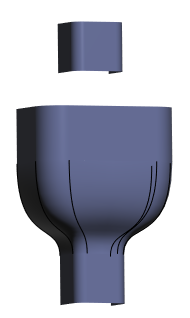
Example: Edit the References of a Style Surface
In this example we edit the references of a Style surface to reverse its direction.
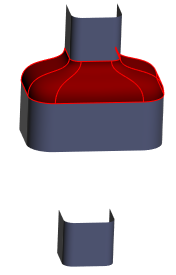
1. In the Model Tree, right-click the Style feature that contains the surfaces with references to edit, and select  Edit Definition. The Style tab opens.
Edit Definition. The Style tab opens.2. In the Style Tree or graphics window, hold down the CTRL key while you select the references to edit, and right-click and select  Edit References.
Edit References.The Edit References dialog box opens. The references are listed under Original references.
3. To view a preview while you are working, select the Dynamic Preview check box.
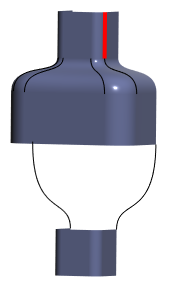
4. Edit the reference at the top right side with a reference at the bottom right:
a. Under Original references, select the first reference, a curve, to update.
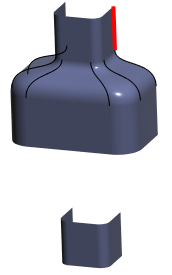
b. To update the first reference, click the New reference collector, and then select a new reference.
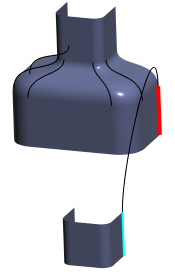
The curve does not go in the desired direction.
c. To reverse the curve direction, next to the New reference collector, click Flip.
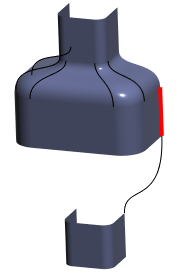
5. Edit the reference at the top left side with a reference at the bottom left:
a. Under Original references, select the second reference to replace.
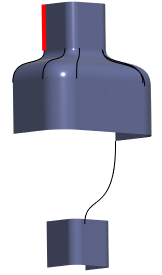
b. Click the New reference collector, and then select a new reference.
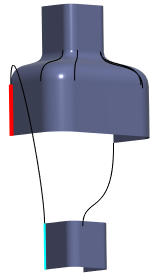
c. To reverse the curve direction, next to the New reference collector, click Flip.
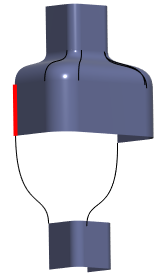
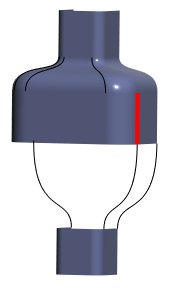
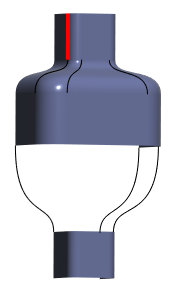
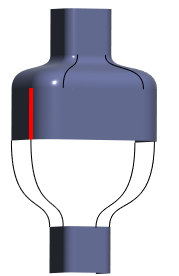
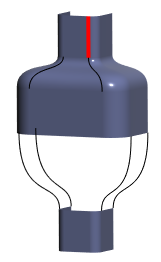
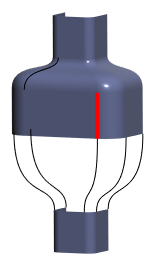
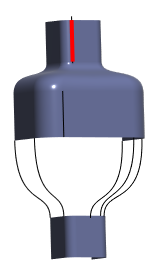
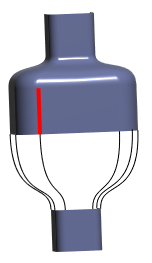
6. Edit the original references at the top with new references at the bottom, using Flip to reverse the curve direction, for four more vertical references:
7. Under Original references, select a horizontal reference at the top, and update it with a reference at the bottom:
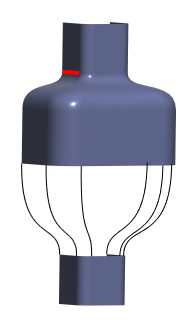
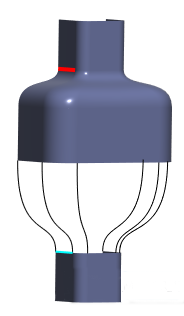
8. Repeat this for another horizontal reference:
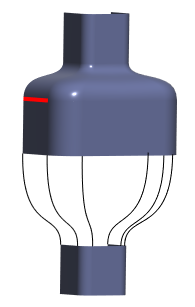
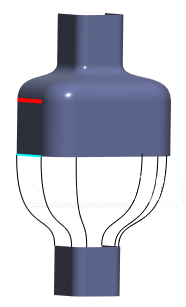
9. When you finish editing the references of the feature, click OK.