Control the Appearance of Hidden Objects in the Model Tree
Creo+
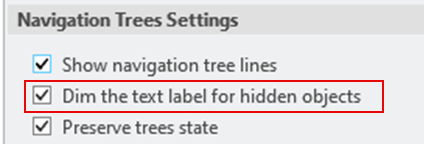
User Interface Location: In Creo+ Optionsdialog box, click Windows Settings. Under Navigations Trees Settings.
Description
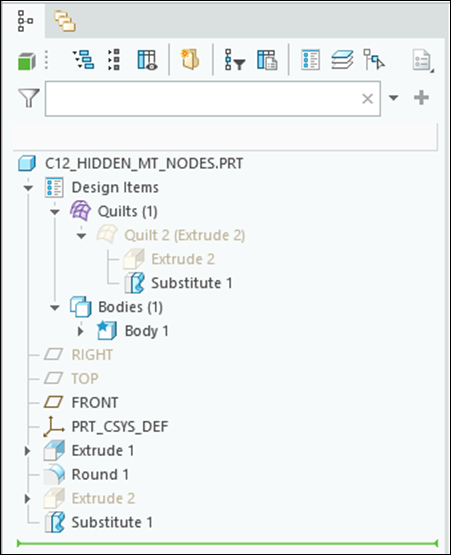
In Creo+, the Dim the text label for hidden objects option enables you to control the appearance of hidden objects in the model tree. When this option is selected, the text labels and icons of a navigation tree node are dimmed if the object is hidden. This is the default behavior. When the option is not selected, the node icon is dimmed, but the text label is not dimmed.
Previously, it was not possible to adjust the contrast of the text label for hidden objects when working in the model tree or other navigation trees.
The image below shows dimmed text labels for hidden objects.
The image below shows text labels not dimmed for hidden objects.

Benefits
• Enables you to optimize the user interface display according to personal preferences, enhancing legibility.
• Enables you to customize the tree items to suit individual preferences, particularly when higher visual contrast is desired for improved readability.
Additional Information
Tips: | None. |
Limitations: | No known limitations. |
Does this replace existing functionality? | No. |
Configuration option associated with this functionality: | None. |