Working with the Configuration Editor
Use the Configuration Editor on the Options dialog box to work with different configuration profiles in the following ways:
• View the values of configuration options.
• Modify the values of configuration options for the current session and save changes to your user (personal) profile.
• Toggle the display of all configuration options and values, or display only the options that are new or modified.
• Export different configurations to a local file.
• Save changes to configuration values to your profile on the Creo+ Portal.
• Reset your user configuration options to the default values.
Click > > to open the Creo+ Options dialog box.. Select Configuration Editor from the left pane.
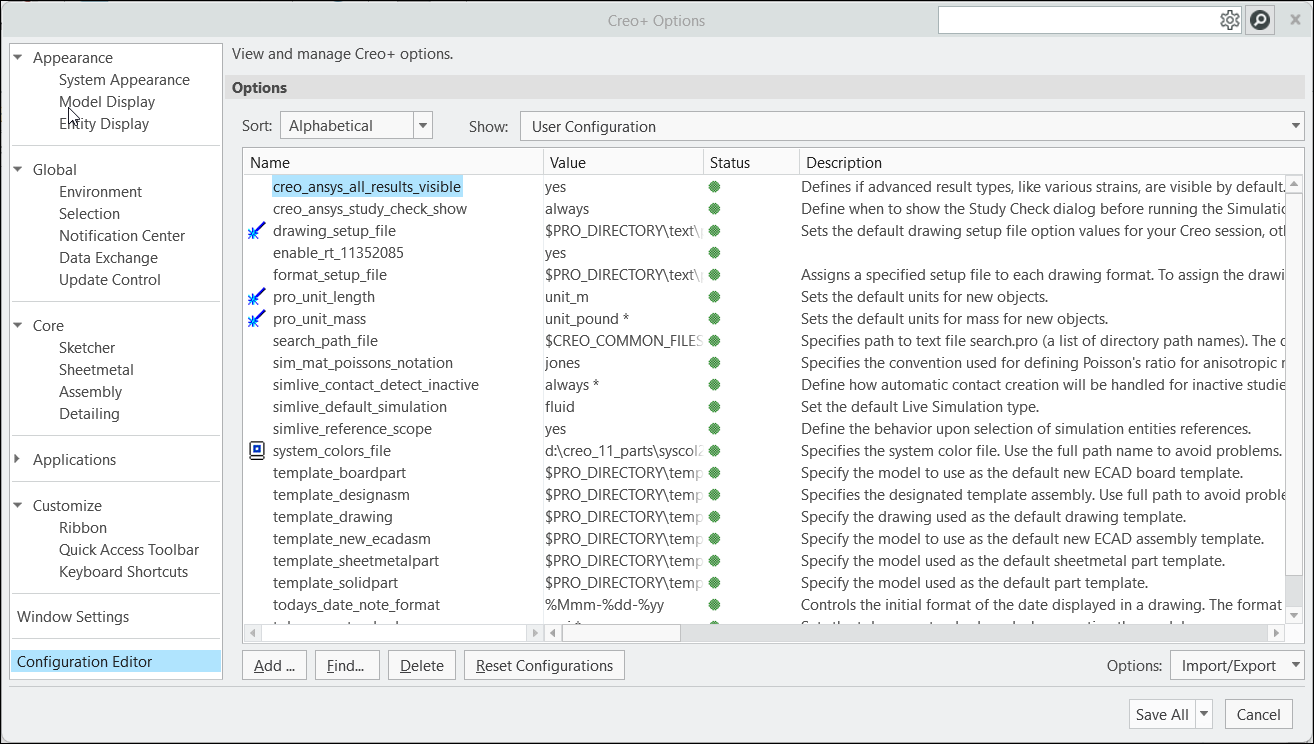
The Show list box displays the name of the current profile, and the right pane shows the value, status, and description for each option.
The icon to the left of each option indicates when a configuration option change takes effect.
 | The change is applied to the next object created. Open or create a new object for the change to take effect. |
 | The change is applied in the next session. Restart Creo for the change to take effect. |
 | The option is invalid. |
No icon | The change takes effect immediately. |
Use the Show list to filter the configuration options that are displayed. You can view the standard Creo+configuration, organization profile, and the active profile in addition to your user profile. The active configuration (the one you can change) is highlighted with the  icon as shown below.
icon as shown below.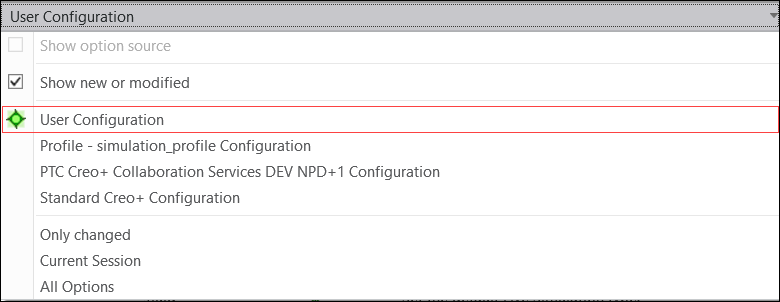
You can filter the configuration options that are displayed using the following options on the Show list:
• Show new or modified—Displays newly added or modified configuration options that have not been saved.
• Only changed—Displays the changed but unsaved configuration options.
• Current Session—Displays all non-default configuration options from all profiles, along with the options that you modified or added in the current session.
• All Options—Displays all available configuration options and their values.
• Show option source—Creo first retrieves the Standard Creo+ configuration, followed by the organization configuration. The profile configuration is retrieved next and then finally the user configuration, that has the highest precedence and overrides all other configurations.
Select the Show option source check box to understand from which profile a particular option is being retrieved by Creo for the session.

Editing Options and Values
To edit a value, select it in the list window. If the value is Boolean, for example Yes or No, right-click and select Toggle Value to switch the value. If it is any other fixed value use the list to select from the choices for the option.
If the value requires an integer or a text value type it in. Use the Browse button to select file paths where required.
To reset the value of an option to the system default, select the option from the list, right-click and click Delete. When the option is deleted the system returns to referencing the default values.
 | You can only modify options in your user (personal) profile. Only Administrators can modify the organization and profile configuration options. |
To erase all your user configuration options click Reset Configurations.
Navigating the Options
• Use the Sort list box to sort the options alphabetically or by category.
• Use the Find button to open the Find Option dialog box and search for options using a text string and wildcard characters. For example, if you type 'ecad' in the Type keyword field, the dialog box lists all options using ecad in their strings. You can also use keywords and wildcard characters to search the descriptions. You can change values for the selected configuration options from within the Find Option dialog box. Click OK to save changes to the session.
Saving Configurations
Click Save All to save customizations as well as configuration option changes to the active profile. Click Save Only Customization to save only UI customizations to the active profile. Configuration option changes are applicable only to the current session.