To Set Configuration Options
1. Click > . The Creo+ Options dialog box opens.
2. Click Configuration Editor. The View and manage Creo+ options page opens with the last loaded or imported set of configuration options. The icon to the left of each option indicates when the change takes effect.
 |
The change is applied to the next object that is created. Open or create a new object for the change to take effect.
|
 |
The change is applied in the next session. Restart Creo for the change to take effect.
|
 |
Indicates an invalid option.
|
|
No icon
|
The change takes effect immediately.
|
3. To display a different set of configuration options in the editor, click Show and select a configuration option set from the list.
◦ Existing configuration profiles, for example the organization profile, different design profiles, user configurations(personal profiles)—Displays configuration options for the selected profile with their current values. The active or current profile is marked with the icon  as shown below.
as shown below.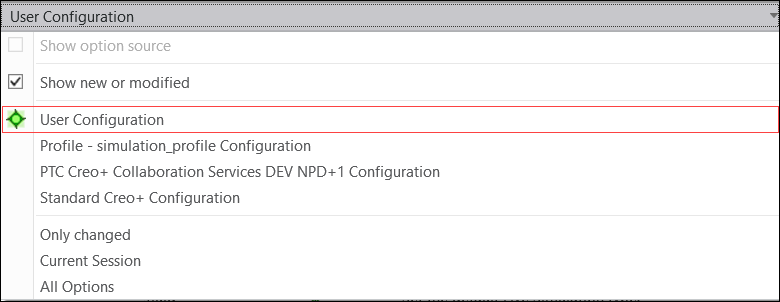
◦ Show new or modified—Displays newly added or modified configuration options that have not been saved.
◦ Only changed—Displays the changed but unsaved configuration options.
◦ Current Session—Displays all configuration options from the currently loaded profile and the options that you modified or added.
◦ All Options—Displays all available configuration options.
4. To change the value of a configuration option, click the corresponding value in the Value column and select a different value from the list, or type one.
 | • The default value is followed by an asterisk (*). • The status icon  indicates a change in value. indicates a change in value. |
5. To add a configuration option, do the following steps:
a. Click Add. The Options dialog box opens.
b. In the Option name box, type the option name.
c. In the Option value box, type or select a value.
d. Click OK. The Options dialog box closes. The configuration option and its value appear in the list. A green status icon confirms the change.
6. To find a configuration option and then add it, do the following steps:
a. Click Find. The Find Option dialog box opens.
b. In the Type keyword box type a search string.
c. To search options in a specific category or functional area, in the Look in list select a category.
d. To search for the string in the option descriptions, select the Search descriptions check box.
e. Click Find Now. Options that match the string or contain the string are listed under Choose option.
f. In the Choose option list, click an option.
g. In the Set value box, select a value from the list or type a different value.
h. Click Add/Change. The configuration option and its value appear in the list. A green status icon confirms the change.
i. Click Close. The Find Option dialog box closes.
7. Click Save All to save customizations as well as configuration option changes to the active profile. Click Save Only Customization to save only UI customizations to the active profile. Configuration option changes are applicable only to the current session.
Click Reset Configurations to erase all previously specified configurations for your personal profile.