啟動 Creo+
 即可檢視
即可檢視 2. 如果尚未登入,請使用您的組織帳戶從 PTC Control Center (https://creo.portal.ptc.com/creoplus/) 登入 Creo+ Portal。請注意,只有在您登入 Creo+ Portal 時才能執行 Creo+。
3. 從下列任何位置啟動 Creo+:
◦ Windows 開始選單 - 按一下  >
>
> ◦ PTC Control Center - 按一下以開啟 PTC Control Center。
4. 如果您是不同設定檔的成員,請選取適當的設定檔。
5. 按一下 「執行 Creo+」(Run Creo+) 以啟動 Creo+。
「執行 Creo+」(Run Creo+) 以啟動 Creo+。6. 在 Creo+ 工作階段開始後,您的名字首字母會顯示在 Creo+ 視窗的右上角。將指標暫留在名字首字母上可檢視使用者名稱、電子郵件地址及工作階段的使用中設定檔。
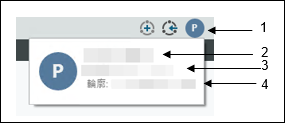
1. 使用者的名字首字母
2. 使用者的名字
3. 使用者的電子郵址
4. 工作階段的使用中設定檔
修改 Creo+ 桌面捷徑參數
您可以修改或新增從桌面捷徑啟動 Creo+ 時的 Creo+ 指令行參數。
在桌面捷徑 > 上按一下滑鼠右鍵,然後選取「內容」(Properties)。選取「捷徑」(Shortcut) 標籤。在「目標」(Target) 欄位中新增或修改下列參數。
> 上按一下滑鼠右鍵,然後選取「內容」(Properties)。選取「捷徑」(Shortcut) 標籤。在「目標」(Target) 欄位中新增或修改下列參數。• --run-app <CREO_UUID> - 執行由 UUID 指定的應用程式。
• --cwd <directory name> - 設定 Creo+ 的目前工作目錄。
• --profile <profile name> - 以指定設定檔啟動 Creo+。
• --no-error-msg - 隱藏設定檔錯誤訊息。
• --pid-info <file_name> - 將 PID 資訊輸出到指定檔案。
例如,如果您使用下列參數:
uisc.exe --run-app 01382eb7-0c8b-57b1-8a85-edfb68d1071c --profile manufacturing --no-error-msg。
Creo+ 會以名為 manufacturing 的設定檔啟動,並隱藏設定檔錯誤訊息。