Getting Started with Creo Assist (Beta) for Admins
An Advanced Creo AI Assistant license is required to access the Creo Assist (Beta) agent.
For the 13.4.0.0 release, the Creo Assist agent is offered as a closed Beta version and is available only to select participants. Creo Assist is planned to be available to all users in a later Creo 13 release. To participate in the Creo Assist (Beta) program, follow the instructions provided in the Creo community working group. The working group includes information about eligibility and other details necessary to register for the Beta program. This license applies to both Creo and Creo+ applications, and administrators must assign the licenses through the Creo or Creo+ portal.
Once your participation in the Beta program is confirmed, you will receive details from PTC. After PTC creates a new organization, you can invite users and assign the Advanced AI License.
Assigning the Advanced AI License to Creo Users
To assign Advanced AI License, perform the following steps:
1. Log in to the Creo portal.
2. Navigate to the License page in the portal.

3. Select the Advanced Creo AI Assistant entitlement and click Assign to Users.
4. In the Assign AI License to User dialog box, filter the list to display users without the entitlement, or view all active users.
5. Select one or more users, and then click Assign to assign licenses to the selected users.
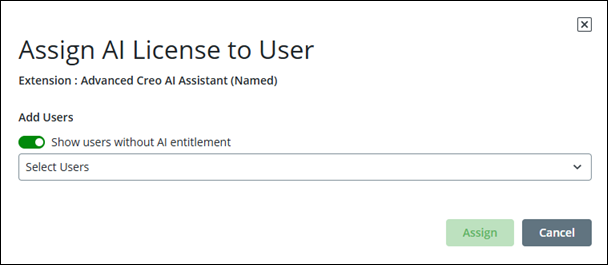
As an administrator, you can view users and assign Advanced AI licenses from the Creo Users page in the Creo portal. For more information, see Managing Users and Assigning Licenses .
Assigning the Advanced AI License to Creo+ Users
As an administrator, you can assign Advanced AI license to existing Creo+ users in your organization.
 | The Advanced AI license entitlement is a separate license from the Creo+ License to Run or other extension licenses. |
1. Log in to the Creo+ portal.
2. Navigate to the License page and click the AI tab.
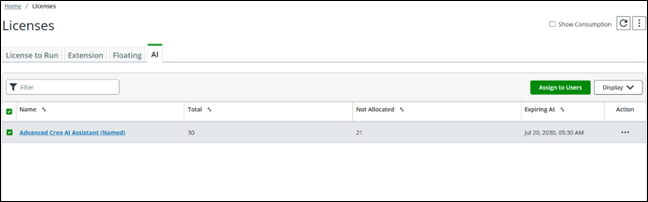
3. Select the Advanced Creo AI Assistant entitlement and click Assign to Users.

4. In the Assign AI License to User dialog box, filter the list to display users without the entitlement, or view all active users.
5. Select one or more users, and then click Assign to assign licenses to the selected users.
As an administrator, you can view users and assign Advanced AI licenses from the Creo+ Users page in the Creo+ portal. For more information, see Managing Users and Assigning Licenses .
Switching between Creo and Creo+ Portals
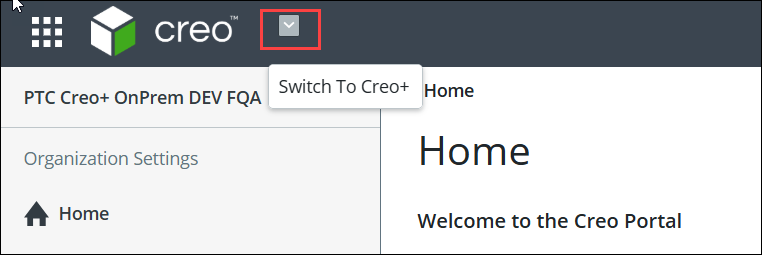
Administrators who manage both Creo and Creo+ applications can switch between the Creo and Creo+ portals using the application selection list at the top of the portal page.
Configuration Options for Allowing Model Design Changes by AI
To allow the AI assistant to modify the model design, you must set the following configuration options:
• ai_designate_flagged_changes—When the AI Assistant modifies a model, the system automatically creates the PTC_AI_AFFECTED parameter to track AI‑made changes in downstream applications.
Values:
◦ yes—Marks the parameter as Designated by default.
◦ no*—Keeps the parameter as Non-designated.
• ai_allow_modifications—Controls whether the AI Assistant can modify model data, based on model‑modification permissions.
Values:
◦ yes*—Allows the Creo AI Assistant to apply AI‑assisted modifications to models.
◦ no—Prevents AI-assisted modifications.