Investigate status inconsistencies
Creo Elements/Direct Model Manager notifies you when it notices an inconsistency between your session data and the data stored in the Creo Elements/Direct Manager Server database. The notification is displayed in a pop-up window near the lower right-hand corner of your screen and is logged in the Creo Elements/Direct Model Manager's Notifications tab.
Creo Elements/Direct Model Manager includes three actions to help you investigate an inconsistency.
• DB Properties - displays the DB Properties dialog.
• Highlight in Creo Elements/Direct Modeling - highlights the specific item with the conflict in Creo Elements/Direct Modeling. This is especially useful if there is an inconsistency for an item within a large assembly.
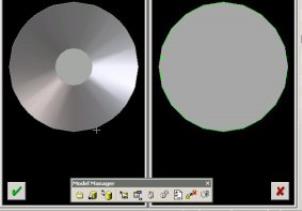
• Compare side-by-side - loads both versions of the item into separate Creo Elements/Direct Modeling viewports so you can see the differences.
To access the conflict investigation and resolution actions:
To access the conflict investigation and resolution actions from the Creo Elements/Direct Model Manager Workspace
1. Click the Notifications tab on the Workspace bar.
2. Right-click the notification and, in the shortcut menu, click either Highlight in Modeling or Compare side-by-side.
To resolve conflicts in Creo Elements/Direct Modeling, click > > .
Working with side-by-side viewports:
• To see which item in the Structure Browser is associated with a viewport, click somewhere in the viewport.
• To remove the model loaded for comparison from the Structure Browser, right-click the model and, in the shortcut menu, click Delete.
• To close the comparison viewport, click > > > . Alternatively, right-click the model and, in the shortcut menu, click > , or click  in the viewport window.
in the viewport window.• To refresh a viewport, click > > > . Alternatively, right-click the model and, in the shortcut menu, click > .
Resolution options:
The actions to resolve status inconsistencies are available from the same places as the investigation tools. The actions are:
• Assign new SysID to local model - Keeps both versions by giving the local model a new system ID.
• Replace local model with DB model - Updates the model you are currently using in Creo Elements/Direct Modeling with the one from the Creo Elements/Direct Manager Server database. Any changes you have made to your local model will be lost.
• Replace DB model with local model - Saves your local model in the Creo Elements/Direct Manager Server database. You may choose whether to overwrite the model in the database or create a new version.
 |
You must reload the model after a save that produced SysID conflicts to maintain the integrity of the Masterdata.
|