Start and stop Creo Elements/Direct Model Manager
To use Creo Elements/Direct Model Manager, you must have a Creo Elements/Direct Manager Server user name and password. If you don't know or don't have your user name and password, talk to the person in your department who normally handles these types of things, such as your IT department, administrator, or manager.
To start Creo Elements/Direct Model Manager
1. In the Start menu, click > > .
2. The Application Loader checks the version of Creo Elements/Direct Model Manager on your system.
◦ If this is the first time Creo Elements/Direct Model Manager is stared, you must enter the hostname of your Software Distribution Server. Your administrator will have this information.
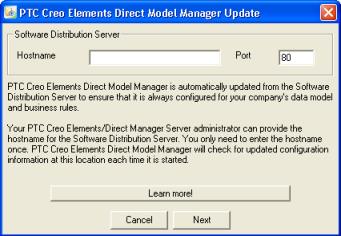
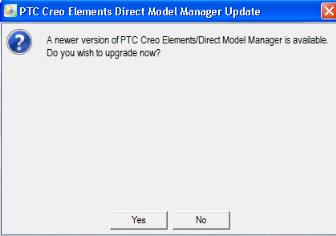
3. If a newer version of Creo Elements/Direct Model Manager is available. , The Creo Elements/Direct Model Manager Update dialog box opens. If it is an optional upgrade, select whether you want to upgrade or not.
4. The Creo Elements/Direct Model Manager login dialog box opens; type your User Name and Password, then click Ok.
Creo Elements/Direct Model Manager supports several windows at the same time. For multiple workspace windows, from the File menu, click > .
To stop Creo Elements/Direct Model Manager:
1. Click > .