Deploy XML customizations
It is no longer necessary to rebuild the Creo Elements/Direct Model Manager installer to deploy an XML change to your users. You can create the XML file, test it locally, and copy it to the Software Distribution Server directory structure. It then automatically deploys to all of your users.
This example deploys a simple change to a custom XML file.
1. Start Creo Elements/Direct Model Manager, either the standalone version or the Creo Elements/Direct Modeling module. If given a choice of configuration files, choose the one you used in the XML customization lab (usually acme).
2. Select a model in your Workspace. Right-click and choose > . Check the order of the attributes.
◦ If the Major Rev and Minor Rev attributes are listed first, change the values in the <Index> tags so the Minor Rev has a smaller number than the Major Rev. It should be first in the list.
◦ If the attributes are ordered alphabetically, you need to add the <Index> customizations to your XML file.
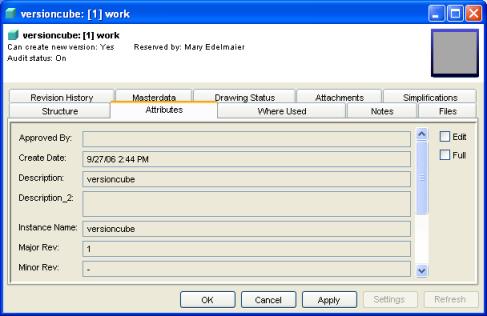
3. Stop Creo Elements/Direct Model Manager.
4. Edit your configuration file.
a. Open your acme.xml file in a text editor, such as Notepad. (If you don't have an acme.xml file, change the name of your custom.xml file to acme.xml and edit it.)
b. Click this link, which will open a sample file with text you can paste into your acme.xml file.
c. If you have class definitions for MODEL_3D and/or me_model, replace them with the definitions in the sample file. If you do not have class definitions for MODEL_3D and/or me_model, insert the class definitions from the sample file into the <ClassDefs> section of your acme.xml file.
5. Copy your acme.xml file to C:\Program Files\PTC\Creo Elements\Direct Manager Server 20.8\config.
6. Test your customization by restarting Creo Elements/Direct Model Manager.
7. Select acme in the Model Manager Standalone Login dialog.

8. Right-click a model and choose > . Minor Rev should now be first.

9. To deploy this change to your users, copy the modified acme.xml file to C:\Program Files\PTC\Creo Elements\Direct Manager Server 20.8\config on your Software Distribution Server. Anyone using the existing acme.xml file is prompted to restart Creo Elements/Direct Model Manager.