Creating Symmetric Elements
The SYM LINE command lets you create elements that are:
• Symmetric with existing elements
• Associated (or anchored) to the defining elements.
When you modify the defining elements, the associated element is modified accordingly.
To draw an associated element:
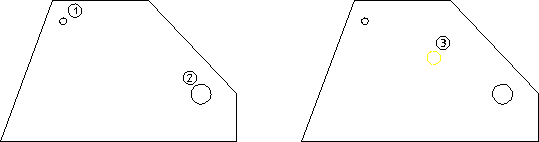
1. Draw a polygon similar to that shown in Figure 47.
2. Create circle 1 having diameter 1 mm.
3. Create circle 2 having diameter 3 mm.
4. Pick SYM LINE in CREATE 1.
5. Pick circle at point 1.
6. Pick circle at point 2.
Creo Elements/Direct Drafting draws the associated circle (point 3) that is:
• Midway between circles 1 and 2.
• Is 2 mm in diameter (half the sum of the defining diameters).
Associated Symmetric Elements
Use Chg SymLin to change the position of the centerline.
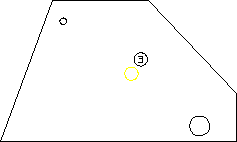
Now try moving the circle at position 2 and notice how the associated element also moves.
Effect of Moving the Defining Circle
The following figure: Finding Lines of Symmetry shows another example of where to use the SYM LINE command.
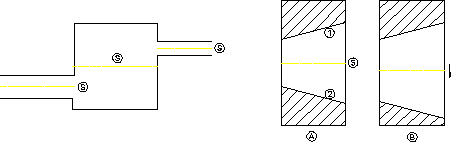
Finding Lines of Symmetry